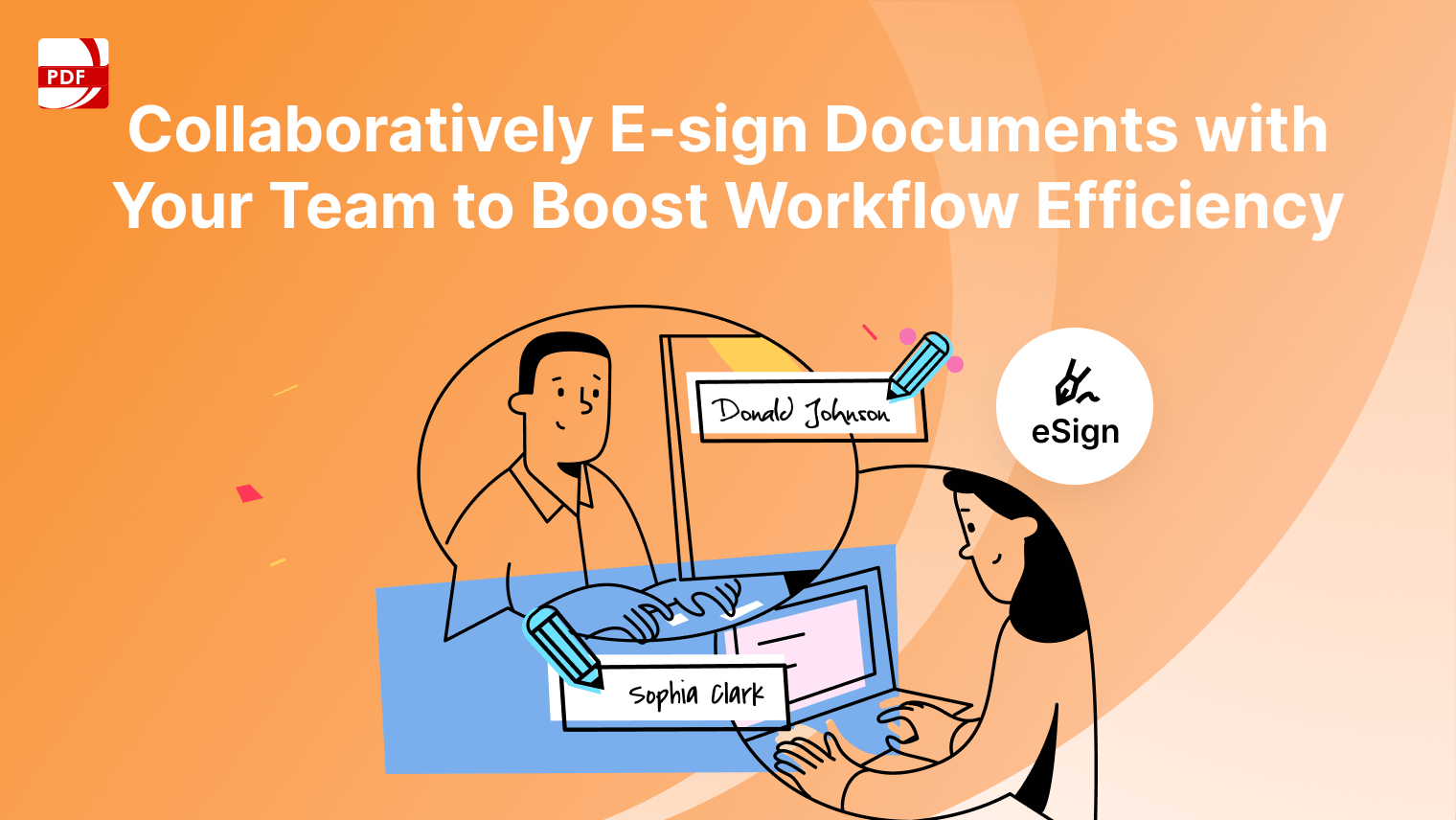
Our team has compiled a list of recommended free signature generators for you to compare.
See our other blog about how to sign and send documents via email for more ways to share your PDF after signing.
Top Free Signature Generator Applications
Find the free signature generator that works best for your needs by comparing our recommended applications below.
| Application | Platform | Signature Methods | Best For / Limitations |
|
ComPDF Web Demo |
Web-based | Draw with trackpad, Type with keyboard or Upload your signature | Creating secure digital signatures / full access to other tools is limited without subscription |
|
Sejda PDF Editor |
Web-based, Desktop available (limited) | Type, draw, or upload an image of your signature | Quick in-browser signing with extras / 3 tasks/hour, 50MB file size |
| Smallpdf Sign Tool | Web-based | Draw or upload your signature | Casual users who need a clean UI / Limited daily tasks unless upgraded |
| SignWell | Web-based | Type, draw, or upload your signature | Low-volume legal document workflows / 1 sender, 3 docs/month |
For those searching for a more reliable option that will guarantee the security of your signature offline, PDF Reader Pro for Windows, Mac, iOS, or Android is a great option:
How to Process Paperwork with a Free Signature Generator
Follow the steps below your chosen free signature generator to get started.
Using ComPDF Web Demo
Step 1: Open the Online Interface
Click the three dots on the top right corner to “Open File”.
Step 2: Choose “Signatures” from the Drop-Down
Click “Signatures” on the left as well for a detailed manual.
Step 3: Choose Your Signature Type
Create your signature using your keyboard, trackpad or a template font.
Step 4: Click to Place Your Signature
Click the three dots again to save or share your PDF.
Using Sejda PDF Editor
Step 1: Open Your Document
Click “Upload PDF File” or drag and drop the document into the box.
Step 2: Click “Sign” on the Menu
Choose “New Signature” to create one.
Step 3: Choose Your Signature Method
Click to place your signature. Move it into place as necessary and save or share your document.
Using Smallpdf Sign Tool
Step 1: Open Your PDF
Click “Choose Files” or drag and drop your file into the box.
Step 2: Choose “Sign Myself”
Click “Sign” on the main menu and select “New Signature”
Step 3: Draw, Type or Upload a Signature
Click to place the signature in the document field.
Using SignWell
Step 1: Open the Online Interface
Upload your document by clicking to access your file or dragging and dropping.
Step 2: Choose Your Signature Type
Choose between “Draw” or “Type” signature.
Step 3: Click "Save"
Choose "Share" to download or send the document to others.
Expert Tips for Signing Security
Take note of these expert tips before you sign any official documents:
- Always Sign a Final Version: Signing documents that are still in draft status opens the door to manipulating your intended agreement.
- Flatten Your PDF: After applying your signature, use a tool that allows you to "flatten" it, embedding the signature into the document as a non-editable image.
- Use Passwords for Shared Documents: Use secure document-sharing tools that allow password protection (tools like PDF Reader Pro with advanced encryption).
- Confirm Genuine Signature Requests: Always verify the source of any request to sign a document electronically.
- Keep Your Signed Copy: Save a secure copy of the completed document for your records to confirm the authenticity.