Scanned PDFs are part of everyday work and study. From signed contracts and invoices to textbooks, reports, and handwritten notes, a huge number of important documents still exist as scanned files.
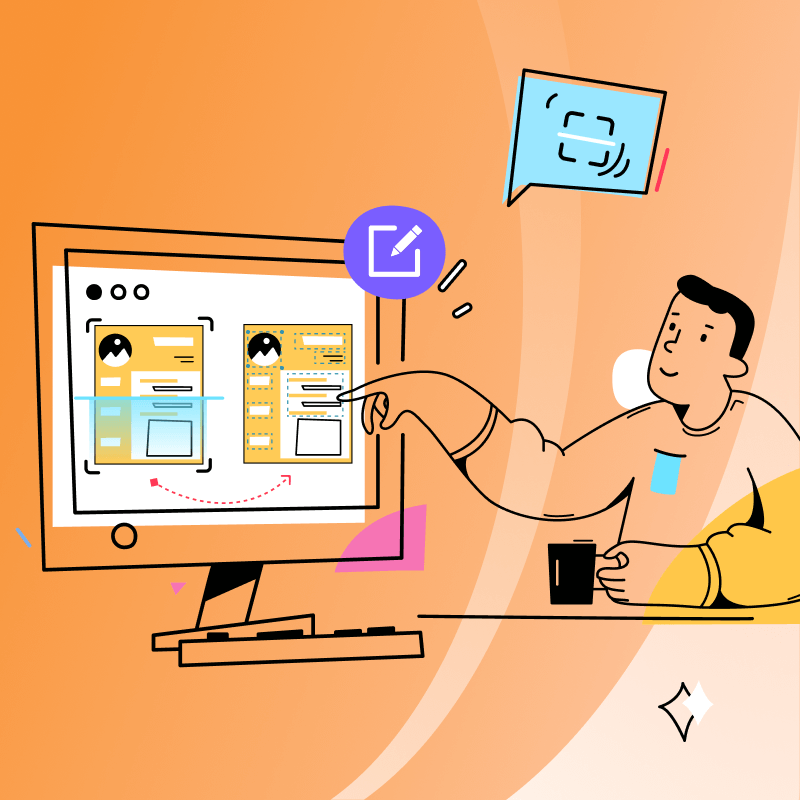
The problem? Most scanned PDFs are image-based. You can’t select text, copy content, or make real edits. They look like PDFs, but function more like static images.
That’s exactly why editing scanned documents has long been a frustrating task — until now.
With the latest version 5.2.5, PDF Reader Pro introduces the new Scanned Document Editing feature, designed to turn scanned PDFs into fully editable, high-quality documents in just a few clicks.

All-in-One Scanned PDF Editor
Unlike traditional tools that only “recognize” text, PDF Reader Pro offers a complete scanned PDF editing workflow — from extraction and conversion to enhancement and real editing.
1. Extract Text from PDF Selection Instantly
Sometimes you don’t need to convert the whole file, you just want to grab a paragraph, a table, or a specific section. With Extract Text from Selection, you can:
-
Select any area in a scanned PDF
-
Instantly extract readable text
-
Copy and reuse it in other documents
No full-page conversion required. Perfect for quick data reuse.
2. Convert Scanned PDF to Editable PDF in One Click
Still convert scanned PDF to Word just for editing a small text mistake? No need for such trouble anymore. With Convert to Editable PDF, PDF Reader Pro:
-
Accurately recognizes text in scanned documents
-
Preserves original layout and formatting
-
Keeps paragraphs, spacing, and structure intact
The result is not just searchable text, but a truly editable PDF that behaves like a normal document. You can directly modify text, adjust layout, and add content.
3. Image Enhancement & Correction for Better Applicability
Low-quality scans often mean blurry text, skewed pages, or poor contrast. The Image Enhancement & Correction tools help you:
-
Fix skewed or rotated pages
-
Improve contrast and sharpness
-
Enhance overall image clarity
This makes scanned PDFs easier to read, easier to recognize, and more suitable for sharing, archiving, or printing.
Why PDF Reader Pro Is Different & How to Use
Many tools can recognize text in scanned PDFs. But recognition alone doesn’t guarantee real editability.
PDF Reader Pro stands out in three key ways:
✅High-Accuracy Text Recognition – Accurately detects characters even in complex or low-quality scans, reducing manual correction after conversion.
✅ Intelligent Layout Analysis – Automatically distinguishes text, images, and tables while preserving structure, spacing, and formatting for truly editable results.
✅ Support for 100+ Languages – Handles multilingual scanned documents with reliable OCR performance across global use cases.
Most tools stop at recognition. PDF Reader Pro goes all the way to real editing. You don’t need multiple tools, file conversions, or external platforms. Everything happens inside one app.
If you’re looking for a detailed tutorial, check out our full guide here: How to Edit a Scanned PDF
Real Scenarios to Edit Scanned PDF More Efficiently
Here’s how Scanned Document Editing fits into real workflows:
🌟Editing Scanned Contracts
Modify clauses, update names, or fix terms without recreating documents from scratch.
🌟Extracting Data from Reports
Pull text from scanned financial or research reports for analysis and reuse.
🌟Cleaning Up Textbooks
Enhance blurry pages, correct alignment, and make old study materials readable again.
🌟Preparing Scanned PDFs for Sharing
Improve quality before sending files to clients, colleagues, or students.
Turn paper files into searchable, editable, and well-organized digital records.
Conclusion: Turn Scanned PDFs into Real Documents
With PDF Reader Pro, scanned documents are no longer read-only. You can extract text, convert scanned PDFs into editable files, enhance image quality, and finally treat scanned documents like real PDFs.
Discover the new Scanned Document Editing feature in PDF Reader Pro version 5.2.5 now — and make scanned PDFs truly editable!
 Free Download
  Free Download