


Finding the word or phrase you're looking for when searching for text in a PDF can be quite challenging and can even take a lot of time. Here, PDF Reader Pro's user-friendly interface and robust search capabilities can help to make your search procedure simple and tangible.
PDF Reader Pro streamlines the process further by offering advanced search options, ensuring a seamless and efficient text-finding experience within your PDF documents.

How to Search for Text in a PDF on Windows
Locate information quickly and efficiently. Discover the convenience and functionality that PDF Reader Pro brings to your PDF viewing and editing tasks.
Step1: Open PDF File:
- Launch PDF Reader Pro on your Windows computer.
- Open the PDF file in which you want to search for text.
 Free Download
  Free Download
Step 2: Access Search Function:
- Look for the search or magnifying glass icon on the toolbar. Click on it to access the search functionality.
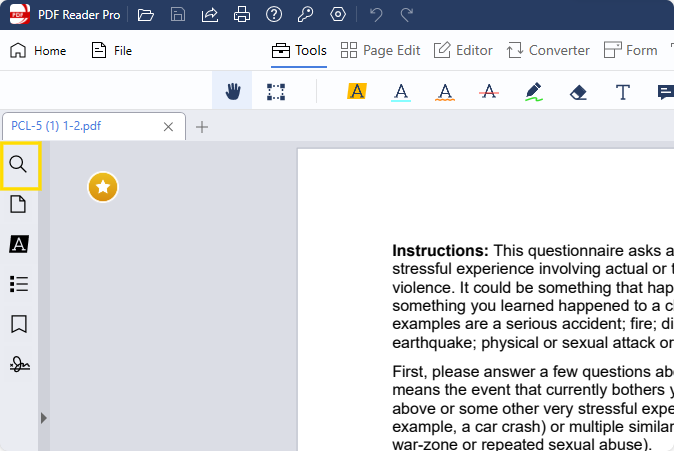
Step 3: Enter Search Text:
- A search box will appear; type the word or phrase you are looking for into this search box.

Step 4: Initiate Search:
- Press Enter on your keyboard or click the "Search" button to start the search process.
Step 5: Review Search Results:
- The search results will be displayed, typically in a side panel or a pop-up window, showing a list of occurrences of the searched text.

Step 6: Navigate to Results:
- Click on a search result from the list to navigate to the page where the selected text is located.
How to Search for Text in a PDF on Mac
We'll go through the efficient methods available in PDF Reader Pro to search for specific text within your documents, making your navigation and information retrieval process smooth and convenient.
Step 1: Open a PDF file using PDF Reader Pro Mac.
- Launch the PDF Reader Pro Mac application on your computer.
- Use the "File" menu or drag-and-drop to open the PDF file you want to search within.

Navigate, edit, and convert PDFs
like a Pro with PDF Reader Pro

Easily customize PDFs: Edit text, images,
pages, and annotations with ease.
Advanced PDF conversion: Supports
multi-format document processing with OCR.
Seamless workflow on Mac, Windows, iOS,
and Android.
 DOWNLOAD NOW
Step 2: Navigate to the toolbar and locate the search box on the right side.
- Once the PDF file is open, look for the toolbar at the top of the application window.
- Locate the search box on the right side of the toolbar. This is where you will input your search query.
Step 3: Type the desired word or phrase into the search box.
- Click on the search box to activate it.
- Enter the word or phrase you are looking for into the search box. This is the text you want to find within the PDF document.

Image Source: PDF Reader Pro
Step 4: Press Enter on your keyboard.
- After entering the search query, press the "Enter" key on your keyboard.
- The PDF Reader Pro Mac application will initiate the search process and locate instances of the entered text within the document.
Step 5: The search results list will appear in the search side panel, organized by page order.
- Select the desired word or phrase in the search side panel to jump to the page containing the selected content.

Image Source: PDF Reader Pro
How to Search a Scanned PDF?
Searching within scanned PDFs becomes seamless with the Optical Character Recognition (OCR) capabilities in PDF Reader Pro.
PDF Reader Pro's OCR feature transforms images of text in scanned PDFs into searchable and selectable content. By activating OCR, the application recognizes and extracts text, allowing you to perform text searches within scanned documents.
Here's a straightforward process and three essential steps to efficiently search for text in your scanned documents:
Step 1: Locate the OCR function
Look for OCR options in the toolbar or menu and activate OCR to enable text recognition within the scanned document. Now you can convert you scanned document into a searchable content.
Step 2: Copy the text
Save the converted text as a PDF and open it in PDF Reader Pro.
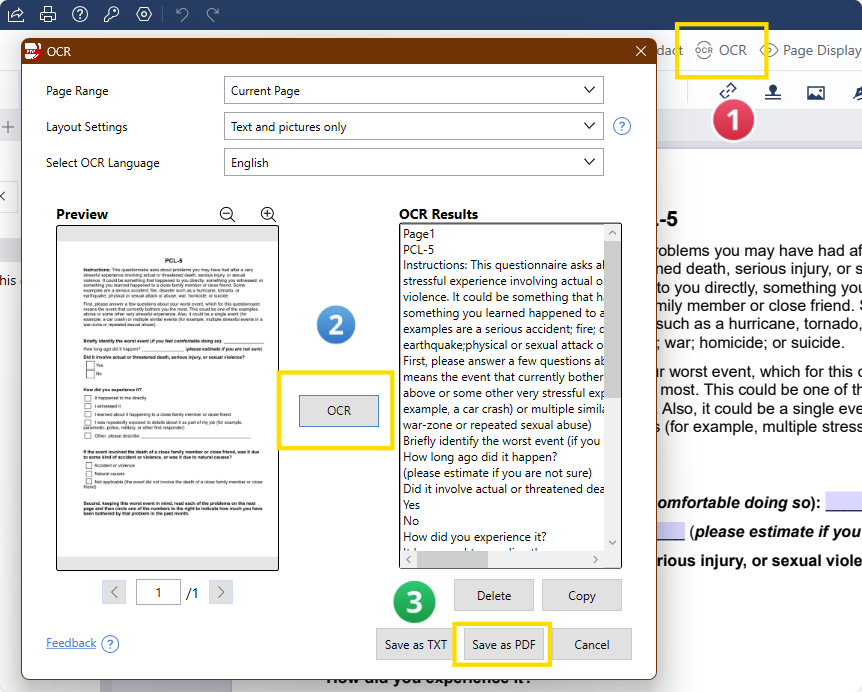
Step 3: Perform Text Search
Navigate to the search box in the toolbar and enter the desired word or phrase for the search.

Best Practices for Text Finding in PDF Reader Pro
Use Clear and Specific Search Terms
Opt for precise and relevant search terms to narrow down results. Clear and specific queries increase the accuracy of the text finder.
Activate OCR for Scanned PDFs
When dealing with scanned PDFs, activate the Optical Character Recognition (OCR) feature before initiating a search. This ensures accurate text extraction from image-based documents.