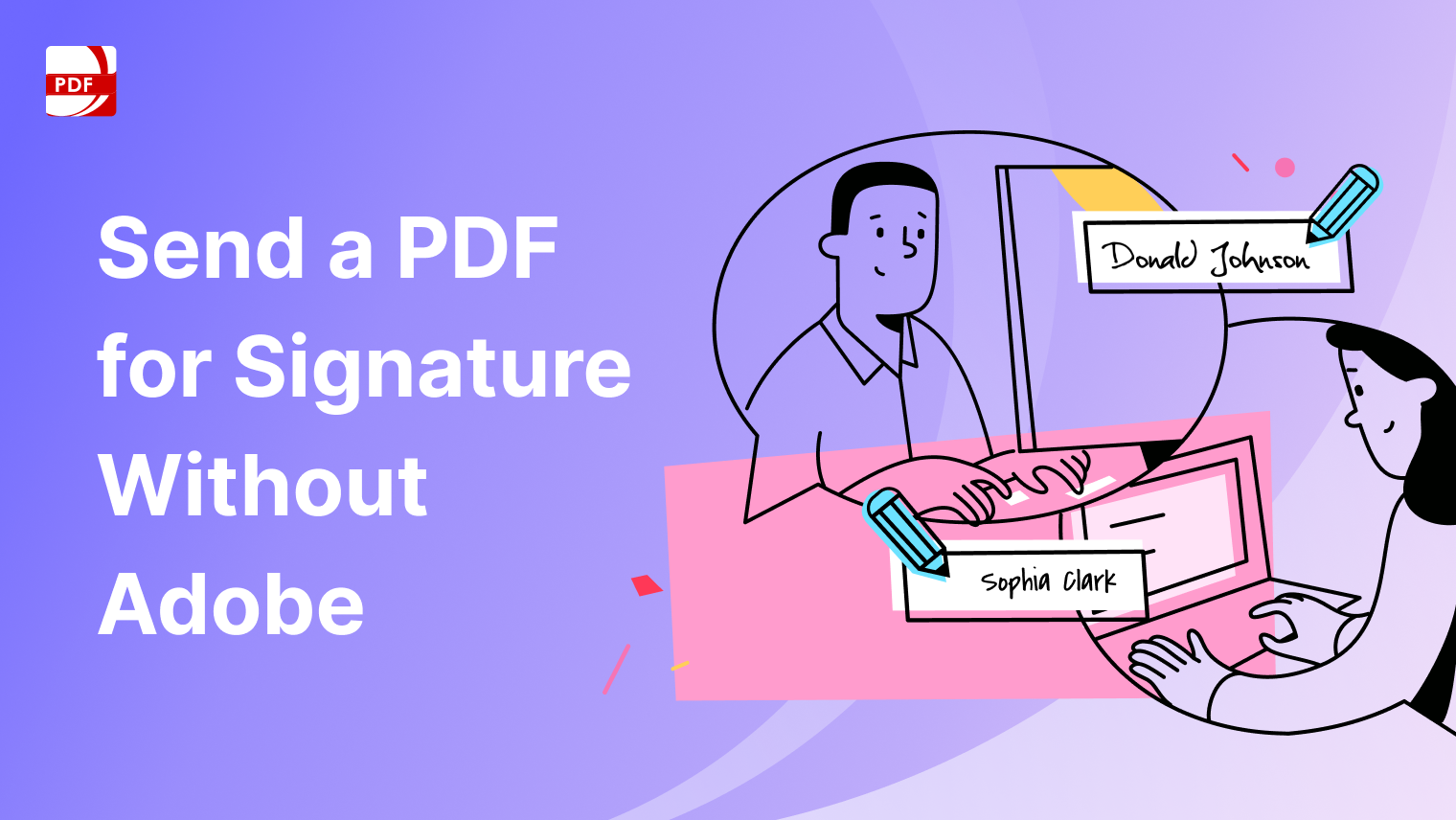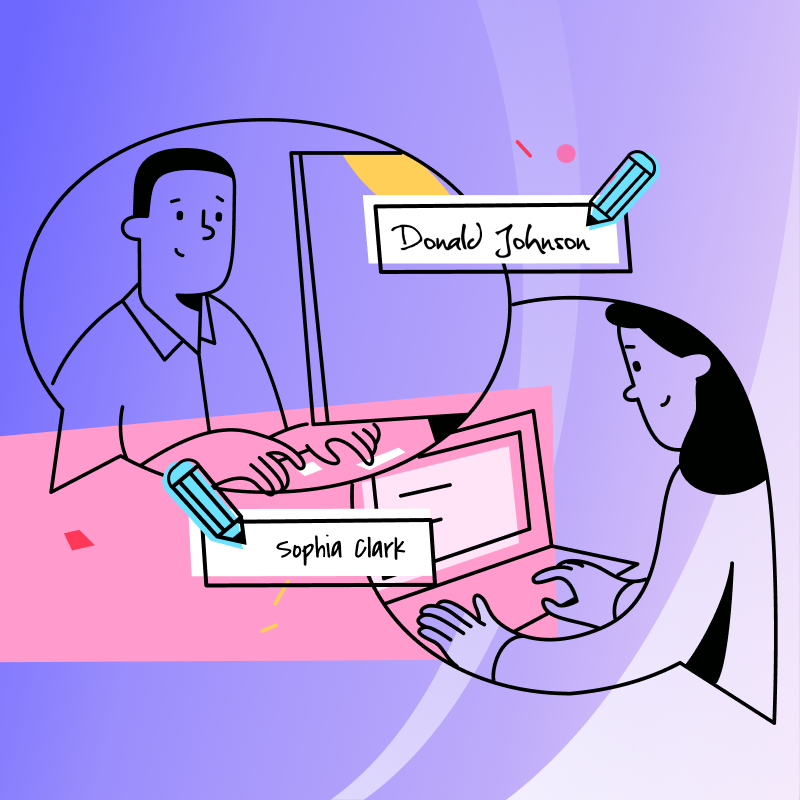
Teams rarely struggle with one signature. They struggle with the full chain around it: someone sends the wrong version, one signer is missing, reminders happen too late, and nobody has a clear view of status. That is why many teams searching how to send a PDF for signature are actually searching for a better operating model, not just a different button to click.
If you want to send a PDF for signature without Adobe, the most practical path is a workflow that covers the full lifecycle in one place: final file control, signer assignment, signing order, deadline settings, and real-time tracking. This is especially important for HR approvals, sales agreements, procurement forms, and cross-functional documents where delays compound quickly.
For recurring business use, the goal is consistency: fewer handoffs, fewer follow-up emails, and a clean audit trail from send to completion. The sections below focus on what works in real teams, including how to prevent the common process gaps that slow signatures down.
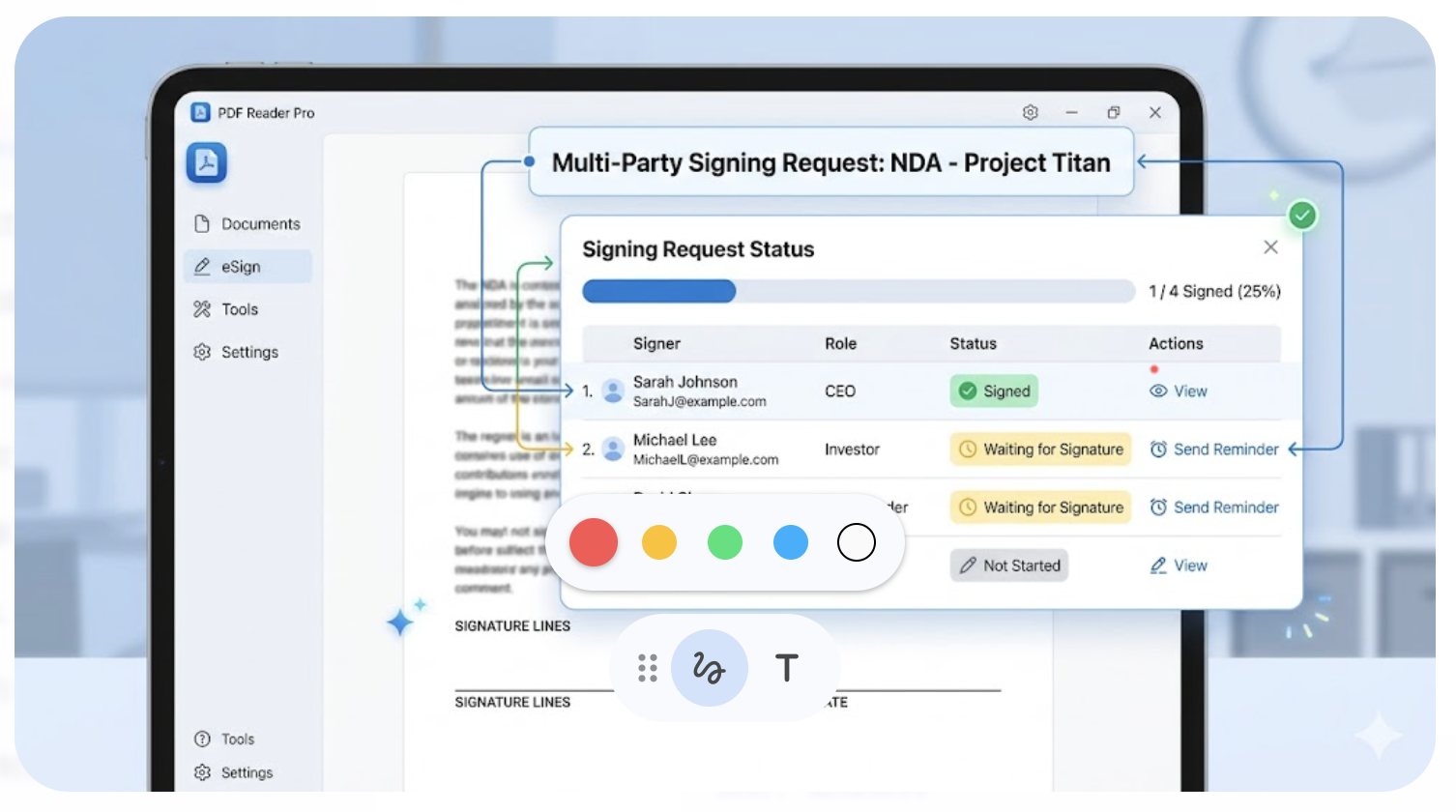
Key Takeaways
- Signature speed depends more on process discipline than on one feature.
- The most reliable workflow includes file control, signer order, reminders, and tracking.
- Teams with recurring approvals should optimize for repeatability, not one-off convenience.
Why Teams Look for a Faster Adobe Alternative
Most teams looking for an alternative are not trying to reinvent their process. They are trying to make it practical.
What they typically need is simple:
- A cleaner way to handle multiple signers
- Visibility into who has signed and who has not
- A process colleagues can follow without training
- A cost structure that scales for routine use
The key shift is from "How do I sign this file?" to "How do we run signing as a repeatable workflow?" Teams evaluating an Adobe Acrobat alternative are usually asking that second question.
What to Prepare Before Sending a PDF for Signature
Preparation is where most delays are prevented. Before sending, confirm four things:
1. Final document only
- Do not send drafts.
- Lock names, dates, and terms first.
2. Correct signer list
- Separate signers from recipients who only need a copy.
3. Signing sequence
- Use sequential signing for approvals.
- Use parallel signing when speed matters more.
- Add an expiration date and reminders.
These basics reduce follow-up effort more than any feature toggle.
How to Send a PDF for Signature: A Step-by-Step Team Workflow
Instead of treating signing as a one-time task, use a role-based flow that mirrors how teams actually work.
Typical ownership in a small or mid-sized team:
- Document owner: prepares final file and deadline
- Internal approver: validates business terms
- External signer(s): completes signature actions
- Workflow owner: monitors status and sends reminders
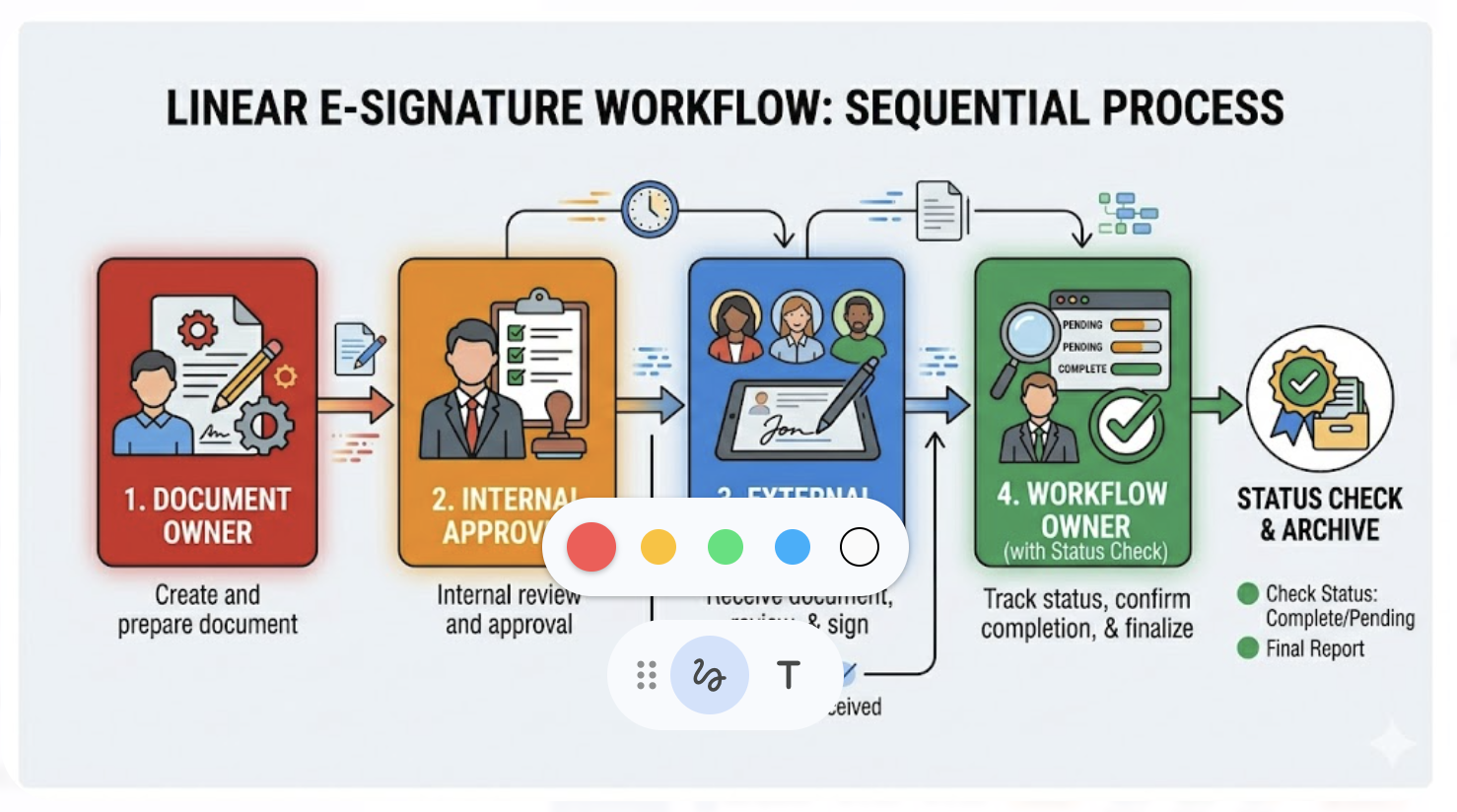
Use the process below as your default operating sequence.
1) Upload the final PDF
Start with the approved version only. If the same document is used regularly, save it as a reusable template.
2) Add recipients and roles
Include every signer from the start. For cross-functional documents, that usually means legal, approver, and final signatory.
3) Set signing order
If approvals must happen in sequence, enforce order. If all signers can sign independently, parallel flow will close faster.
4) Assign fields correctly
Place signature, date, and required text fields for each signer. Most delays happen when fields are missing or assigned to the wrong person.
5) Send with context and due date
Add a short message with purpose, required action, and deadline. Requests with clear context consistently close faster.
6) Track status and intervene early
Use a single status view for pending, completed, and overdue requests. Trigger reminders before the due date, and escalate only where needed.
Example: HR Offer Letter Flow
To make this concrete, here is a common workflow pattern:
- HR uploads the final offer letter and sets a 3-day deadline.
- The hiring manager is added as the first reviewer.
- The candidate is added as final signer.
- HR monitors status and sends an automatic reminder after 48 hours.
- Signed copy is stored with timestamped completion records.
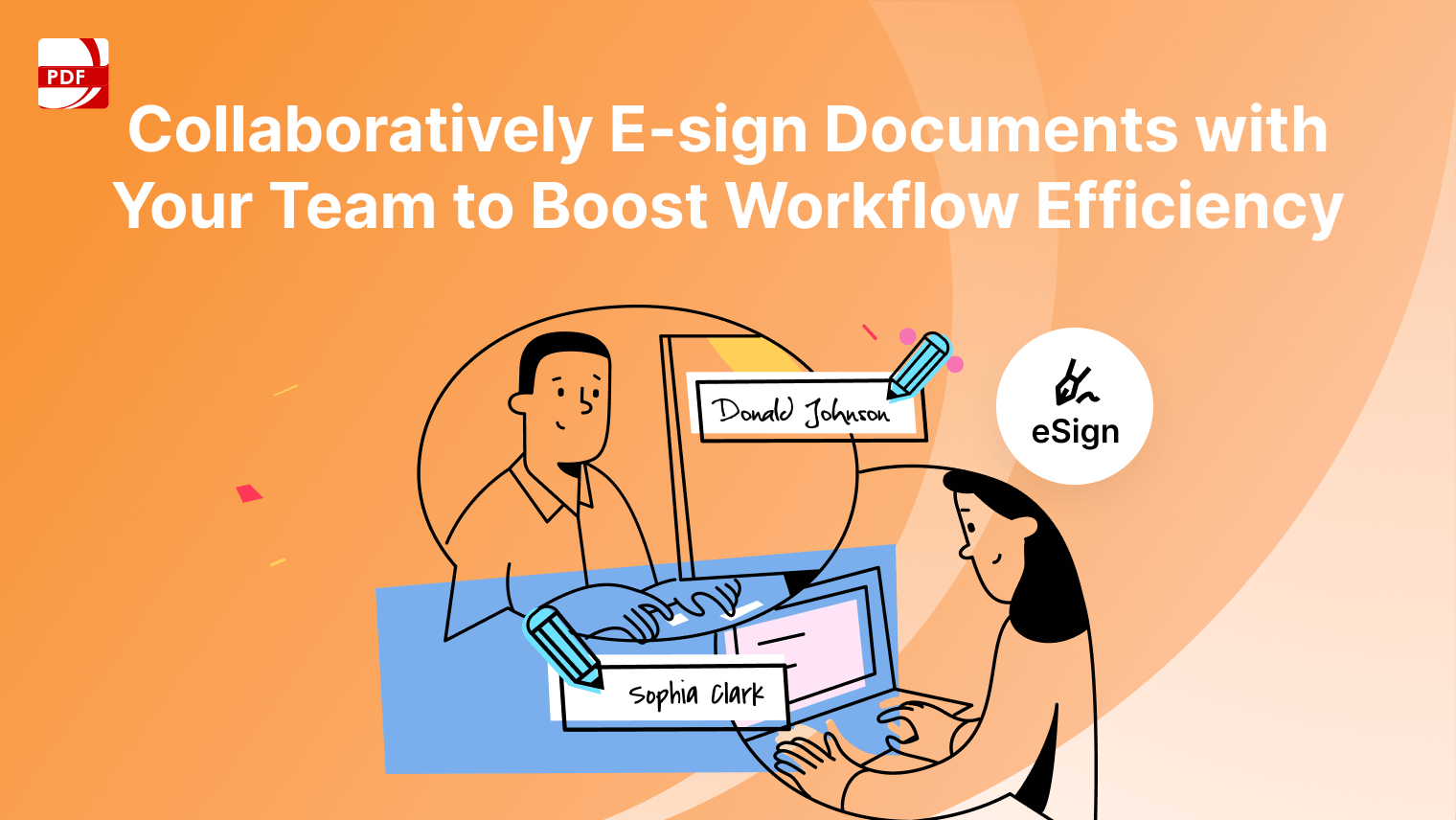
This is simple, but it removes the usual bottlenecks: missing signers, unclear ownership, and late follow-ups. For a deeper look at multi-party signing patterns, see Collaboratively E-sign Documents with Your Team.
What to Look for in a Team-Friendly eSignature Workflow
If your team signs frequently, evaluate tools against workflow quality, not just signature placement.
Minimum requirements:
- Multi-signer support with order control
- Real-time status tracking
- Cross-platform access across desktop and mobile
- Security features with auditable actions
- Template support for recurring requests
PDF Reader Pro vs Adobe for Everyday Signature Workflows
 Free Download
 Free Download
PDF Reader Pro eSign: A Practical Option for Remote Teams
For teams that need consistent execution, eSign PDF in PDF Reader Pro focuses on operational essentials:
- Bulk sending for multi-party documents
- Signing order for approval chains
- Real-time progress visibility
- Cross-platform access across Mac, Windows, iOS, and Android
- Security-oriented workflow with auditable activity.
Common Mistakes That Slow Signature Completion
Even strong tools fail under weak process habits. The most common issues are:
- Sending unfinished versions
- Forgetting one required signer
- Misassigned fields
- No deadline or reminder plan
- Managing status through separate email threads
Treat signing as an operational flow, not a one-time task, and completion speed improves quickly.
FAQs About Sending PDFs for Signature
1. How do I send a PDF for signature without Adobe Acrobat?
Use an eSignature workflow that supports signer assignment, order control, and status tracking in one place.
2. Can multiple people sign the same PDF in sequence?
Yes. A sequential flow routes the document to each signer in predefined order.
3. Is an electronically signed PDF legally valid?
In many jurisdictions, yes, when signer intent, identity evidence, and auditability are properly recorded.
4. What is the fastest way to track pending signatures?
Use a centralized dashboard with automated reminders rather than manual email follow-ups.
5. Can I send and sign documents from mobile devices?
Yes. A cross-platform workflow lets users send from desktop and complete signatures on mobile when needed.
Choosing the Right Signature Workflow
If your team sends documents occasionally, almost any signing tool can work. If your team sends documents continuously, process quality matters more than brand familiarity.
For teams that want a faster, clearer, and more affordable signature workflow, PDF Reader Pro eSign is a practical way to standardize how documents are sent, signed, and tracked.