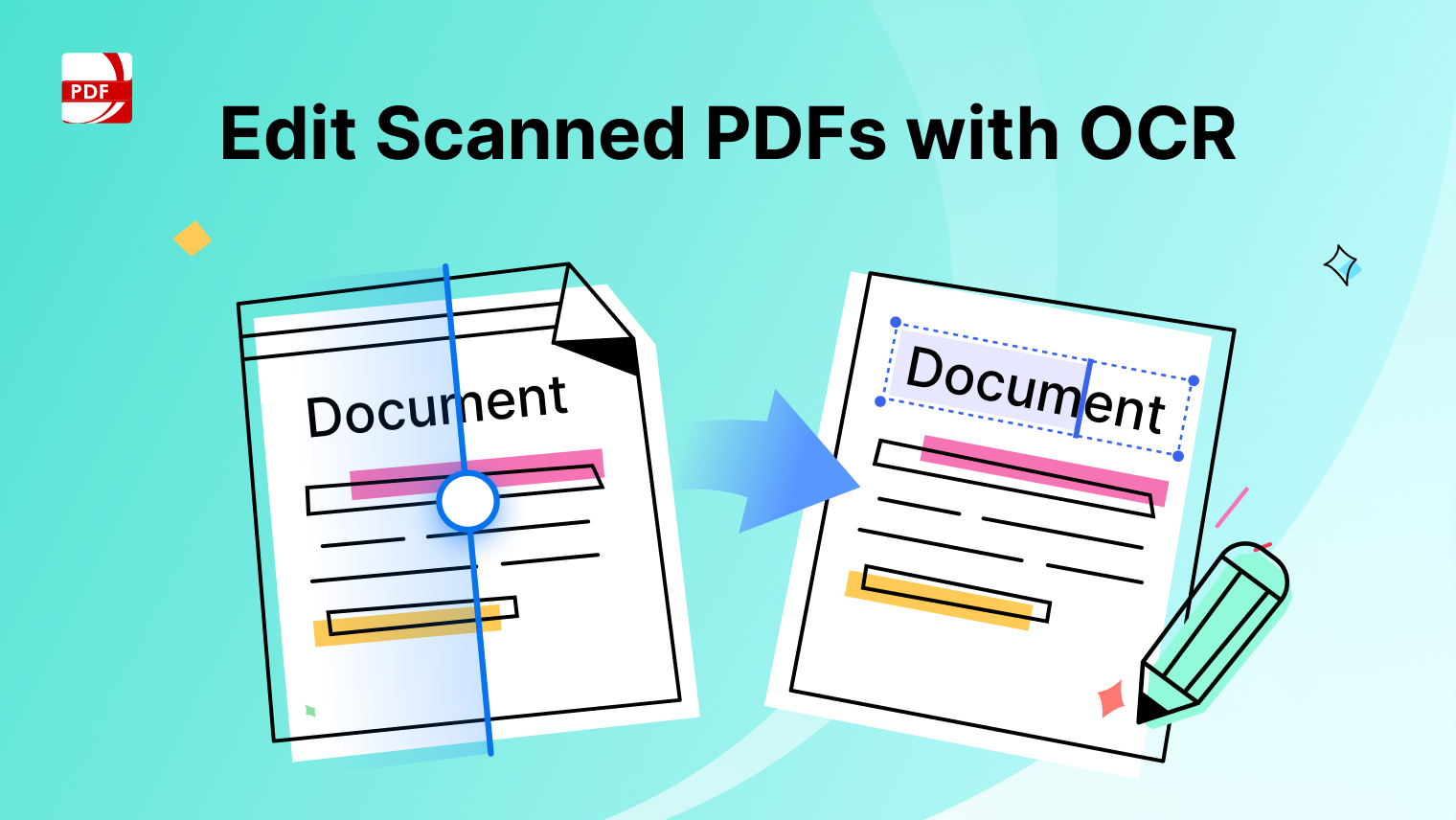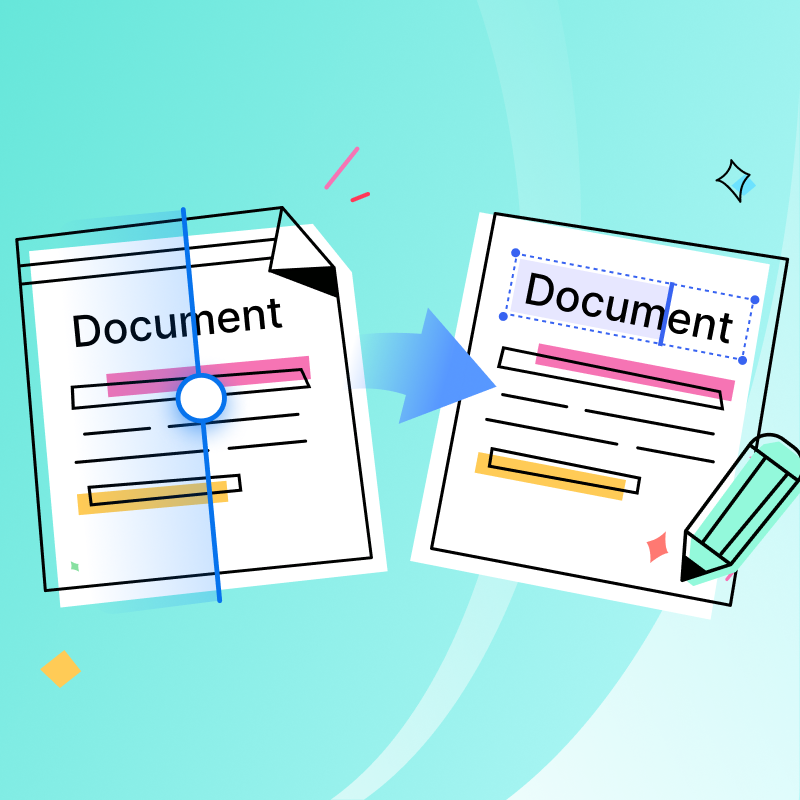
Editing a scanned PDF is not difficult because OCR is complicated. It is difficult because most teams are solving the wrong problem. They focus on recognition only, then realize too late that the output is searchable but still hard to edit. In real business work, that gap creates rework: contracts lose structure, invoice fields need manual correction, and reports require cleanup before reuse.
The practical goal is not just text detection. It is producing an editable file that preserves layout and can move directly into your workflow. For contracts, that means stable clauses and numbering. For invoices, accurate field extraction. For reports, reusable content without rebuilding the document from scratch.
If your team handles scanned files regularly, a better OCR process should reduce both editing time and quality risk. The sections below focus on exactly that: what to check first, what sequence works, and where most teams lose time.

Key Takeaways
- OCR success should be measured by editability, not recognition alone.
- Scan enhancement before OCR improves downstream accuracy.
- Contracts, invoices, and reports require different OCR priorities.
Why Scanned PDFs Are Hard to Edit
Most scanned PDFs are effectively pictures of documents. They look familiar, but editing them is difficult because the content is not stored as live text.
That creates common friction:
Without a structured OCR workflow, teams often retype content, which wastes time and introduces avoidable errors.
What OCR Actually Does for Contracts, Invoices, and Reports
OCR is often described as one action, but there are two outcomes to evaluate:
- Recognition: the system detects characters and text zones.
- Editability: the output behaves like a normal, editable PDF.
A document can be searchable and still difficult to edit. If your workflow includes revisions, redlining, or field updates, editable output quality is the deciding factor. For a practical walkthrough, refer to How to Edit a Scanned Document.
How to Edit a Scanned PDF Step by Step
Use this process when document quality and speed both matter.
1) Inspect scan quality first
Check for skewed pages, blur, low contrast, and background noise. Weak source quality reduces OCR accuracy immediately.
2) Enhance the scan
Apply correction before recognition. Improving clarity first usually produces better text capture and fewer downstream fixes.
3) Choose full-page or selective OCR
Use full-page OCR when you need full conversion. Use selective OCR when only part of the document needs extraction or reuse.
4) Convert to an editable PDF
Generate output that keeps structure intact, including paragraph flow, spacing, and tables.
5) Validate output quality
Review headings, legal numbering, totals, and special characters before editing the final file.
6) Edit and reuse
Apply your changes directly in PDF, then export only if your downstream process requires a different format. To see this process in a scenario format, the article Edit Scanned PDF with PDF Reader Pro covers the same sequence with additional examples.
 Free Download
  Free Download
What Changes Across Contracts, Invoices, and Reports
Different document types require different OCR priorities.
Contracts
Contracts demand structure integrity. Clause numbering, references, and paragraph hierarchy must remain stable after conversion.
Invoices
Invoices are field-sensitive. The priority is extracting key values accurately, such as totals, dates, vendor names, and line details.
Reports
Reports often combine text blocks, lists, and mixed formatting. Teams usually need both content reuse and layout continuity.
When You Need Selective OCR Instead of Full-Page OCR
Why PDF Reader Pro Works Well for OCR-Based Editing
- Convert scanned pages into editable PDFs
- Extract text from selected regions
- Improve scan quality before OCR
- Preserve layout for working documents
- Support multilingual recognition for global files
Common Problems With Scanned PDFs and How to Fix Them
-
Improve source quality before rerunning OCR.
-
Verify language settings match document language.
-
Use selective OCR for noisy or complex sections.
-
Confirm output is editable, not only searchable.
Most failures come from input quality or workflow sequencing, not from OCR alone.
FAQs About Editing Scanned PDFs
1. How do I edit a scanned PDF without retyping everything?
Use OCR plus editable conversion. Recognition by itself may create searchable text but not a truly editable file.
2. Can OCR preserve a contract's formatting?
It can, especially when scan quality is improved before OCR and output is reviewed before final edits.
3. What is the fastest way to extract text from a scanned invoice?
Use selective OCR on high-value fields instead of converting the entire file when speed is the priority.
4. Why is my file still hard to edit after OCR?
Common causes are poor source scans, wrong language settings, or output that was indexed for search but not rebuilt for editing.
5. Can I OCR only part of a page?
Yes. Area-based OCR is effective when only specific clauses, tables, or field blocks are needed.
Building a Reliable OCR Workflow
For contracts, invoices, and reports, OCR should be treated as a structured workflow, not a quick workaround. The highest-value process combines scan enhancement, recognition, editable conversion, and quality validation.
If your team handles scanned documents regularly, PDF Reader Pro offers a practical path from image-based files to usable, editable business documents.