Document Q&A
 Report Generation
 Data Extraction
 Document Translation
 Contract Review
 Security & Compliance

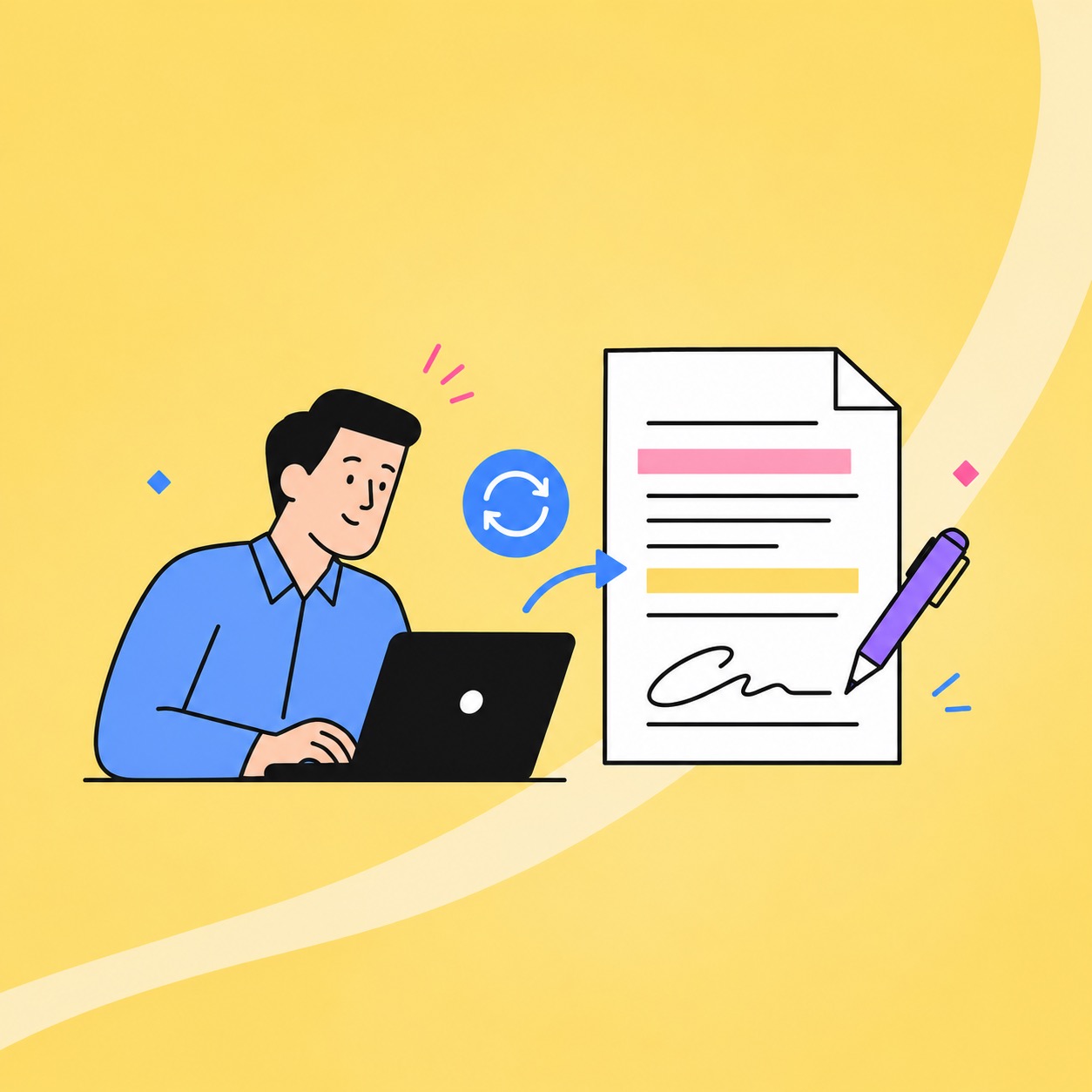
Most PDF tasks start with a file that has to be ready for someone else: a course submission, a revised report, a client proposal or a household form. These four workflows show the steps, and what to check before you send.
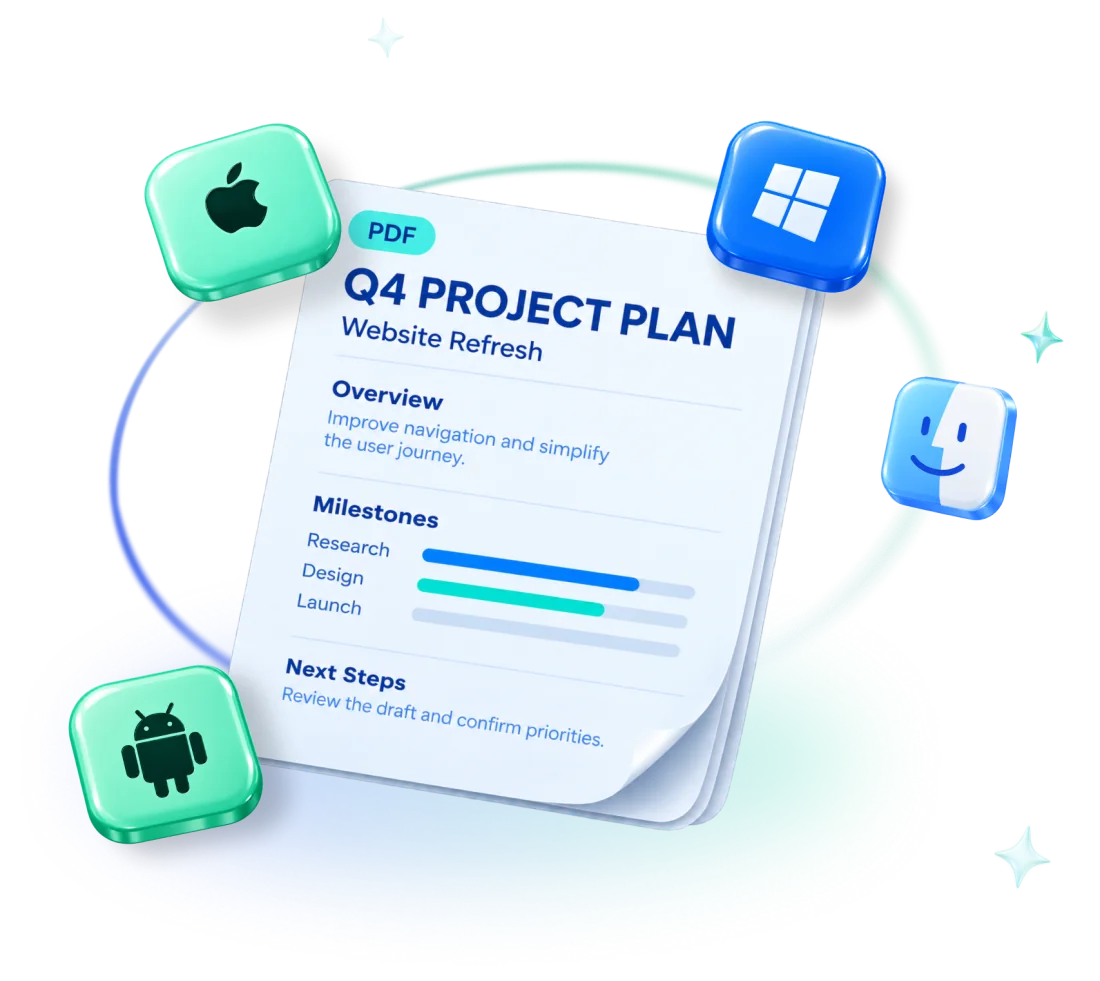
Try them with sample files or copies of your own documents. The filenames below are examples, not downloadable attachments. Mac and Windows offer editing, conversion, page organization and AI Assistant; the iOS and Android apps also support PDF editing, conversion, annotation and signing, with tools and formats varying by app.

Study: organize course materials for submission
A deadline and several files to combine? Start with the page order and the submission requirements, then put the final PDF together.
What you’re doing: prepare coursework and permitted supporting pages in a file such as Course-submission.pdf.
What can go wrong: the material is spread across files, and your reading notes can get mixed up with the pages you submit.
Steps
- Check the required content and page order. Collect only the material you are allowed to submit.
- Arrange the pages. To combine several PDFs, follow the merge instructions for your app.
- Keep reading annotations separate when the submission needs a clean copy. Remove working notes that should not be included.
- If you need an editable source, use the conversion tools and inspect the result before using it.
- If the file is larger than the upload limit, compress a copy on a supported app or desktop browser. Recheck equations, images and small text after compression.
- Save the PDF and reopen it before submitting.
Final check: the file opens, every required page is present, the order is right and the file meets the upload limit. Inspect tables, references and converted pages for layout changes.
AI Assistant (Mac and Windows) can summarize a long reading or answer questions about it. Always check the answer against the original. Your account’s AI credit balance determines how much you can use.
Office work: revise a report and deliver the final PDF
Received a PDF with one wrong paragraph or an outdated image? Correct that section while keeping an original copy for reference.
What you’re doing: update a report such as Quarterly-report.pdf and prepare the version the next reader needs.
What can go wrong: a short text change can alter a line break, or a replacement image can cover a caption.
Steps
- Save a copy of the original report.
- On Mac or Windows, use the PDF editing tools to change the text or replace the image. Desktop screens are useful for checking detailed layout.
- Inspect the edited page at a comfortable zoom. Check surrounding text, figures and captions.
- If the recipient needs an editable format, convert a copy to the required supported format. Keep the reviewed PDF as the layout reference.
- Reopen the saved or exported file and inspect the important pages before sending.
Final check: the changes appear in the saved file, the report’s numbers and page order are right, and the recipient receives the intended format. For extensive rewriting, use the original source document when available.
Need feedback first? Continue with the cloud review workflow to share one copy and collect comments.
Freelance work: revise a proposal and send an eSign task
Agree the wording before asking the client to sign. Editing the proposal, adding your own signature and sending an eSign task are separate steps.
What you’re doing: update a proposal and send a finished agreement to its signer. Example filenames are Project-proposal.pdf and Service-agreement.pdf; use invented details when practising.
What can go wrong: a signature placed on a PDF does not by itself send a request to the client.
Steps
- Make the agreed changes. Check the scope, dates, names and amounts before saving.
- Confirm that the agreement is ready to send and all revisions are complete.
- To add your own signature, use the fill-and-sign tools.
- To ask someone else to sign, create an eSign task on Mac or Windows. Add the recipients and signing fields, then review the document before sending.
- Follow the task’s status. When signing is complete, download the signed document and review the available signing history or audit trail.
Final check: the correct person received the intended document, the signature fields are complete and the task shows completion. A sent task still needs the recipient’s signature.
What an eSign task covers. An eSign task sends a document to another person for signing. Adding your own signature with fill-and-sign is a different action. Eligible Black Friday first purchases include two eSign tasks; check the task balance before sending.
Home paperwork: complete forms and organize the required pages
A household form often needs more than filled-in answers. Gather the requested supporting pages and check the recipient’s instructions before combining them.
What you’re doing: complete a form and supporting documents in a file such as Home-paperwork.pdf. Use invented personal details for practice.
What can go wrong: missing answers, duplicate pages or an unrelated personal document can slip into the final PDF.
Steps
- Check the required pages, accepted format, file-size limit and signing method.
- Fill the provided form fields, or use a text tool for typed answers. Save and confirm that the entries remain visible.
- Arrange or merge the relevant pages. Remove unrelated or duplicate material.
- Follow the required signing method. For example, a recipient may require a printed handwritten signature or its own approved electronic signing service.
- If needed, compress a copy on a supported app or desktop browser, then check the text and scanned pages remain readable.
- Reopen the final PDF and inspect every page. If sharing through Cloud Space, invite the named recipient by email and review link access so the file is not shared more broadly than intended.
Final check: the answers are readable, the requested pages are present, the file meets the upload limit and only the intended recipients have access.
The membership is personal and covers up to four of your own devices. Other household members need their own membership.
Choose tools based on the task
Use the summary to choose where to start. Mac and Windows are the clearest starting points for the detailed editing and eSign examples above; mobile apps are useful for reading, annotating and adding your own signature.
| Task | Main tools | Where to use it | Final check |
|---|---|---|---|
| Course submission | Organize, merge, annotate and convert; compress if needed. | Mac or Windows for file assembly. iOS/Android for reading and annotations. AI Assistant: Mac/Windows. | Content, page order, layout and upload size. |
| Report delivery | Edit text/images and convert. | Mac or Windows for detailed layout work. Desktop Web also provides editing and conversion, subject to account access. | Saved changes, figures and output format. |
| Client agreement | Fill-and-sign or send an eSign task. | Mac or Windows to prepare and send the task. Recipients can sign on supported mobile devices. | Recipient, document version and completion status. |
| Home paperwork | Fill forms, organize pages and sign. | Mac/Windows or the iOS/Android app; check the app’s form tools. Desktop Web offers forms and signatures with account-dependent access. | Answers, required pages, size and sharing access. |
The platform guide shows what the desktop apps, mobile apps and browser can each do.
For occasional reading, the free tools you already have may be enough. If you edit and review PDFs regularly, our Black Friday guide walks through the first-year cost, renewal and license choices.
BLACK FRIDAY 2026
November 5–30 · Advanced annual plan (Black Friday offer)
FIRST YEAR
US$63.99
Save US$16 · 20% off the first year
AFTER THE FIRST YEAR
US$79.99 / year
Annual subscription · Auto-renews
Five platforms
Mac · Windows · iOS · Android · Web
🎁 Eligible first-purchase gifts
500 AI credits + 2 eSign tasks
Account eligibility and separate first-purchase gift rules apply. Existing renewals and multi-seat purchases are excluded. The Black Friday price cannot be combined with other discounts, including the education discount.