Document Q&A
 Report Generation
 Data Extraction
 Document Translation
 Contract Review
 Security & Compliance


You update a report on your computer, ask someone to review it and check the feedback later from another device. Keeping comments on one shared PDF helps everyone return to the same version.
Upload your PDF to Cloud Space, share a link or email invitation and collect comments on that cloud copy. PDF Reader Pro Cloud Space is a workspace for uploading and organizing PDFs, controlling access and reviewing documents together.
Use a sample file or a copy of your own document, and check the working copy at each stage.

Prepare one working PDF on your computer
For this example, use Mac or Windows to correct a project date and prepare the brief. Mobile apps and desktop Web also offer editing tools; the platform guide below explains how they fit different tasks.
- Keep the original and give the working file a clear name.
- Make the text, image or page changes needed for the review.
- Reopen the saved PDF. Check the date, surrounding text, figures and page order.
Final check: one local PDF is ready to upload. The file on your computer and the file in the cloud will be separate copies.
Upload the PDF to Cloud Space
Open PDF Reader Pro Web, sign in and upload the working PDF. Put it in a folder that will be easy to find when you return.
Use Recent Files, My Documents and the shared-file views to find your work. You can create folders, rename, move, copy or download documents, and distinguish your own files from files shared with you.
| Account / plan | Cloud storage | Per-file upload limit |
|---|---|---|
| Signed-in free account | 1 GB | 10 MB |
| Advanced annual plan (all-platform) | 20 GB | 100 MB |
The Advanced annual plan offered for Black Friday includes the all-platform membership with 20 GB of Cloud Space and a 100 MB per-file upload limit. Each plan’s current limits are shown in our plan comparison.
If a PDF exceeds the upload limit, compress a copy using the available app or desktop Web tools, or split it into smaller documents. Check image and text quality before uploading the result.
Final check: open the cloud file and confirm that the expected pages are present and readable.
Keep the cloud copy current. Upload the PDF you want to share. After changing a downloaded local copy, save or upload the revised version through the available workflow, then reopen the cloud document to check the changes.
Choose sharing permissions for the task
Invite the reviewer by email or create a shareable link. Choose the permission that matches what the recipient needs to do.
- Can view: open and read the document.
- Can comment: add review feedback without broader editing access.
- Can edit: make supported document changes.
For private paperwork, invite the named recipient by email rather than distributing a general link. Review who has access before sharing. For wording feedback, Can comment is usually enough; a finished brief may only need Can view.
| Account / plan | Available duration |
|---|---|
| Signed-in free account | 7 days. |
| Advanced annual plan (all-platform) | 7 days, 30 days, permanent, or a custom date. |
Final check: the recipient can open the intended file with the permission you assigned, and the link expires when you want it to. For comments, ask the reviewer to use a compatible desktop browser and check the access prompt before the review begins.
Collect comments on the cloud document
Ask reviewers to open the shared cloud copy. With Can comment access on desktop Web, they can highlight a passage, add annotations or comments, reply to feedback and follow the discussion in the comment list.
Several people can comment at the same time, with cloud comments updating in real time. Only one person can edit the document at a time. Those shared comments stay with the cloud document; a downloaded file is a separate copy.
Final check: the feedback relates to the intended passage, replies are visible and any changes to the document have been reviewed. Keep the next review round on the same cloud copy.
Return from another supported device
Sign in with the same account and open Cloud Space. For someone else’s document, follow the invitation or use the shared-file view.
- Check the filename and a relevant page to make sure you opened the working cloud document.
- Use a compatible desktop browser for comments and cloud editing. A mobile browser is useful for viewing the document.
- Choose the next device based on the task. The iOS and Android apps offer their own editing, annotation and signing tools; browser access and native-app features are separate choices.
If you edit a local download in an app, return the revised file through the available save or upload workflow before the next cloud review.
Final check: you are viewing the intended version. Open the relevant page or comment in the supported interface before continuing.
Platform guide: where to edit, review and sign
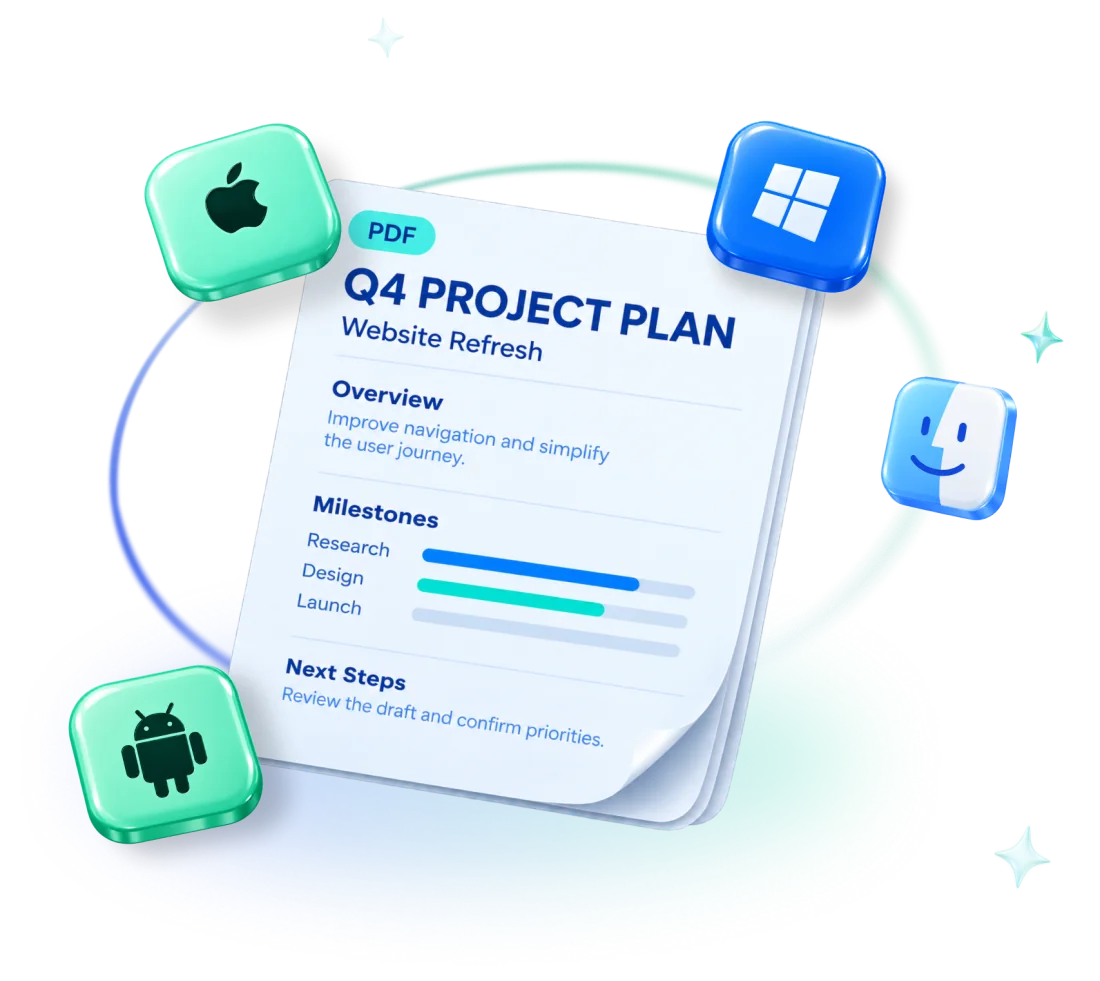
Use a computer for detailed changes, a mobile app for work on the go, and desktop Web for shared cloud review. The table summarizes what each platform offers; specific tools, formats and access depend on your app version and plan.
| Feature | Mac | Windows | iOS | Android | Web |
|---|---|---|---|---|---|
| Edit text and images | Available. | Available. | Available in the app. | Available in the app. | Desktop browser; account access applies. |
| Convert PDFs | Available. | Available. | Available; formats vary. | Available; formats vary. | Desktop browser; account limits apply. |
| Annotate PDFs | Available. | Available. | Available in the app. | Available in the app. | Desktop browser; Can comment access for shared review. |
| AI Assistant | Available; AI credits required. | Available; AI credits required. | Use Mac or Windows. | Use Mac or Windows. | For the plan’s AI Assistant, use Mac or Windows. |
| eSign tasks | Prepare, send and track. | Prepare, send and track. | Receive and sign on a supported device. | Receive and sign on a supported device. | Follow the eSign link and its signing steps. |
| Cloud Space | Access through a desktop browser. | Access through a desktop browser. | Mobile-browser viewing. | Mobile-browser viewing. | Upload, organize, share and review. |
Good to know: iOS includes the iPhone and iPad app. A phone’s browser supports cloud viewing; use the native app for its PDF tools or a desktop browser for shared comments and editing.
Web also offers page organization, OCR, conversion, compression, forms and signatures, depending on account access. Our Cloud Space guide and plan comparison list the current tools.
Finish with a version and access check
Before the review ends, check the file, feedback and sharing settings together. This helps the next person find the version they need.
- Document: the cloud PDF contains the intended changes.
- Feedback: the relevant comments are visible in the review view.
- Access: recipients have the right permission and the link duration fits the task.
- Delivery: open any final download before sending it.
One file, one link, one place for comments. Need help before or after the review? Try the everyday PDF workflows. Choosing a plan? Our Black Friday guide covers prices and licenses.
BLACK FRIDAY 2026
November 5–30 · Advanced annual plan (Black Friday offer)
FIRST YEAR
US$63.99
Save US$16 · 20% off the first year
AFTER THE FIRST YEAR
US$79.99 / year
Annual subscription · Auto-renews
Five platforms
Mac · Windows · iOS · Android · Web
🎁 Eligible first-purchase gifts
500 AI credits + 2 eSign tasks
Account eligibility and separate first-purchase gift rules apply. Existing renewals and multi-seat purchases are excluded. The Black Friday price cannot be combined with other discounts, including the education discount.