

Compressing PDFs helps reduce file size for easier sharing and storage—without sacrificing readability. Follow the steps below to compress single or multiple PDFs in PDF Reader Pro:
1. Open your PDF file in PDF Reader Pro.
2. Click Tools in the top toolbar, then select Compress. You can choose Compress to reduce the size of the current file, or Batch Compress to compress multiple files at once.
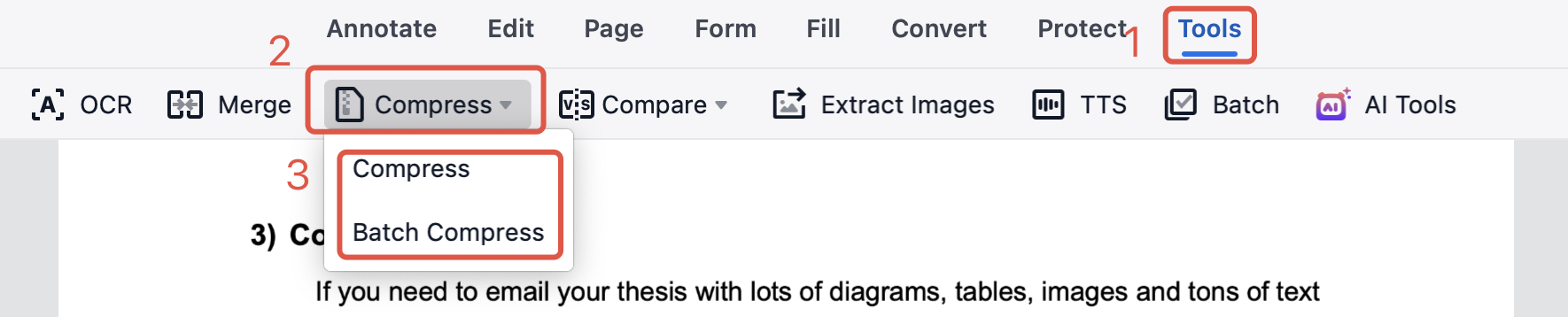
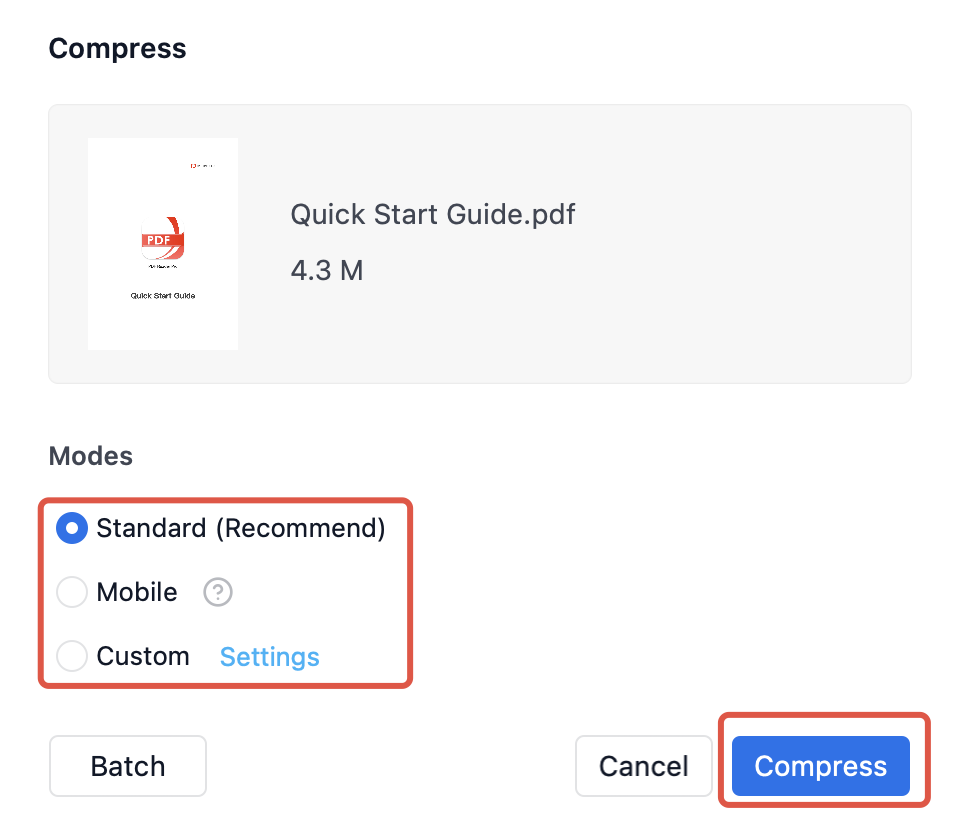
3. Compress a single PDF: In the pop-up window, choose a compression mode:
- Standard — balances file size and quality
- Mobile — optimized for viewing on mobile devices with better clarity
- Custom — customize compression options such as PPI and content to discard
Click Compress, choose a save location, and click Save to complete compression.
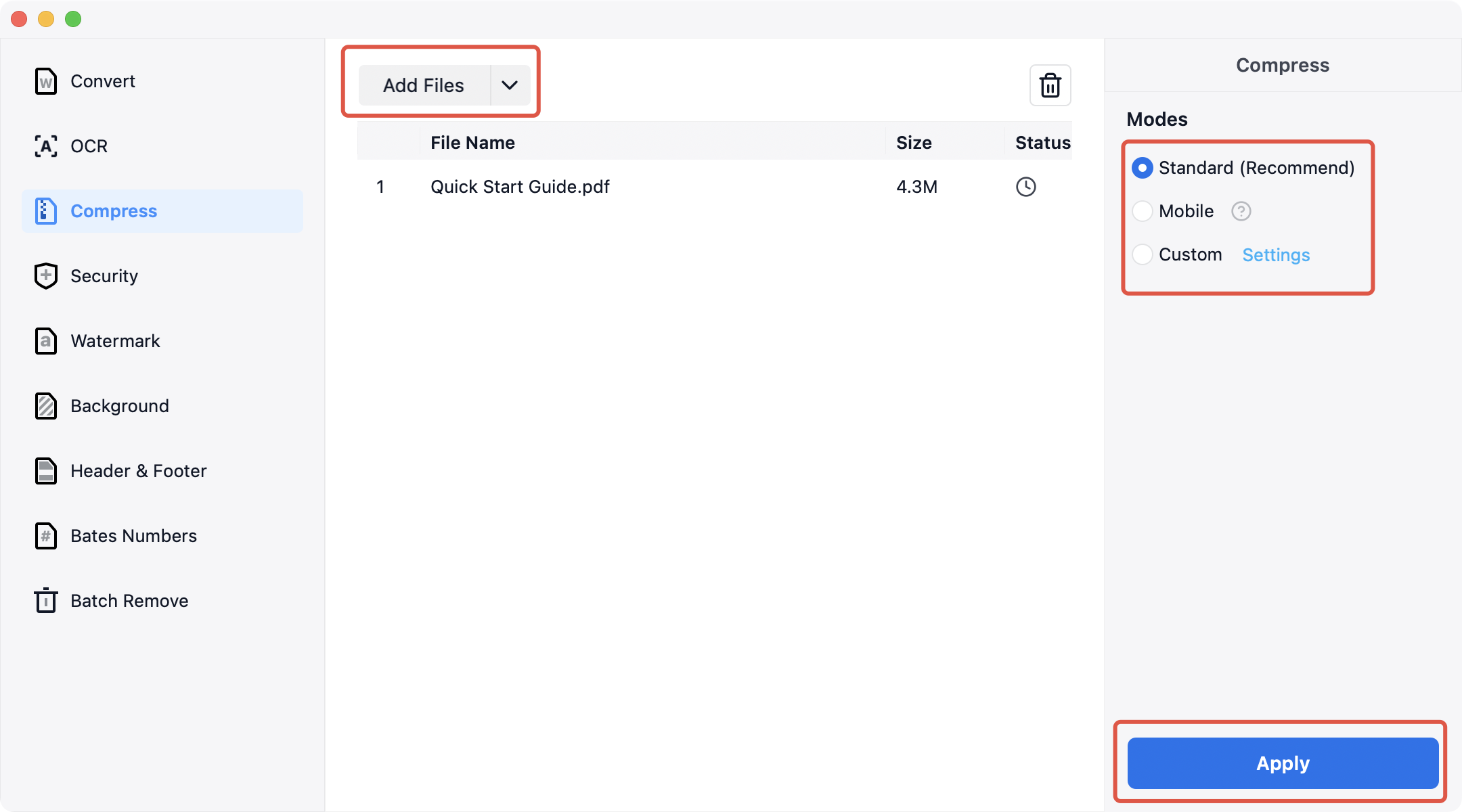
4. Batch compress multiple PDFs: Click Add Files at the top of the pop-up window to add PDFs. Select a compression mode on the right panel. Click Apply, choose a save location, and click Save to compress all files.
Reduce PDF file sizes in just a few clicks — download PDF Reader Pro and start compressing PDFs today!


 Support Chat
  PDF Reader Pro