


Inserting pages allows you to add new content to an existing PDF, whether from another file, a blank page, your clipboard, or a scanner. Follow the steps below to insert pages in PDF Reader Pro.
1. Launch PDF Reader Pro and open a PDF file.
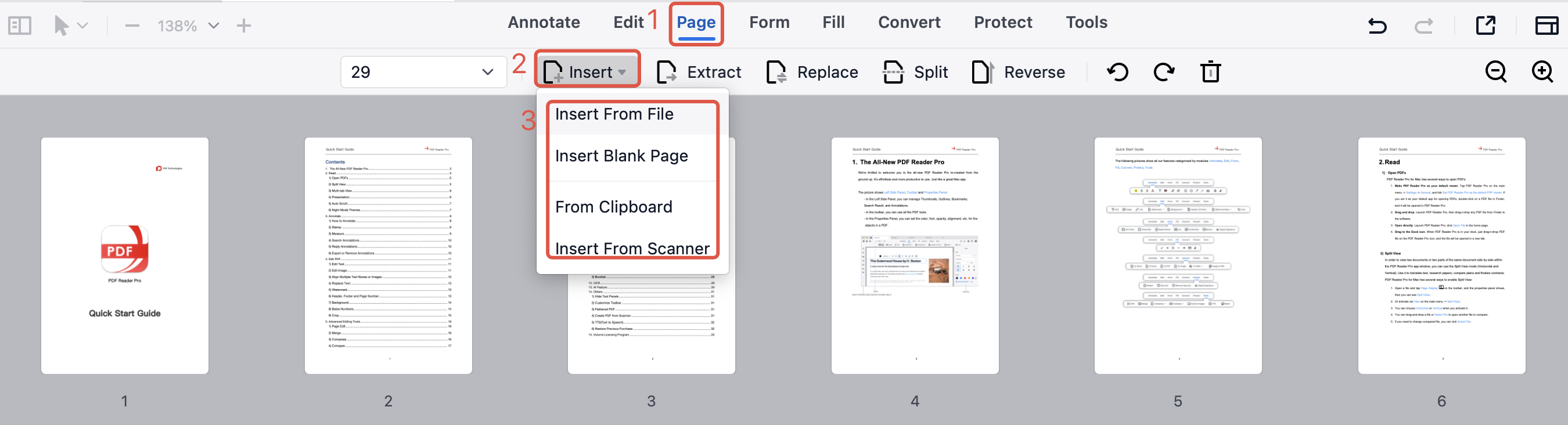
2. Click Page in the top toolbar, then click Insert. You can choose from the following options:
- Insert from File: Select the file you want to insert and click Open. In the pop-up window, set the page range and choose where to insert the pages, then click Insert.
- Insert Blank Page: Choose the Page Size, Direction, and Where to Insert, then click Insert.
- From Clipboard: The clipboard content will be inserted as a new PDF page at the end of the document by default.If a page is selected beforehand, the content will be inserted after the selected page.
- Insert from Scanner: Connect a scanner, click Scan, review the scanned content, and then click Insert.
Add pages to your PDFs exactly where you need them — download PDF Reader Pro and start editing your PDFs today!


 Support Chat
  PDF Reader Pro