Managing PDFs becomes straightforward and efficient with PDF Reader Pro, a tool designed to enhance your digital document interaction experience.
This guide elucidates the steps to effortlessly open PDF files using PDF Reader Pro, suitable for beginners and experienced users alike.
- How to Open a PDF File: Windows with PDF Reader Pro
- Best Practices for Efficient PDF Management
- Troubleshooting Common Errors
- Frequently Asked Questions
- Using PDF Reader Pro
How to Open a PDF File: Windows with PDF Reader Pro
Method 1: Windows
Step 1: In your files, select a PDF you would like to open, right-click and click on "Open with", and select "PDF Reader Pro".
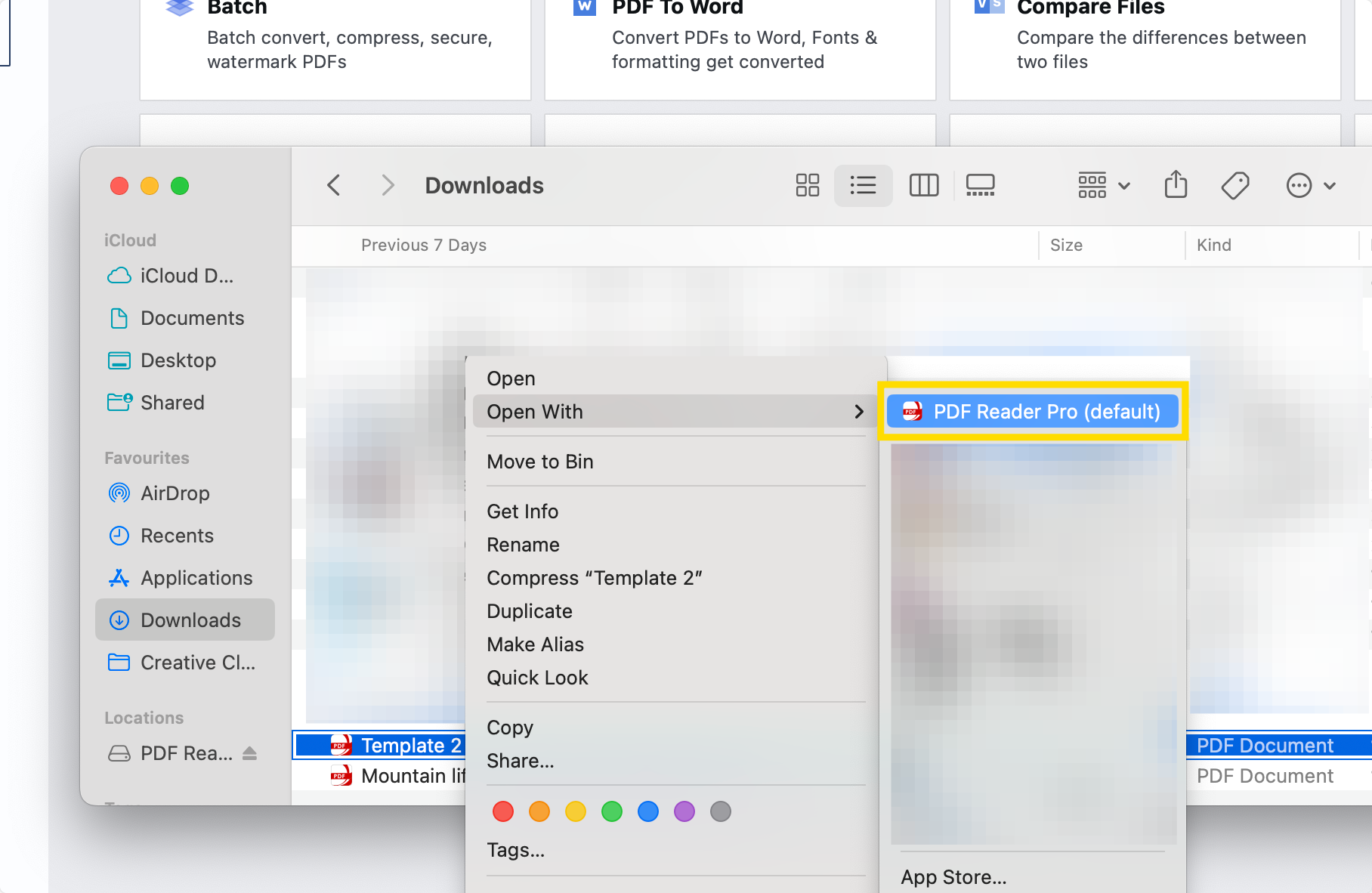
Method 1: Mac
Step 1: In your files, select a PDF you would like to open, right-click and click on "Open with", and select "PDF Reader Pro".
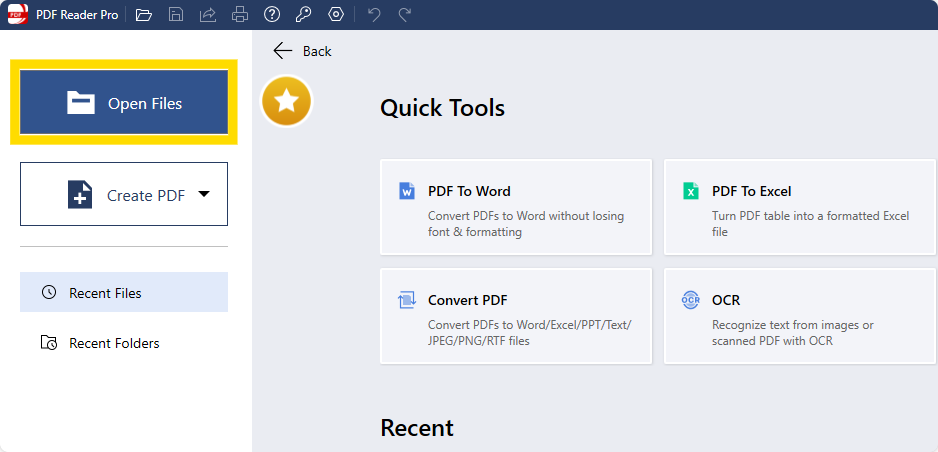
Method 2: Windows
Step 1: Open the PDF Reader Pro app and click on "Open File".
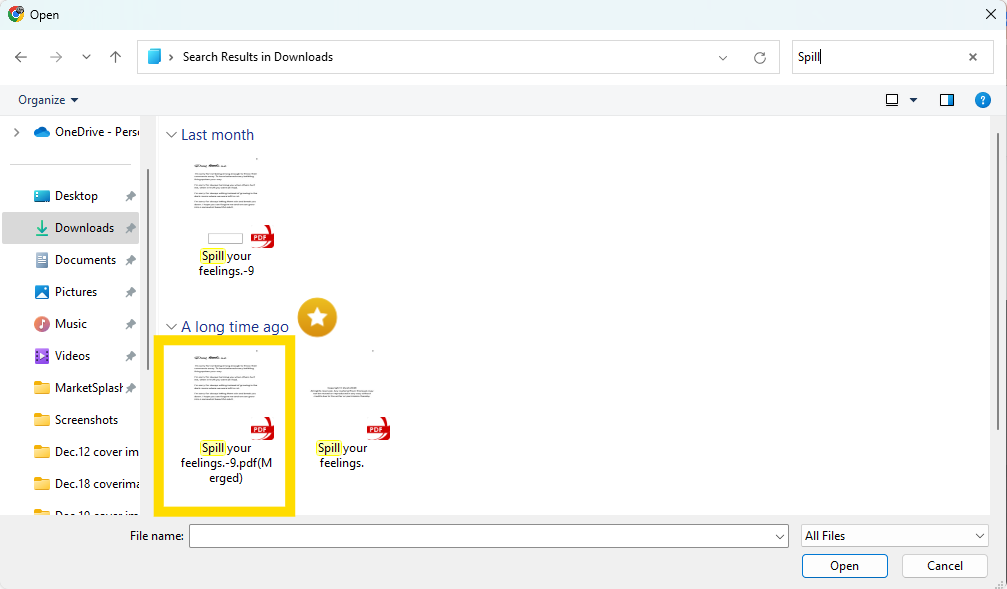
Step 2: Select the PDF File you would like to open and view.
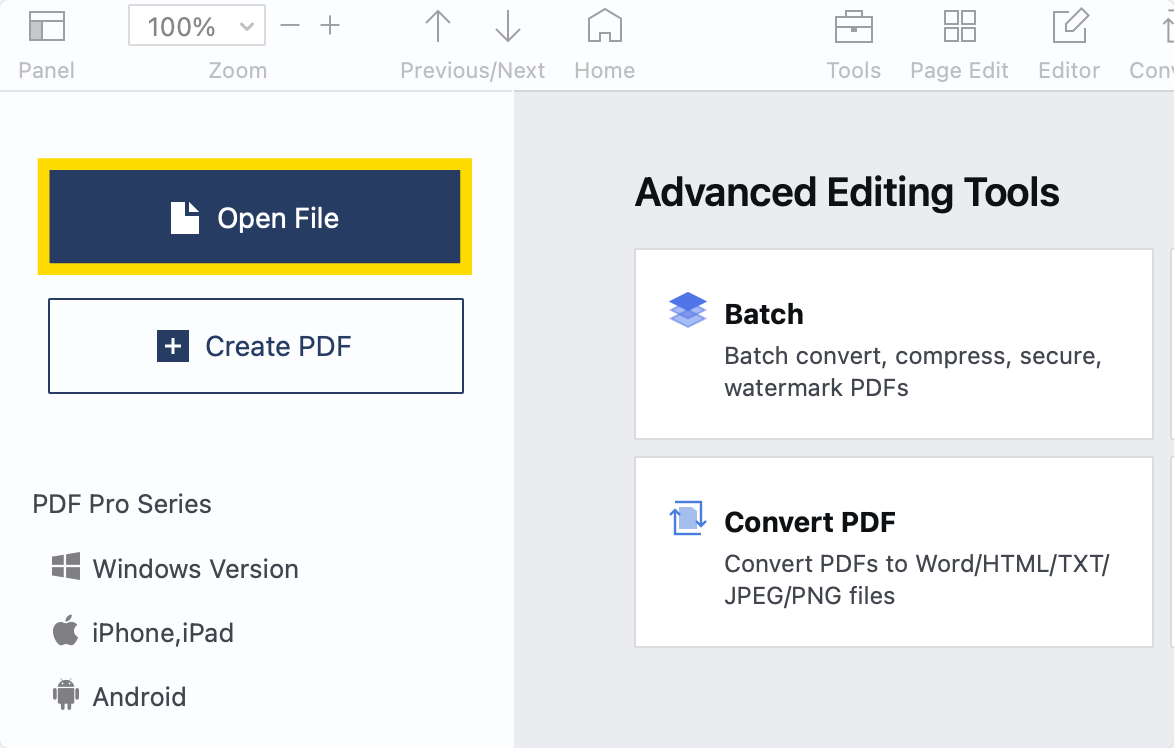
Method 2: Mac
Step 1: Open the PDF Reader Pro app and click on "Open File".
Step 2: Select the PDF File you would like to open and view.
Best Practices for Efficient PDF Management
To maximize the efficiency of managing PDF documents using PDF Reader Pro:
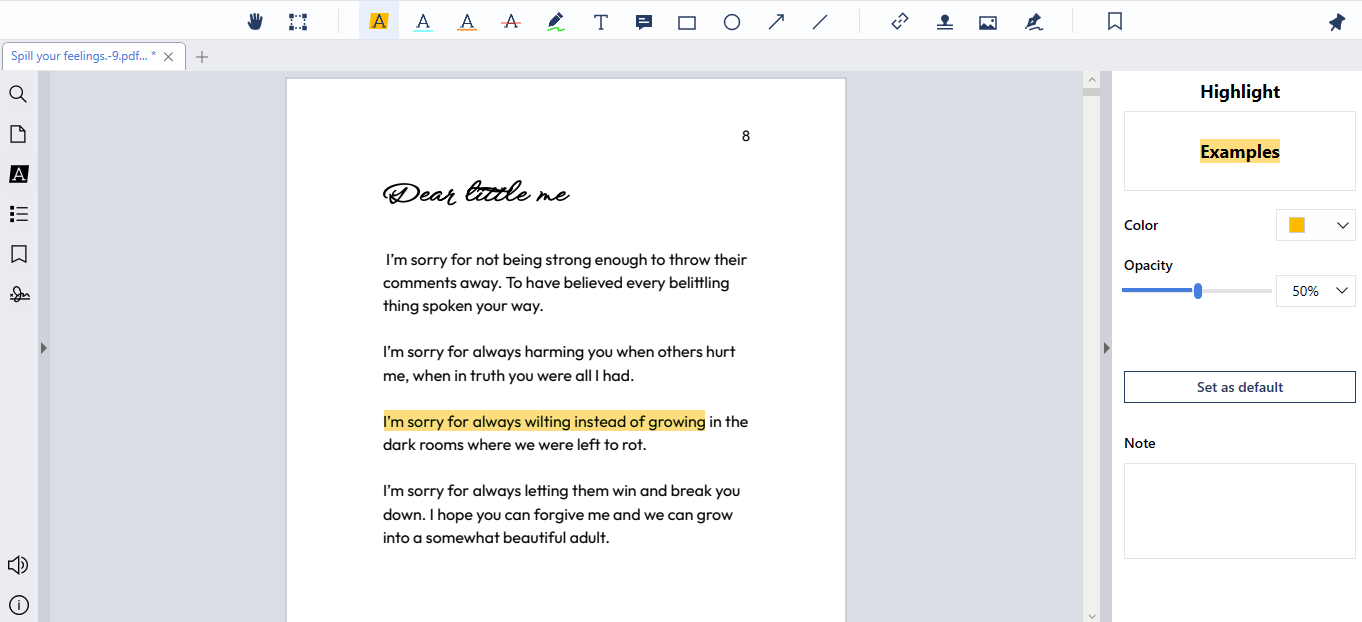
1. Use the Annotation Tools: Take advantage of PDF Reader Pro's comprehensive annotation tools to highlight text, add notes, and mark up your PDFs for easier review and collaboration.
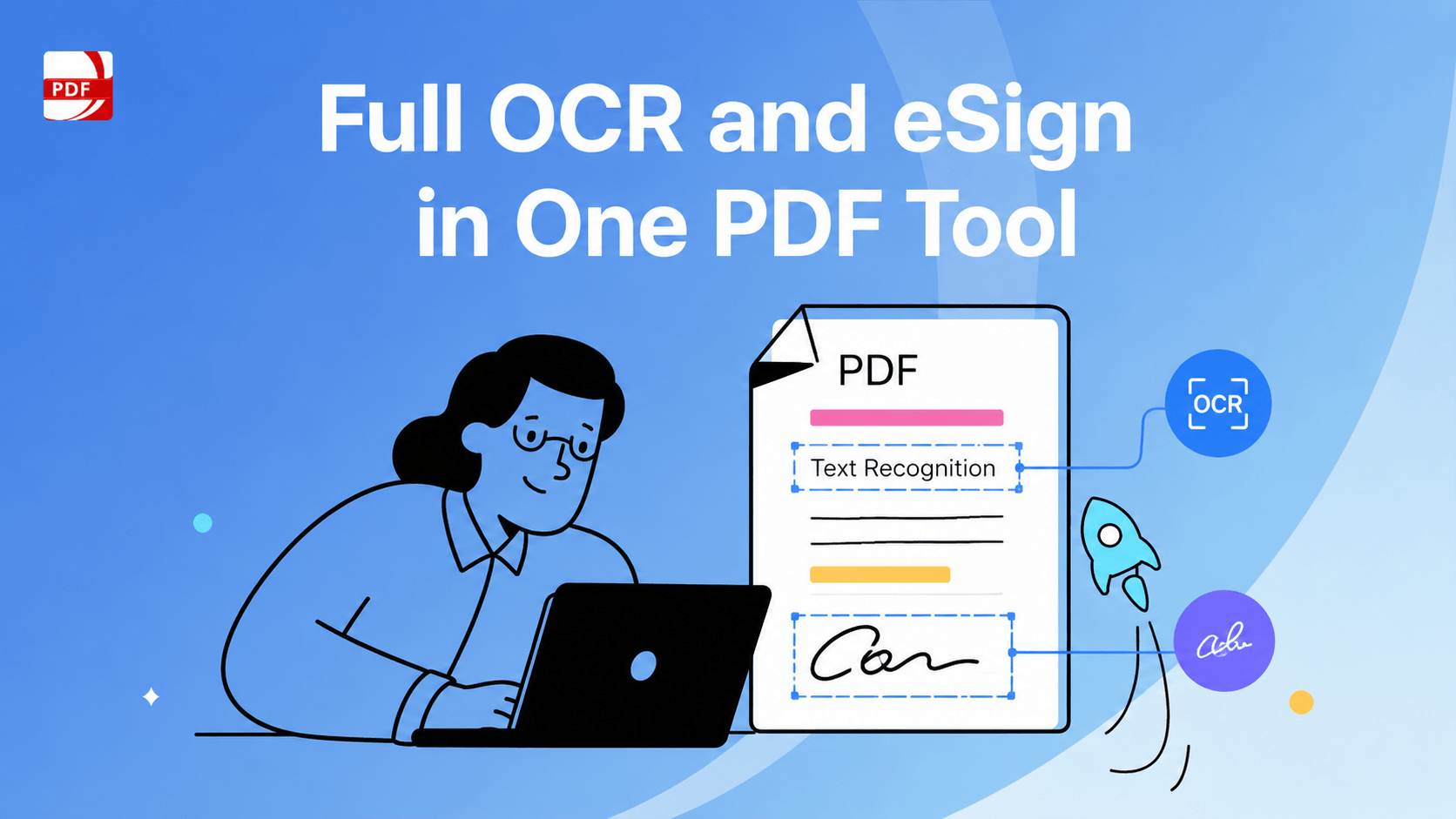
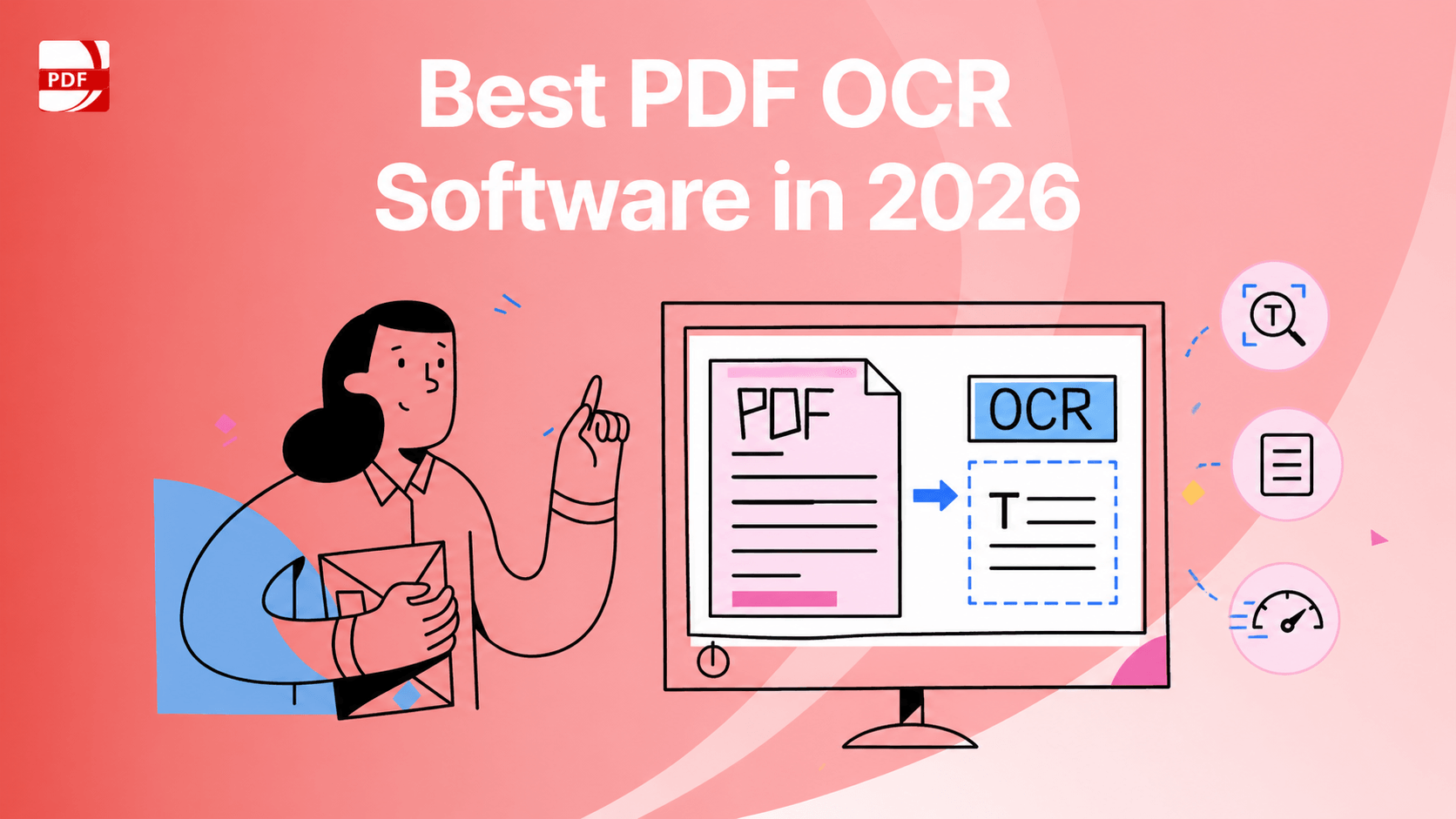
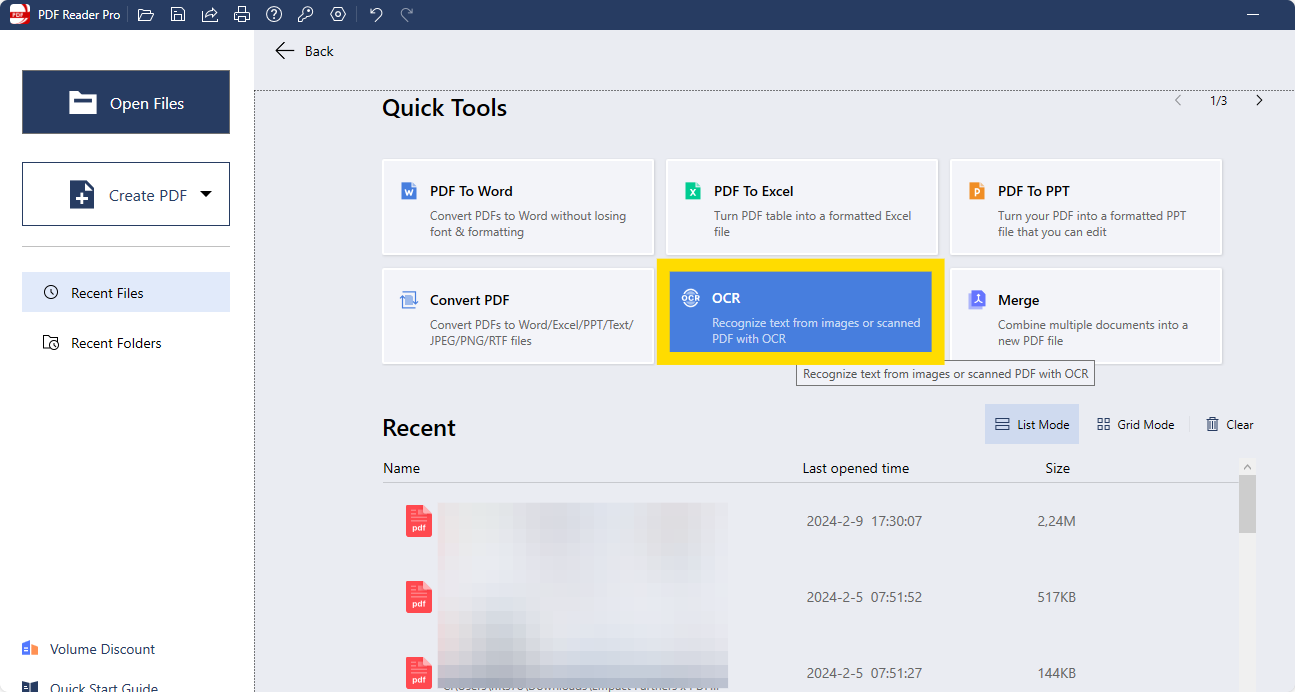
2. Use OCR Technology: If you work with scanned documents, use the Optical Character Recognition (OCR) feature to convert them into searchable and editable text, enhancing accessibility and editability.
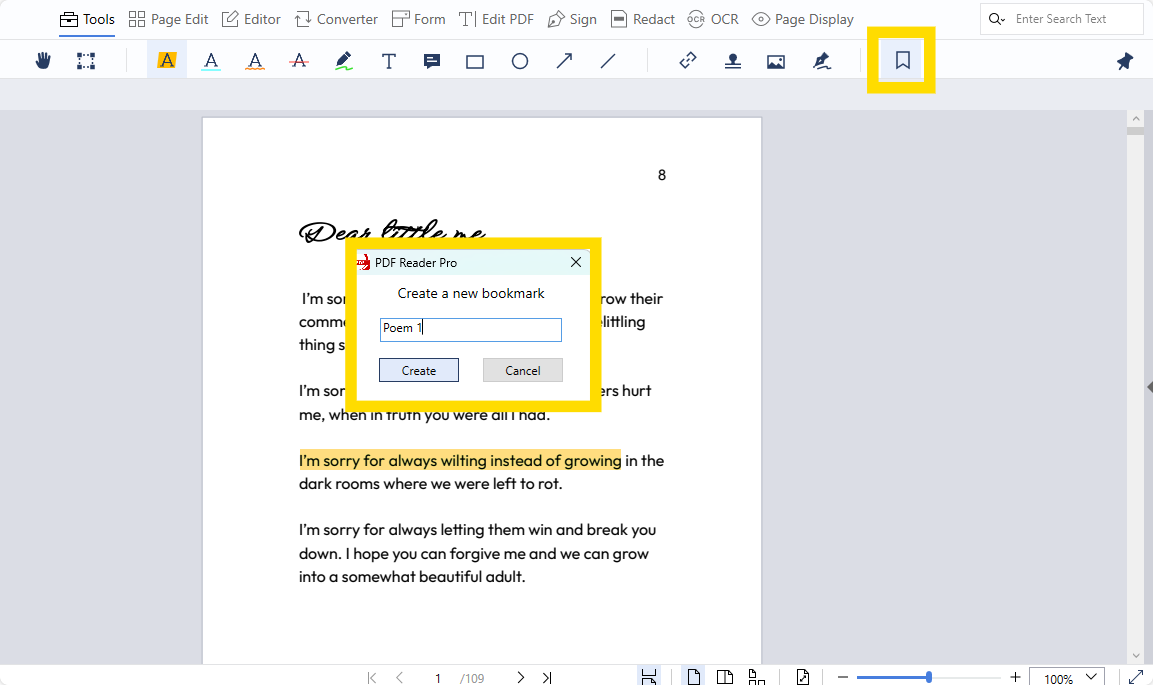
3. Organize Documents with Bookmarks: Use bookmarks to navigate long documents quickly. You can mark important sections or pages for easy access, improving your workflow.
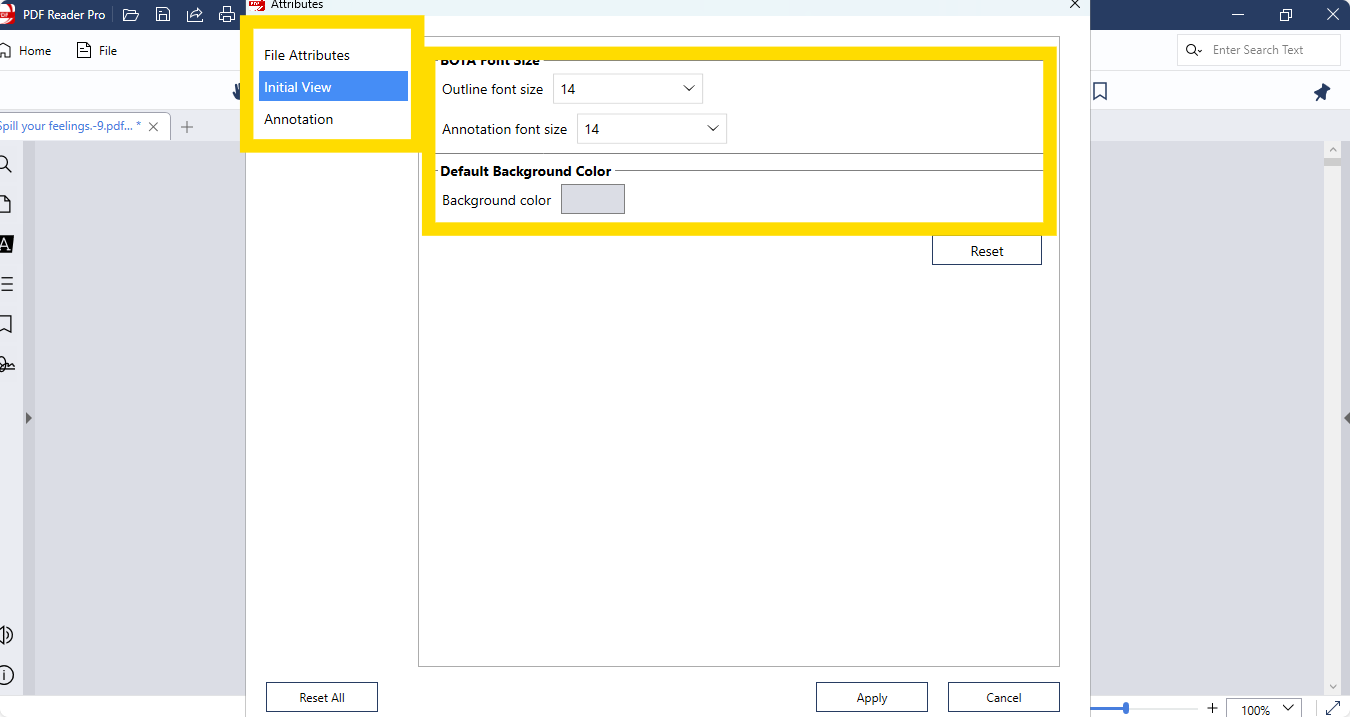
4. Customize Your Reading Experience: Adjust the view settings according to your preference. You can change the reading mode, zoom level, and page layout for an optimal reading experience.
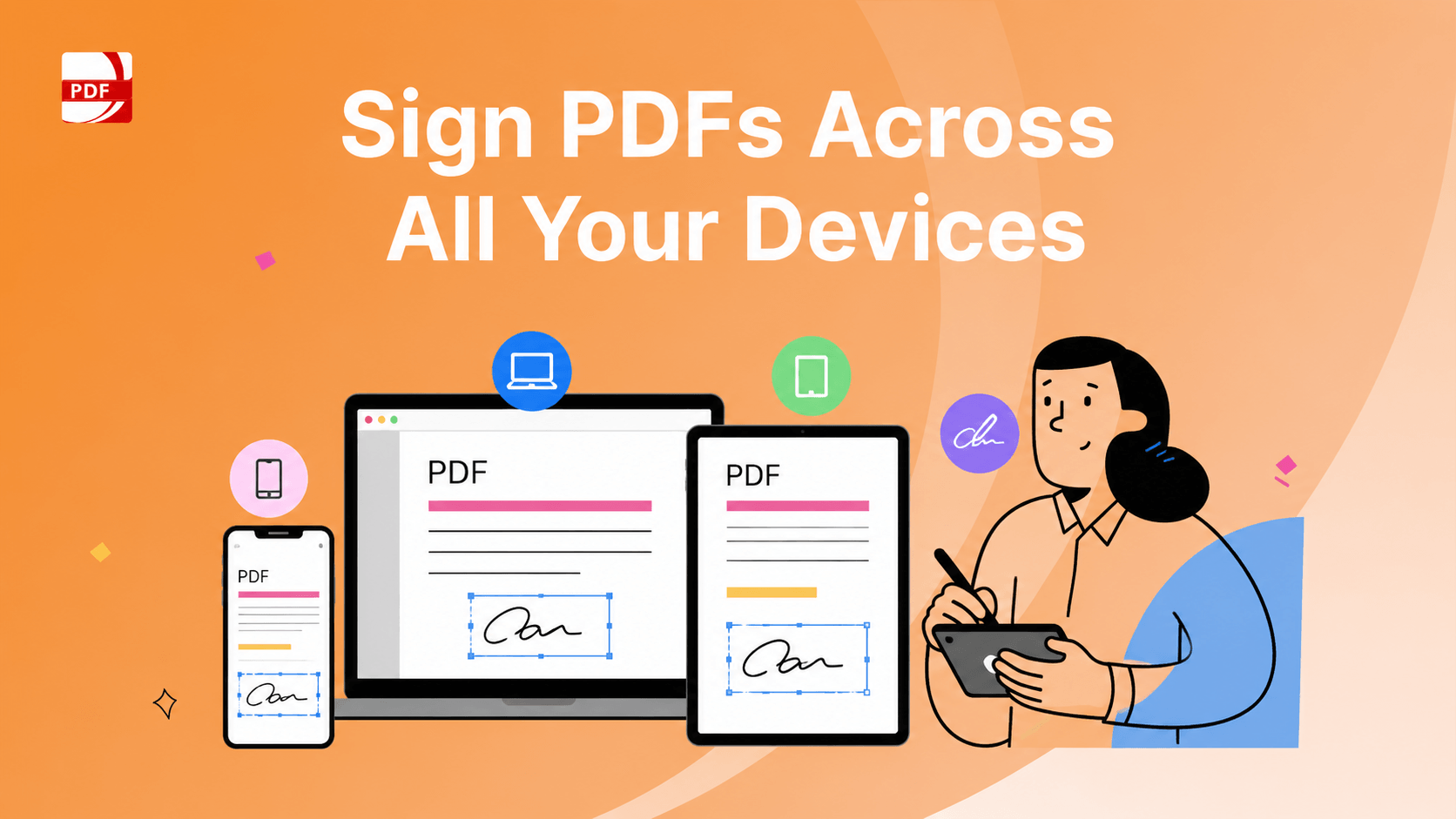
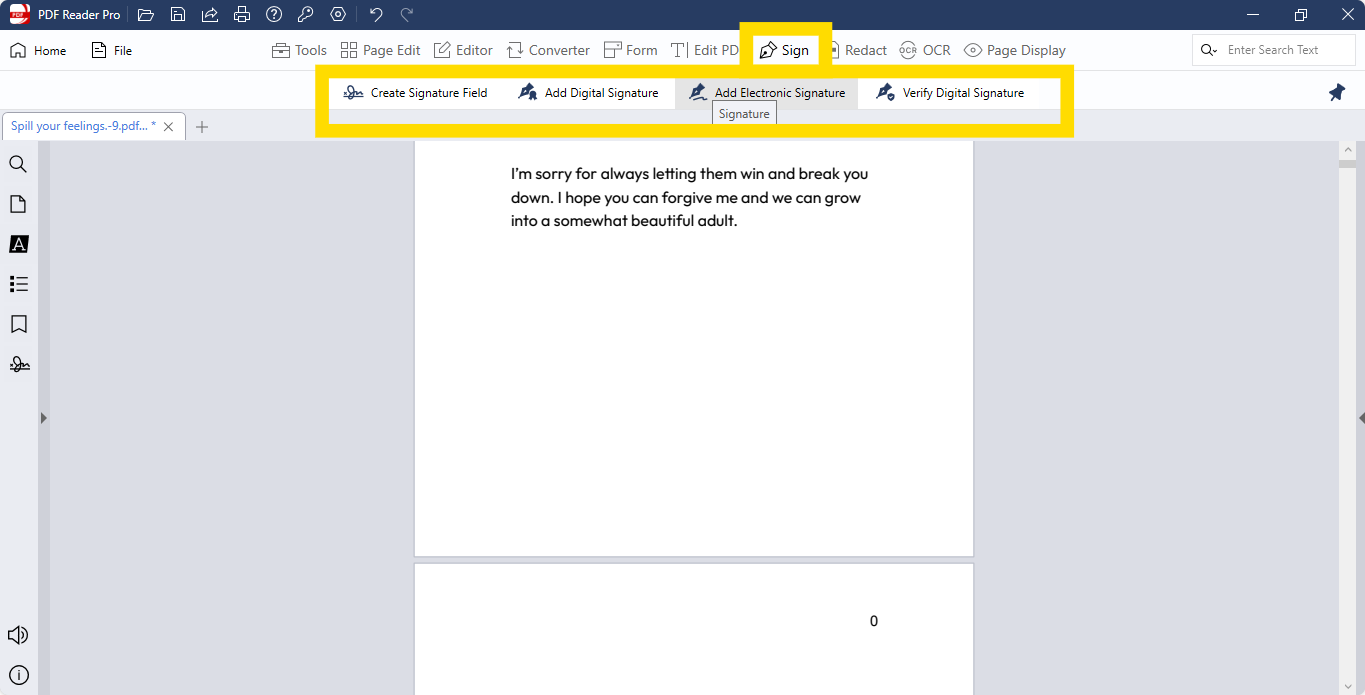
5. Fill and Sign Forms Digitally: Use PDF Reader Pro to fill out PDF forms directly on your device. You can also create and insert digital signatures to sign documents, eliminating the need for printing.
6. Convert PDFs to Other Formats: Use the conversion tools in PDF Reader Pro to convert PDF documents into other formats like Word, Excel, or images, making the content more versatile and usable across different applications.
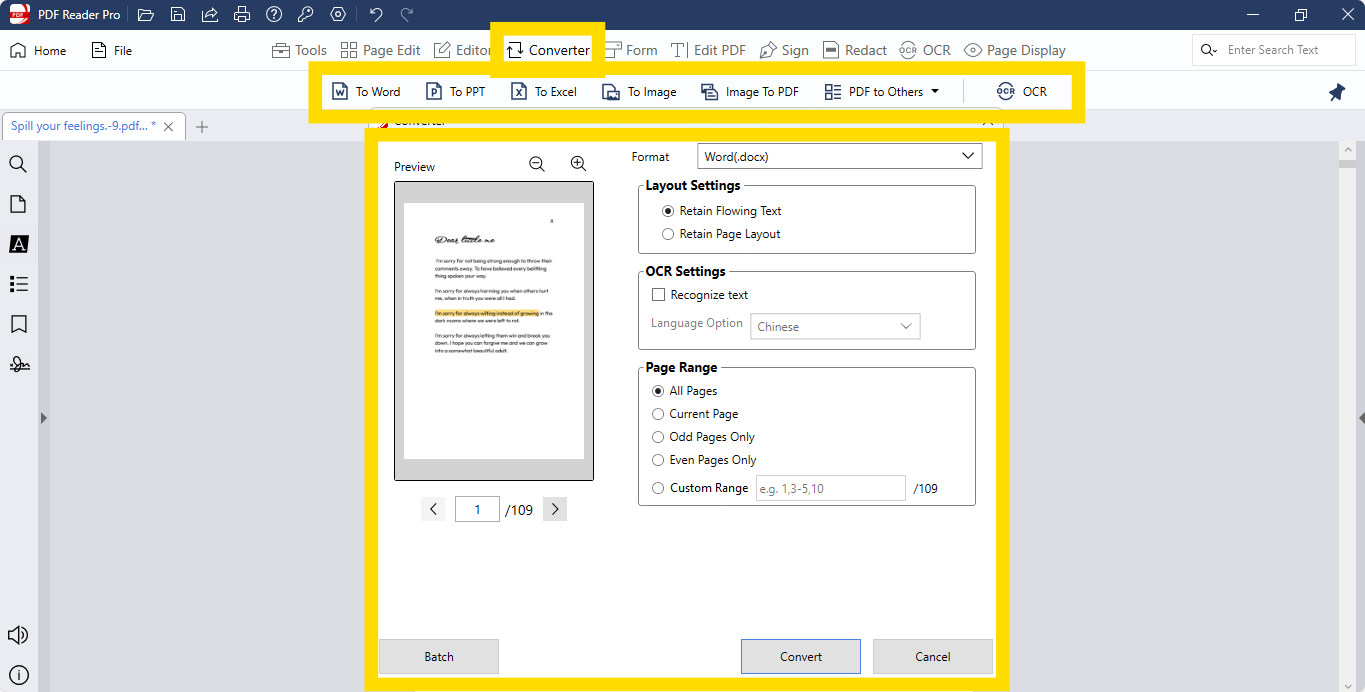
7. Batch Processing: If you need to perform actions on multiple PDFs, such as converting or merging, look for batch processing features to save time and ensure consistency across documents.
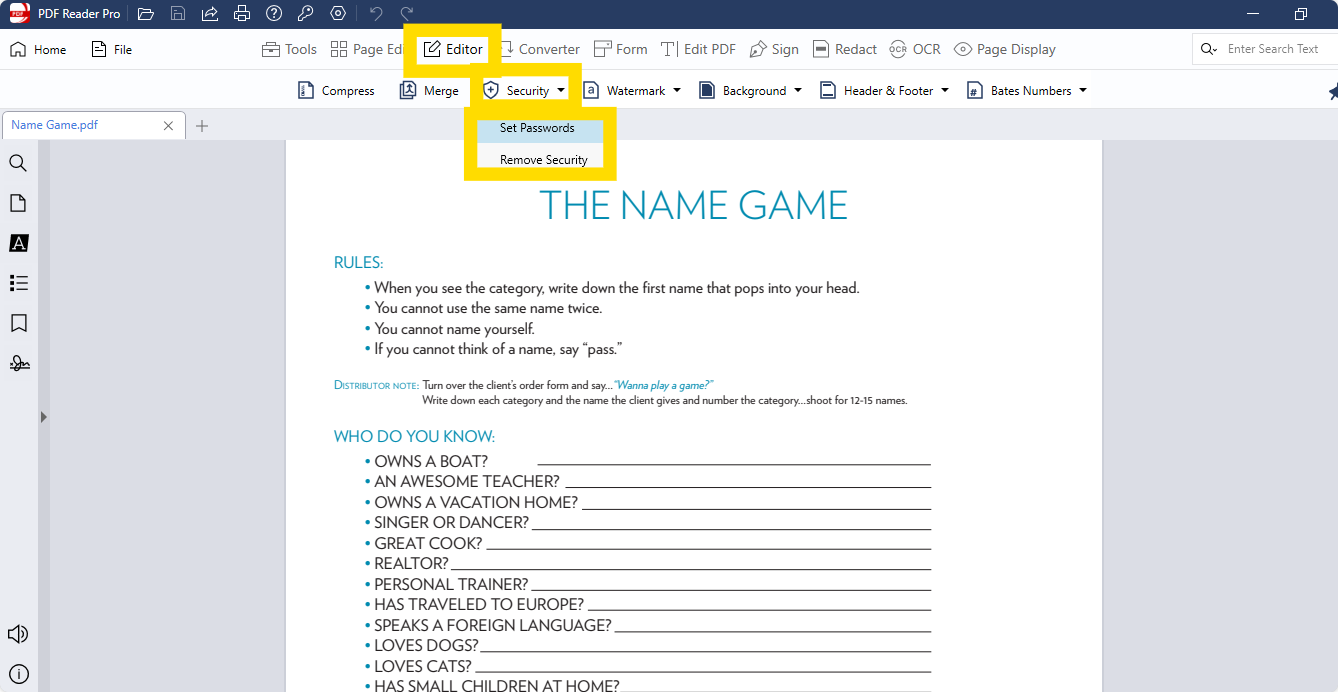
8. Secure Your Documents: Take advantage of PDF Reader Pro's security features to protect your documents. You can add passwords, encrypt files, and restrict editing or printing to keep sensitive information safe.
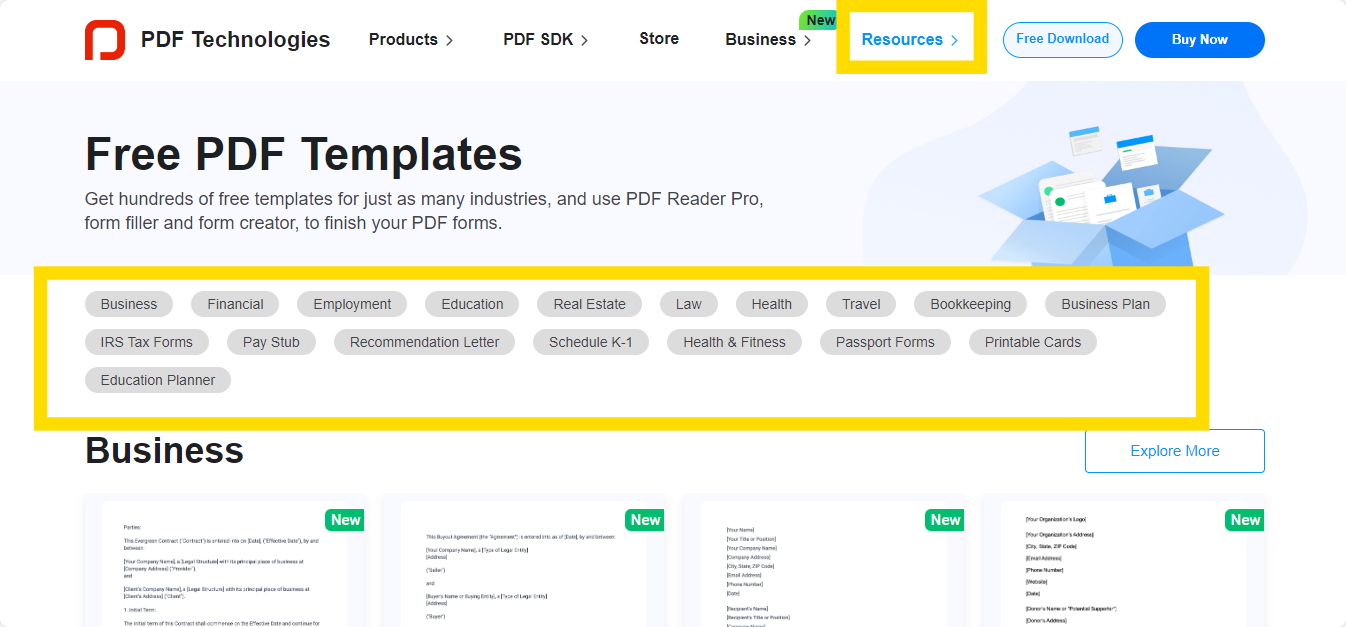
9. Use Templates for Efficiency: PDF Reader Pro offers templates for common document types; use them to save time when creating new documents. Templates can provide a consistent layout and format, making your work more professional.
10. Stay Updated: Ensure that you have the latest version of PDF Reader Pro installed. Updates often include new features, improvements, and security enhancements that can improve your PDF management experience.
By incorporating these tips into your workflow, you can use PDF Reader Pro's features to their fullest potential, leading to more efficient and effective PDF document management.
PDF Reader Pro revolutionizes the way we handle PDFs, making the process of opening and viewing them simple! It's our go-to solution for all PDF-related tasks, from viewing to converting.
We're particularly fond of the powerful features it packs, allowing us to get through tasks with ease and precision, and all with hardly any errors along the way!
Navigate, edit, and
convert PDFs like a Pro
with PDF Reader Pro

Easily customize PDFs: Edit text, images,
pages, and annotations with ease.
Advanced PDF conversion: Supports
multi-format document processing with OCR.
Seamless workflow on Mac,
Windows, iOS, and Android.
Download PDF Reader Pro on your Windows device and level up your PDF management!
Navigate, edit, and
convert PDFs like a Pro
with PDF Reader Pro
Easily customize PDFs: Edit text, images,
pages, and annotations with ease.
Advanced PDF conversion: Supports
multi-format document processing with OCR.
Seamless workflow on Mac,
Windows, iOS, and Android.
Download PDF Reader Pro on your Mac device and enhance your PDF management!
Troubleshooting Common Errors
When encountering common errors with PDF files, consider these easy troubleshooting steps:
- PDF Won't Open: Update or switch your PDF reader. Compatibility issues may require trying a different program.
- Corrupted PDF File: Redownload the file or use built-in repair tools in your PDF reader to attempt a fix.
- Error Messages: Check the document's security settings to ensure proper permissions, or consider disabling protected mode in your PDF reader with caution.
- Content Display Issues: Update or reinstall your PDF reader, and install any missing fonts specified in the PDF.
- Slow Performance/Crashes: Compress large PDF files and run a malware scan on your system for potential threats.
- Blank Pages or Loading Issues: Verify your internet connection for online PDFs and disable conflicting browser extensions.
- Compatibility Issues: Save the PDF as an older version to ensure it's readable in your PDF reader.
Always keep your PDF reader and operating system updated to minimize issues. For persistent problems, consult the PDF reader's support resources.
Frequently Asked Questions
Can PDF Reader Pro open multiple PDF files simultaneously?
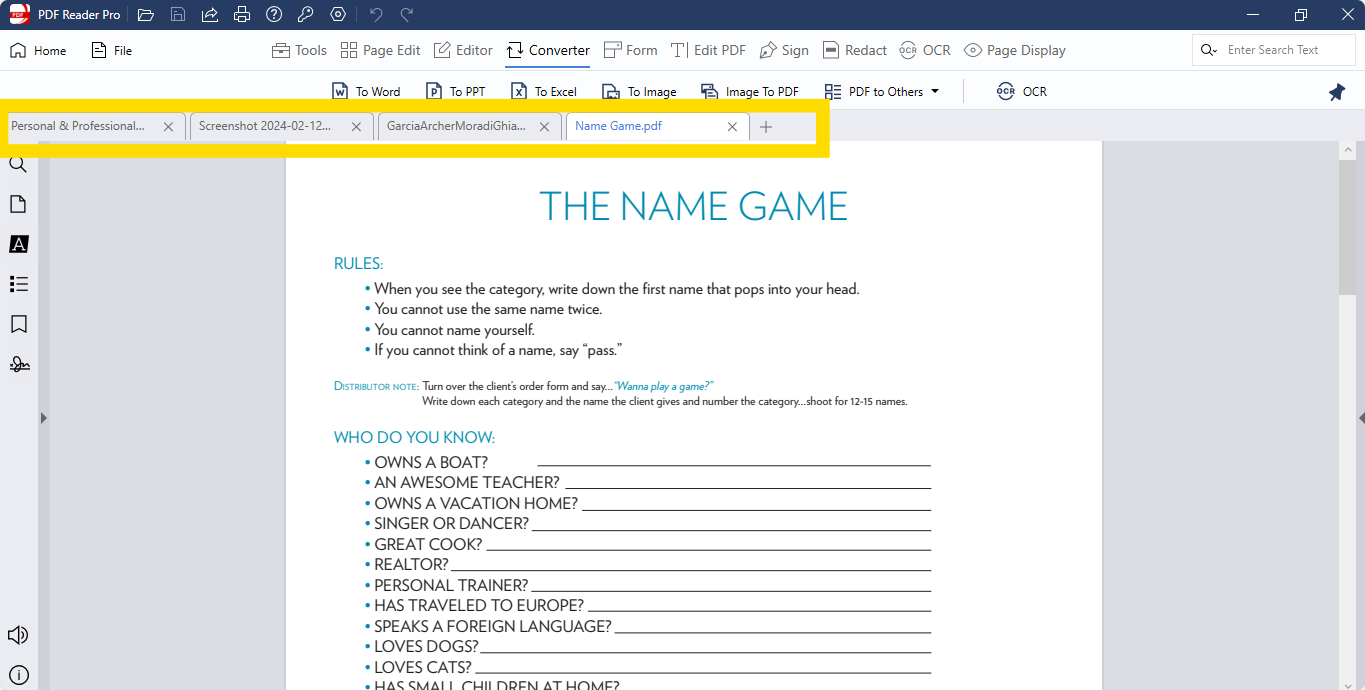
Yes, PDF Reader Pro supports opening multiple PDF files in separate tabs, enabling users to easily switch between documents.
Does PDF Reader Pro support encrypted PDF files?
Yes, PDF Reader Pro can open encrypted PDF files. You will be prompted to enter the password for the document upon opening it.
Are there any file size limitations for opening PDFs with PDF Reader Pro?
While PDF Reader Pro can handle large PDF files, performance may vary based on your device's specifications and the size of the PDF file.
Can I set PDF Reader Pro as my default PDF viewer?
Yes, you can set PDF Reader Pro as your default PDF viewer by entering your operating system's settings and selecting PDF Reader Pro as the default application for PDF files.
Does PDF Reader Pro allow for customization when viewing PDFs?
Yes, PDF Reader Pro offers various viewing modes, background colors, and other settings to enhance your PDF viewing experience.
Using PDF Reader Pro
PDF Reader Pro simplifies the process of opening PDF files, catering to users of all levels of expertise with its user-friendly interface and strong functionality.
Its easy integration with cloud services and support for encrypted files ensure secure and accessible PDF management.
By offering a variety of viewing and editing tools, PDF Reader Pro stands out as a comprehensive solution for efficiently managing and accessing your PDF documents.