

If you just need to extract some text from a scanned document and don’t want to convert the entire document, let PDF Reader Pro’s Extract Text from Selection feature do the heavy lifting for you.
Here are detailed steps:
1. Open Your Document: Open any scanned file with PDF Reader Pro. The software will automatically detect the scanned nature of the document and prompt the specialized scanning toolkit.
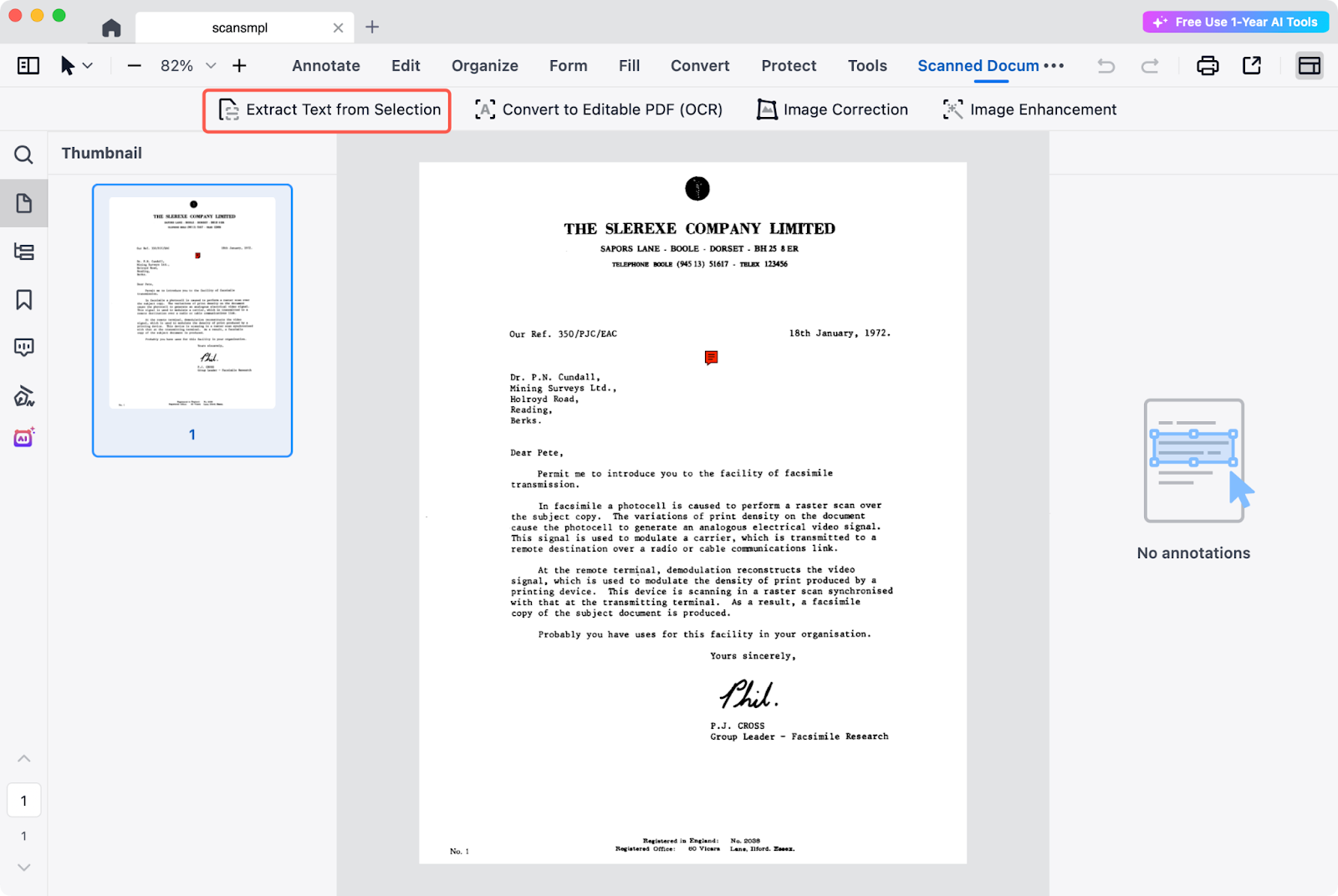
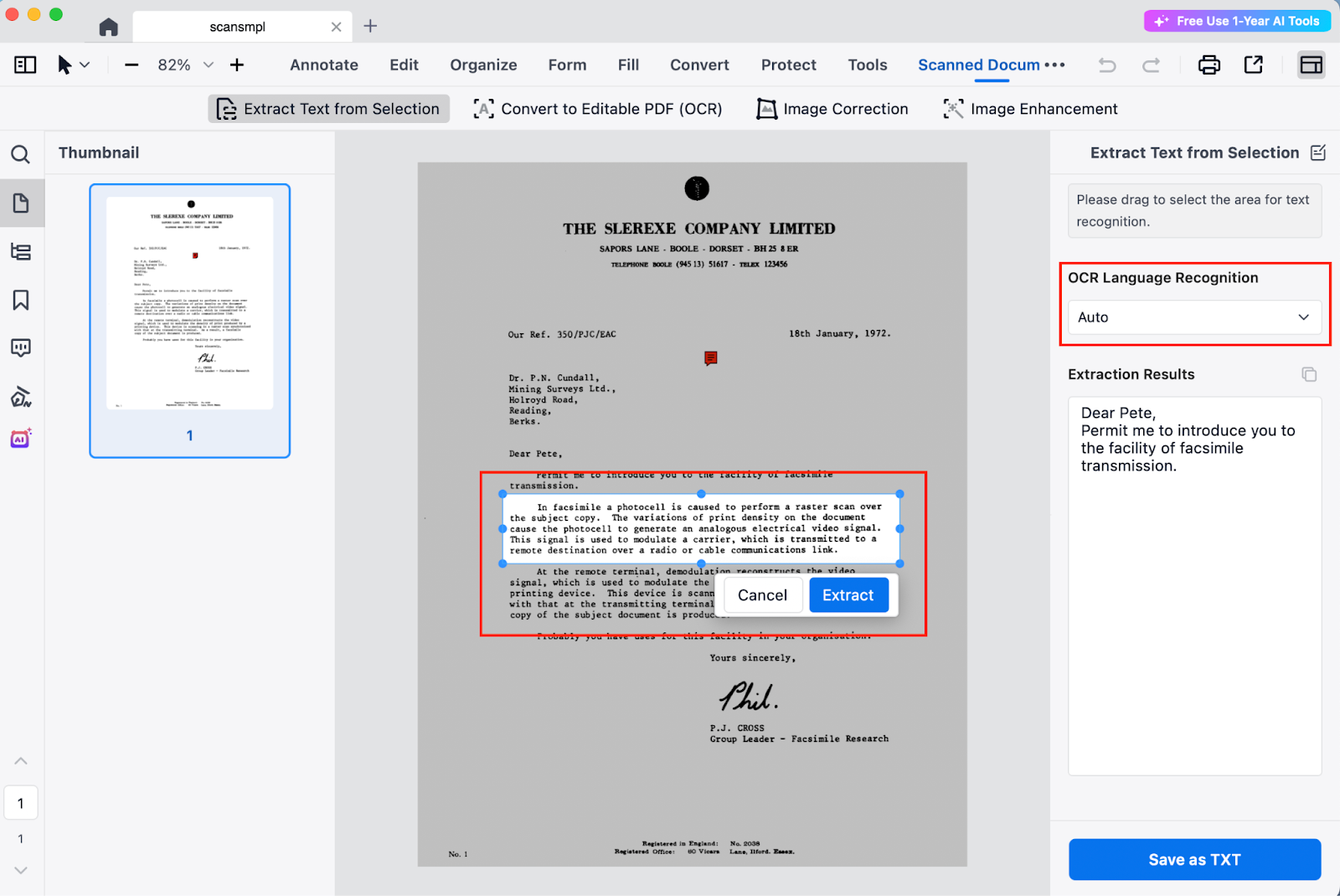
2. Select Your Text: Click Extract Text from Selection. Now, simply click and drag your mouse to frame the specific area you want to capture. While the app automatically detects the language, you can manually select from over 116 languages for even higher precision. Once ready, click Extract.
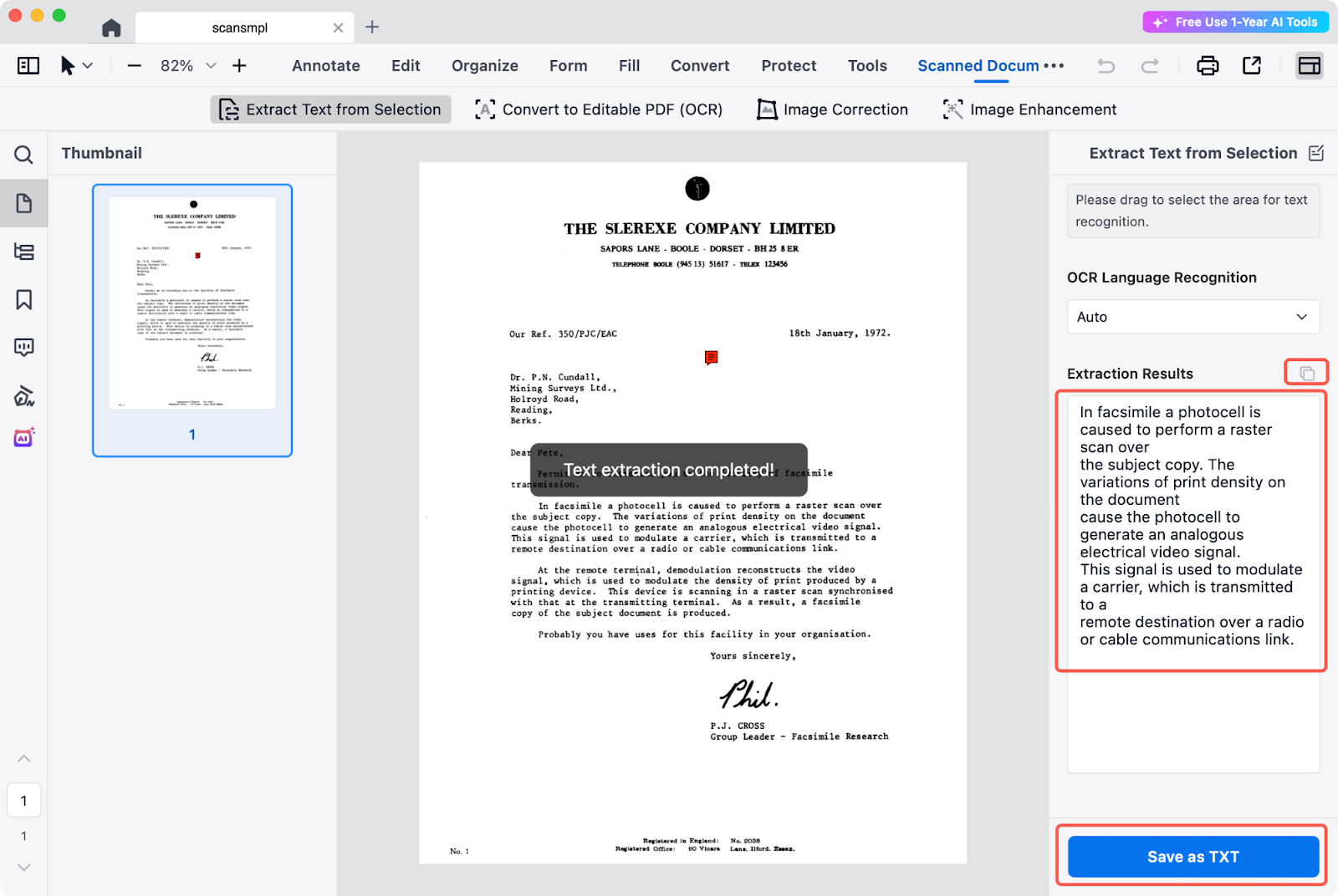
3. View and Copy: Your extracted text will pop up in the right-hand panel. From there, you can either click the Copy icon to paste it elsewhere or hit Save as TXT to keep it as a separate file.
Stop wasting time on manual data entry. Download PDF Reader Pro and start your free trial today to experience industry-leading OCR technology now!


