
The difference between blackline vs. redline documents is often a question asked by those entering into legal or editorial positions.
Our team has created this guide to help you understand the difference and make your own “redline” and “blackline” annotations to your PDFs.


Blackline vs. Redline: What Is the Difference?
The terms "blackline" and "redline" both refer to document comparison methods used to highlight changes between two versions of a document, especially in legal, business, and editorial contexts.
Redline
A "redline" shows edits or changes made to a document, usually indicating insertions in red and deletions with strike-throughs or in a different color.
Key Features:
- Tracks changes from one version to another.
- Insertions are underlined or in red; deletions are struck through.
Use Case:
Collaborating parties review a contract where one party made edits, and the redline highlights all proposed changes.
Blackline
A "blackline" is a finalized version of a redlined document showing differences between two versions, typically with no track changes or markup. Instead, changes are marked in black (or another uniform style).
Key Features:
- Shows what was added or deleted, but not as live, editable markup.
- Often used for formal review or archival purposes.
Use Case:
Before signing, a client receives a blackline of a contract showing final changes made between two revisions, often in a PDF or locked format.
Comparison Table
| Feature | Redline | Blackline |
| Purpose | Show tracked changes | Show final differences |
| Appearance | Color-coded (red/strike-through) | Uniform markup (e.g., bold/black) |
| Editable? | Yes (usually) | No (usually static) |
| Use Case | Collaborative editing/review | Archival/final comparison |
In Practice
- Lawyers may redline a document to propose changes.
- The other party may accept/reject those changes.
- A blackline version may be generated to see all differences from the last agreed-upon version.
How to Make “Redline” Changes to PDFs
As discussed, redline changes are generally annotations and suggestions made to a document for the benefit of the client. These do not have to be in red, they can be any annotations made. For the purpose of a clear explanation, we have used a contract as an example of this.
Step 1: Invest in a Proper PDF Editor
We recommend downloading your free 7-day trial of PDF Reader Pro for Mac or Windows (also available on iOS and Android):
 Free Download
  Free Download
Step 2: Click “Annotate” on the Main Toolbar
Choose the tools you would like to use. We recommend the underline, strikethrough and note tools for legal documents. These are your "redline" changes and will stay in the document that you send to your client. 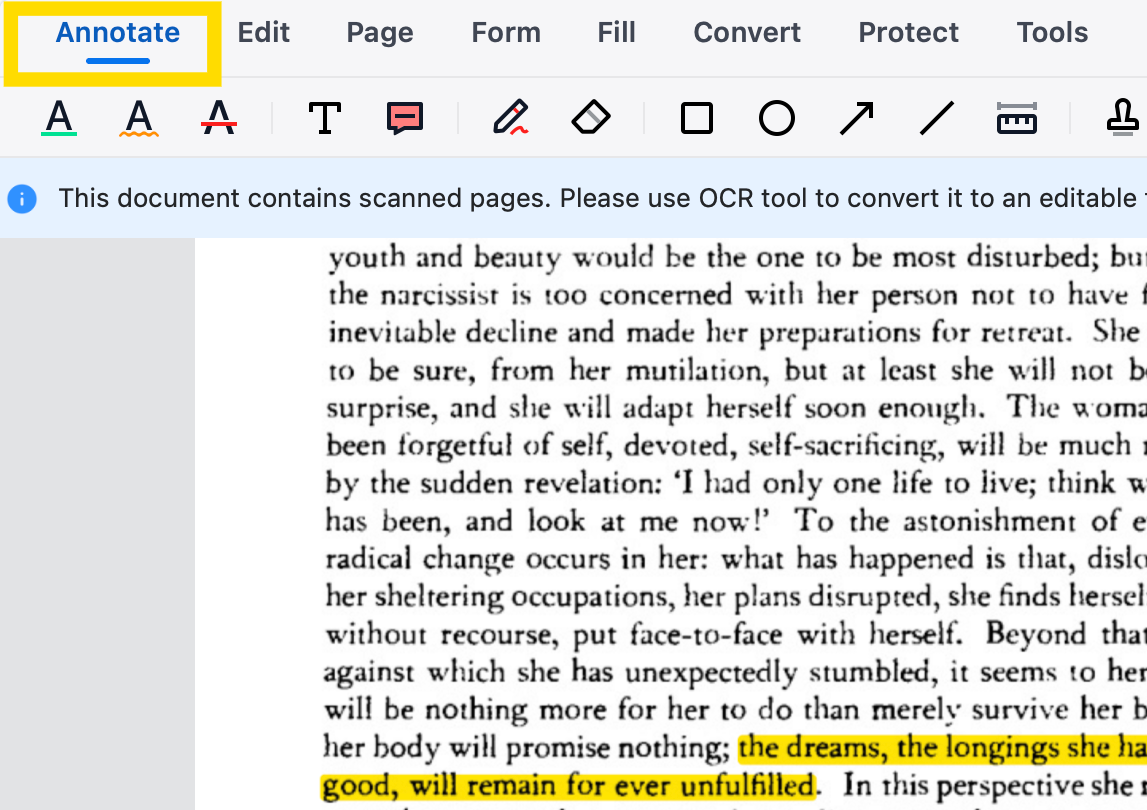
Step 3: Share the Document
Click the “Share” button on the top right and choose “Document” from the options.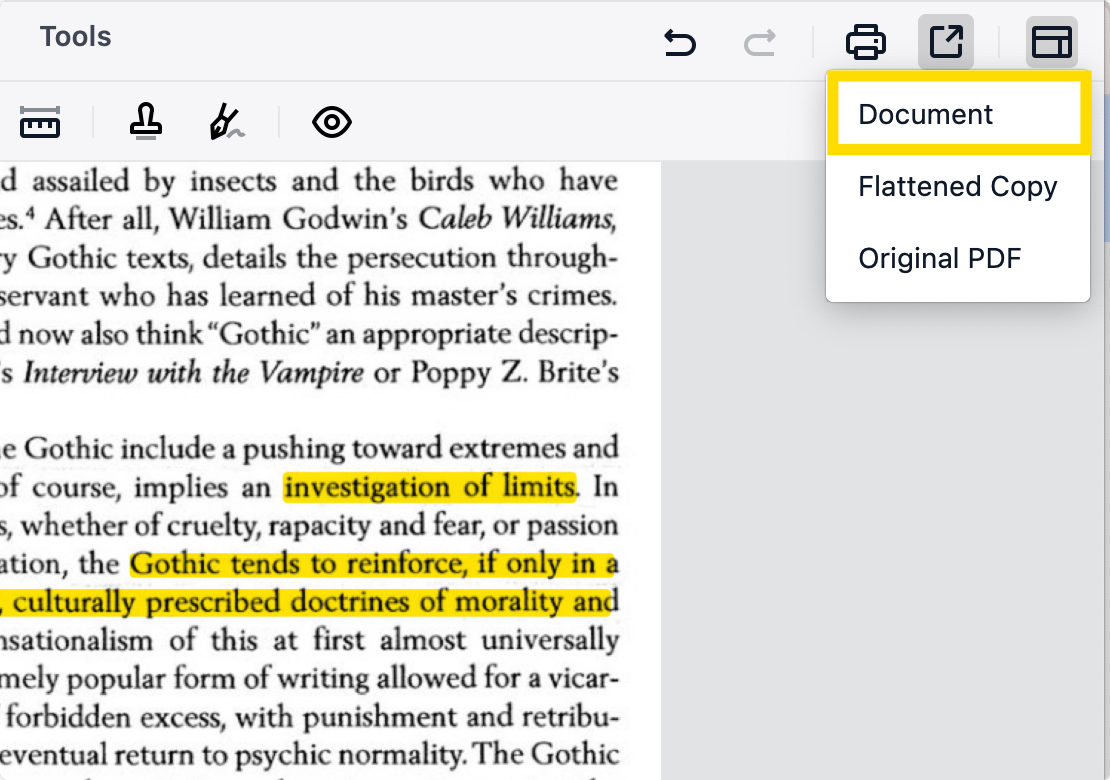
This step is to gain further revisions to your document from the client or other colleagues.
How to Package “Blackline” Changes to PDFs
Blackline changes will be the final amendments agreed upon with your client. To package these changes, you can follow the steps below.
Step 1: Open Your Redline PDF in PDF Reader Pro
This step assumes you have already made your annotations and interacted with the client. This document will have all the annotations in place. 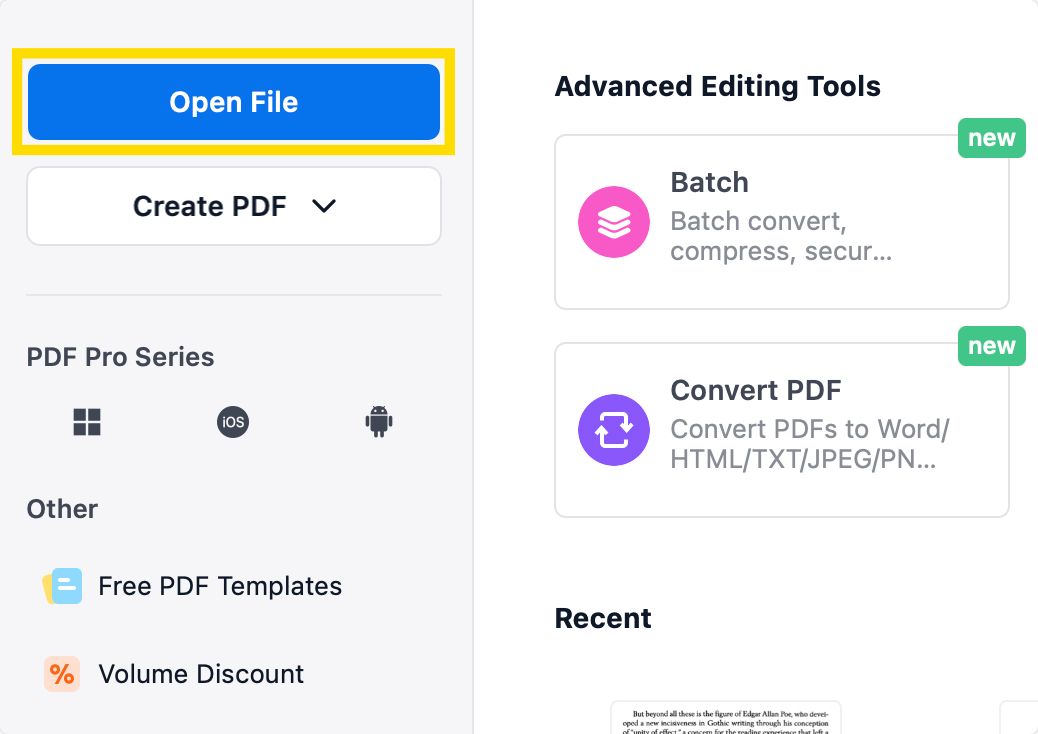
Step 2: Apply the Changes to Your Document
Accept the notes made by your client. Leave the new text in and keep the parts that have been struck out in black so that it is clear what changes have been made. Ensure that the color is changed to black using the properties tab. 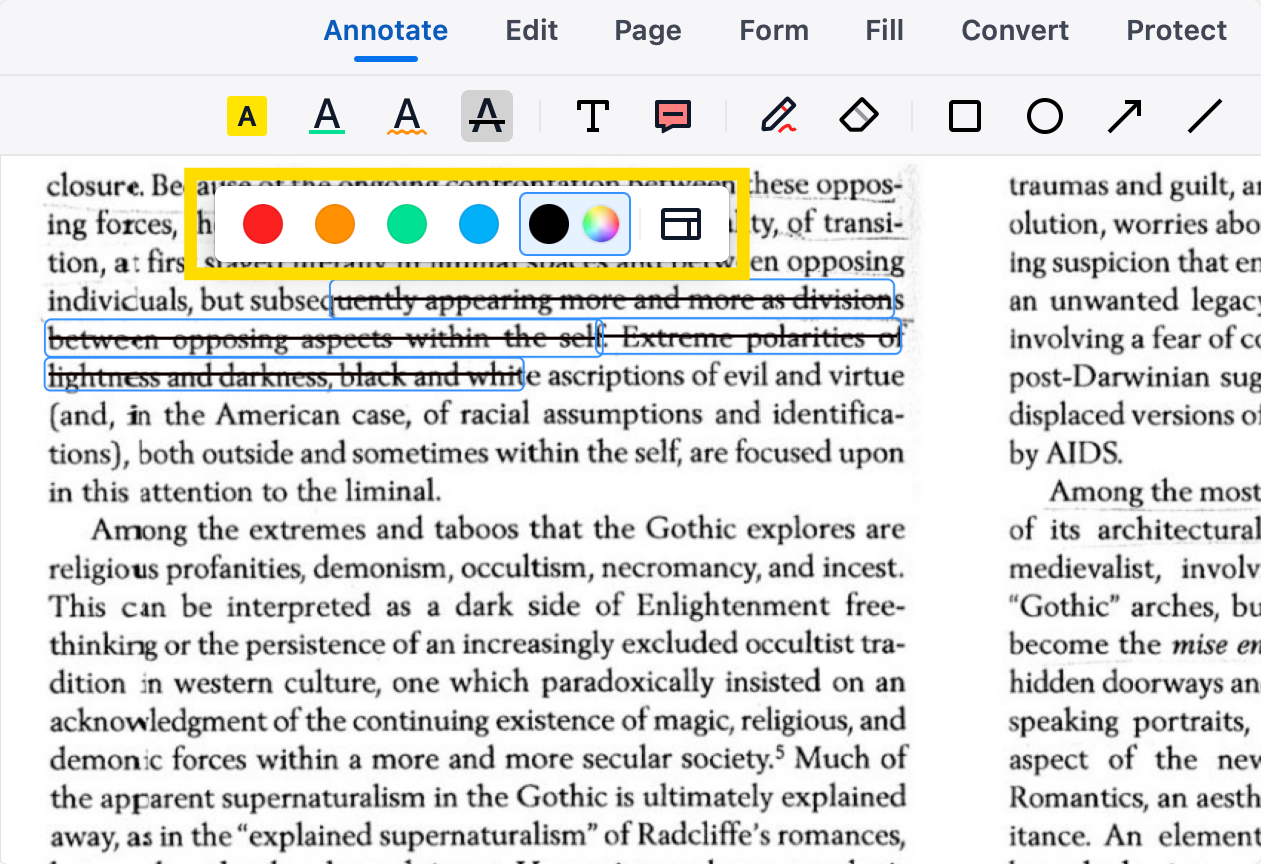
Step 3: Click “File” on the Main Menu
Or choose “Save as Flattened PDF” from the options listed under the share button on the top right.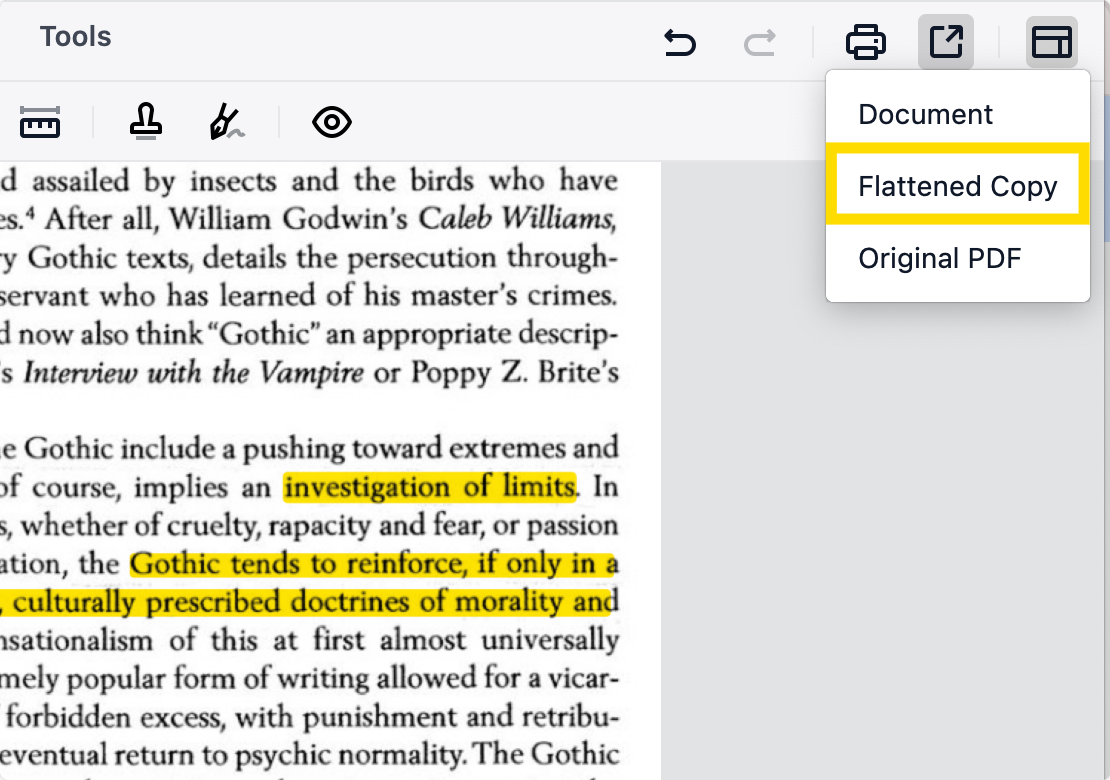
It is important to note that this will not serve as a final document with legal standing. It is simply the final version of edits made to the contract and can be kept for future reference of the changes that were originally made.
Did you find this blog helpful? We curate a variety of guides, statistics and other content weekly, so check back often.




 Support Chat
  PDF Reader Pro