

PDF is widely used for sending and saving formal documents like contracts, reports, and resumes because of its stable format and strong compatibility. However, editing a read-only PDF can be difficult. The good news is—it’s not impossible.
This blog introduces four useful tools and methods to help you easily edit read-only PDFs. Whether you need to update content or fill in information, these solutions can save you time, improve efficiency, and avoid unnecessary trouble.
What Is the Read-Only PDF?
The read-only PDF file refers to the file that can’t be changed directly, and it is usually used to prevent document changes casually. Ensures completeness and security. This setting is very useful for important documents like contracts and reports. However, this limitation will be inconvenient when you need to update information or correct mistakes. So, it is a skill that balances both efficiency and flexibility to learn how to edit the read-only PDF.
Top 4 Ways to Edit a Read-Only PDF
Method 1. How to Edit a Read-Only PDF with PDF Reader Pro
PDF Reader Pro is a powerful PDF editor tool that integrates multiple practical features, such as a PDF document editor, conversion, annotations, forms, signatures, encryption, and more. It has become a popular choice for many users with a user-friendly interface and an easy-to-use operations workflow. In this part, we will introduce how to edit a read-only PDF using PDF Reader Pro. It supports Windows & Mac devices.
Step 1: Install PDF Reader Pro and run it on your desktop.
Step 2: Click the “Open File” button and upload your read-only PDF files.
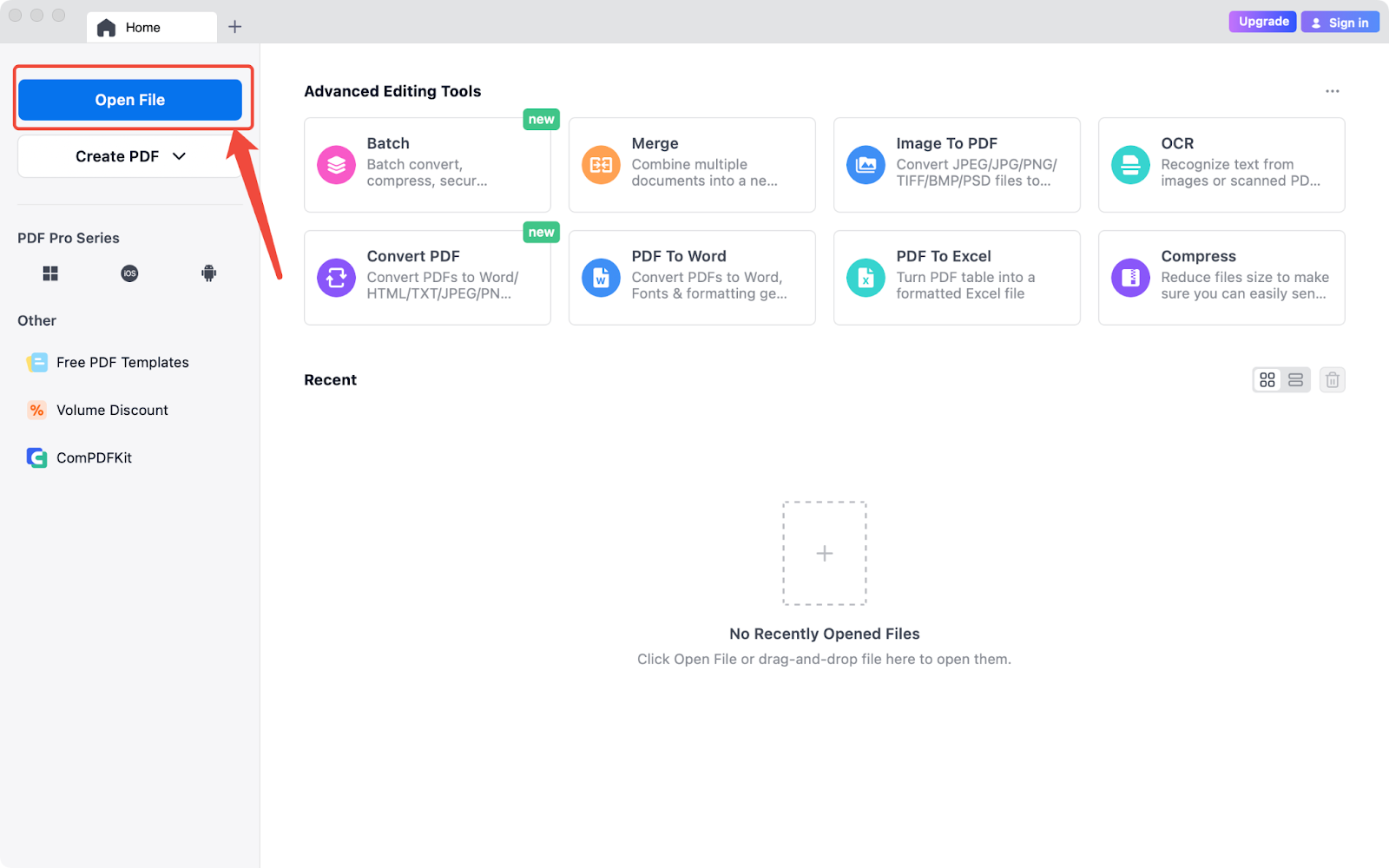
Step 3: Unlock your read-only PDF file by entering the password.

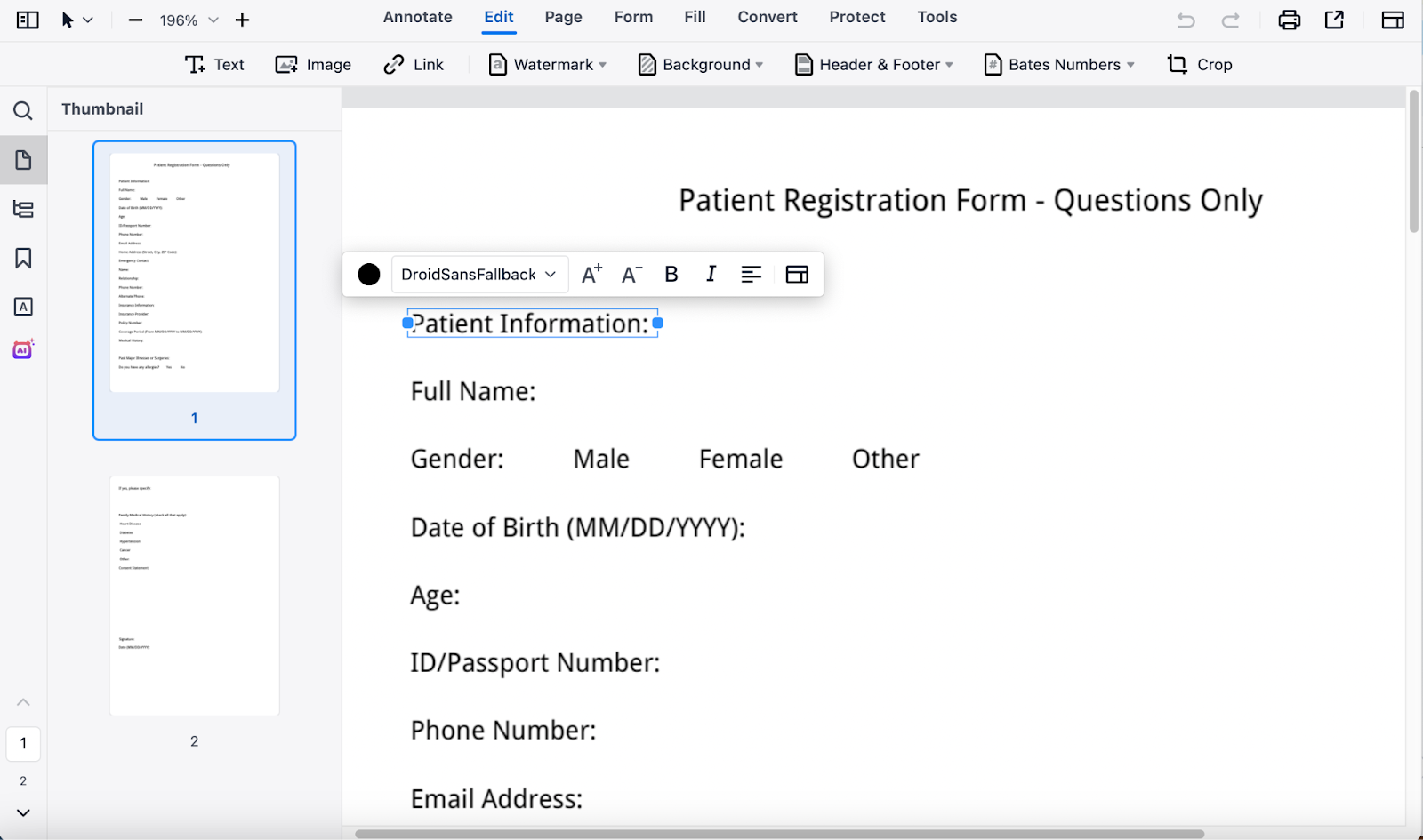
Step 4: Click “Edit” to modify the content in your read-only PDF files.
Method 2. How to Edit Read-Only PDFs Using Free and Online PDF Editor
If you don’t want to install any software, you can also quickly edit the read-only PDF with an online tool. For example, the demo of ComPDF is an easy-to-use online PDF editor that is suitable for processing lightweight editing tasks. Only a few steps to remove the read-only form PDF and change the content.
Step 1: Visit the ComPDFKit PDF SDK Demo.
Step 2: Upload the read-only PDF Document.
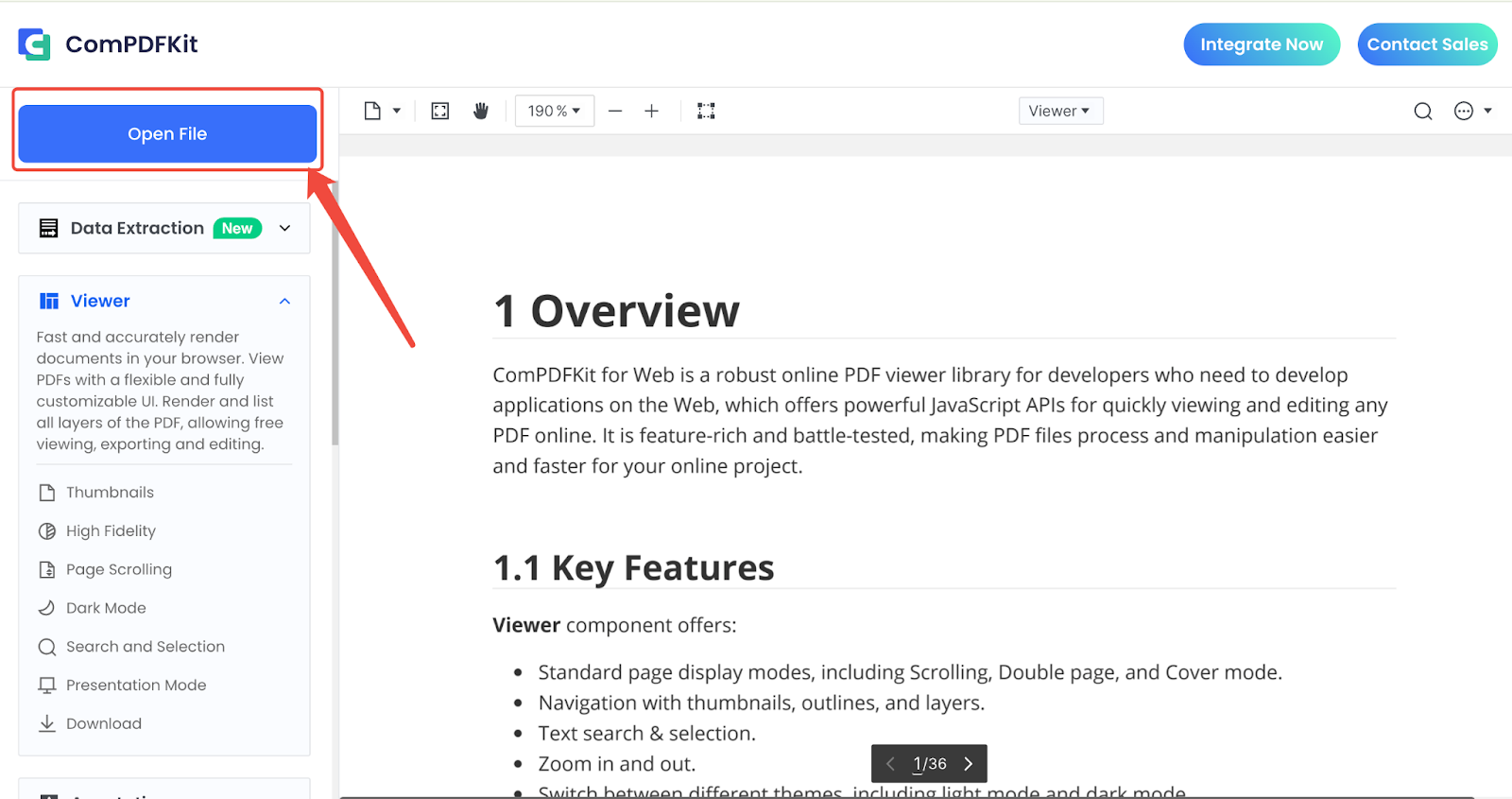
Step 3: Enter the password in the prompt box, then you can use the PDF editor features to change the content, such as text, images, or annotations.
After changing the content as needed, you can download to save your modifications.
Method 3. How to Edit a Read-Only PDF with Microsoft Word
You can also use Microsoft Word to edit a read-only PDF. Here’s how:
Step 1: Open the read-only PDF in Microsoft Word. Word will automatically convert it into an editable document.
Step 2: Make the changes you need.
Step 3: When you're done, click “File” and select “Save As”. Choose PDF as the file format to save your edited version.
Method 4. How to Use Google Docs to Edit Read-Only PDFs
Google Docs is another free tool that allows you to edit PDFs online without the need to install any software. It is especially useful for Chromebook users or people who need to work across different devices. Here are the steps:
Step 1: Open Google Drive and upload your read-only PDF.
Step 2: Right-click the “Open with” and choose “Google Docs”. The system will automatically convert the PDF into an editable document.
Step 3: Modify the content as your needs.
Step 4: When finished, click “File”, choose “Download”, and select“PDF” format to keep the changed version.
Tips for Editing Read-Only PDFs
Editing a read-only PDF file is not simply choosing a reliable tool. Moreover, learning some practical tips will make the whole process more efficient and smoother. Here, we list some useful suggestions for you:
1. Check Whether Setting Password Protection
If it prompts to enter a password or a message like “Protected Document” after opening the file. It means this PDF file imposes some limitations on editing. Please unlock the limitations if you have the password.
2. Using Reliable PDF Editing Software
Ensure to use a reliable software or online tool to edit your PDF, which helps you keep the completeness and security of documents.
3. Re-encrypt or Export as Read-only After Editing
If you modify a sensitive file, it is a better way to back it to read-only or encrypt it before saving and sharing, to prevent further changes.
4. Keep a Backup of Original File
To avoid losing content, messy format, or other problems, saving a copy of the original file before editing is a good idea!
Ethical Considerations for Decryption
Unlocking read-only PDFs raises several ethical considerations, especially when you are not the file owner. Here are some precautions to keep in mind:
-
Ownership and Rights: Ensure you have the legal right to access the content. If the document is copyrighted, seek permission from the owner.
-
Intended Use: Consider whether unlocking the PDF is for legitimate purposes, such as personal use or educational purposes, rather than for unauthorized distribution or commercial gain.
-
Respect Privacy: If the document contains sensitive or personal information, respect the privacy of individuals involved. Avoid sharing or using the content in ways that could harm them.
-
Integrity of Content: When accessing or modifying the content, maintain its integrity. Avoid altering the original message or context unless you have permission.
-
Attribution: If you use the content in any way, properly attribute the original source to acknowledge the creator’s work.
Conclusions
Although the read-only PDF is mainly used to protect document content and prevent it not being modified casually. We need to edit and update it in our daily work.
Luckily, by reading this blog, you can meet various editing requirements easily with the help of PDF Reader Pro, Microsoft Word, online tools, or Google Docs.
Try one of these methods mentioned on our blog to solve how to edit read-only PDF problems right now!
 Free Download
  Free Download



 Support Chat
  PDF Reader Pro