
To remove redactions from a PDF, you will need to be the owner of that specific file. Once a file goes through the final redaction process and is flattened and secured, it is nearly impossible to remove these redactions.
Find out how to remove incorrect redactions or adjust them within your own documents by using one of the various tools recommended, each with its own purposes.


Recommended Tools to Remove Redactions From PDFs
Browse through our selection of PDF editing applications that have redaction tools to keep your documents secure.
| Tool | Platform | Can Detect Improper Redactions | Pros of Application |
| PDF Reader Pro | Windows, macOS, iOS | Yes |
* Advanced security tools that allow only you to remove redactions * Option to black out or white out after deleting original redaction * Recognizes text for easy highlighting and deletion of redactions |
| ComPDF Web Demo | Web-Based | Yes |
* Easy redaction deletion for online uploads |
| PDF24 (Online) | Web-Based | Yes |
* No download required * Free to use |
How to Remove Redactions From a PDF
Follow the steps below for your chosen application to get started with removing redactions from your PDF.
Using PDF Reader Pro
You can download the latest version of PDF Reader Pro for Windows, Mac, iOS or Android here:
 Free Download
  Free Download
Step 1: Open Your PDF
Click “Open File” or drag and drop your file into the Home interface.
Step 2: Click “Protect” on the Main Toolbar
Right-click on the redactions you made and select “Delete” to remove it.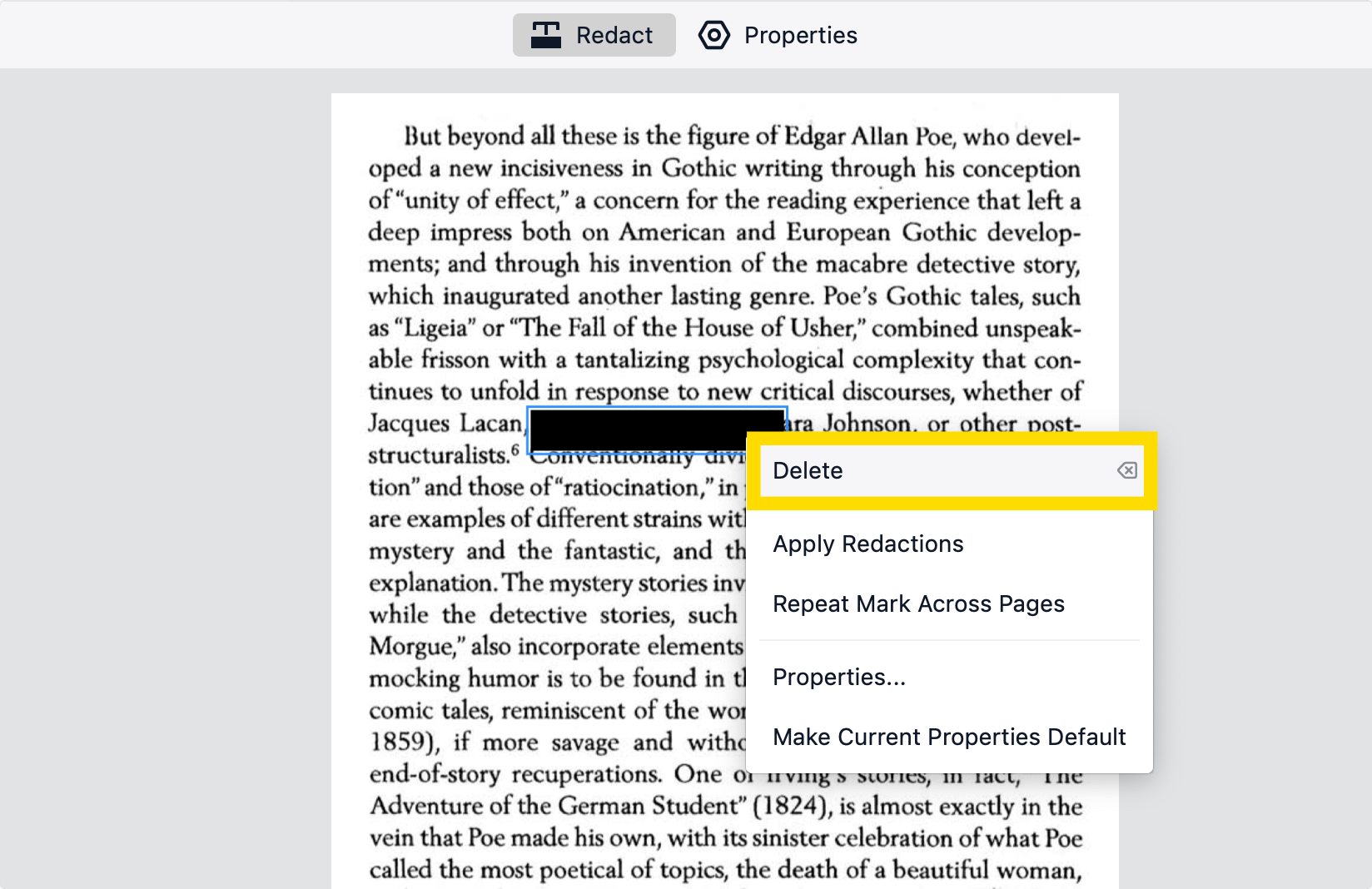
OR
Step 2: Click "Remove Security"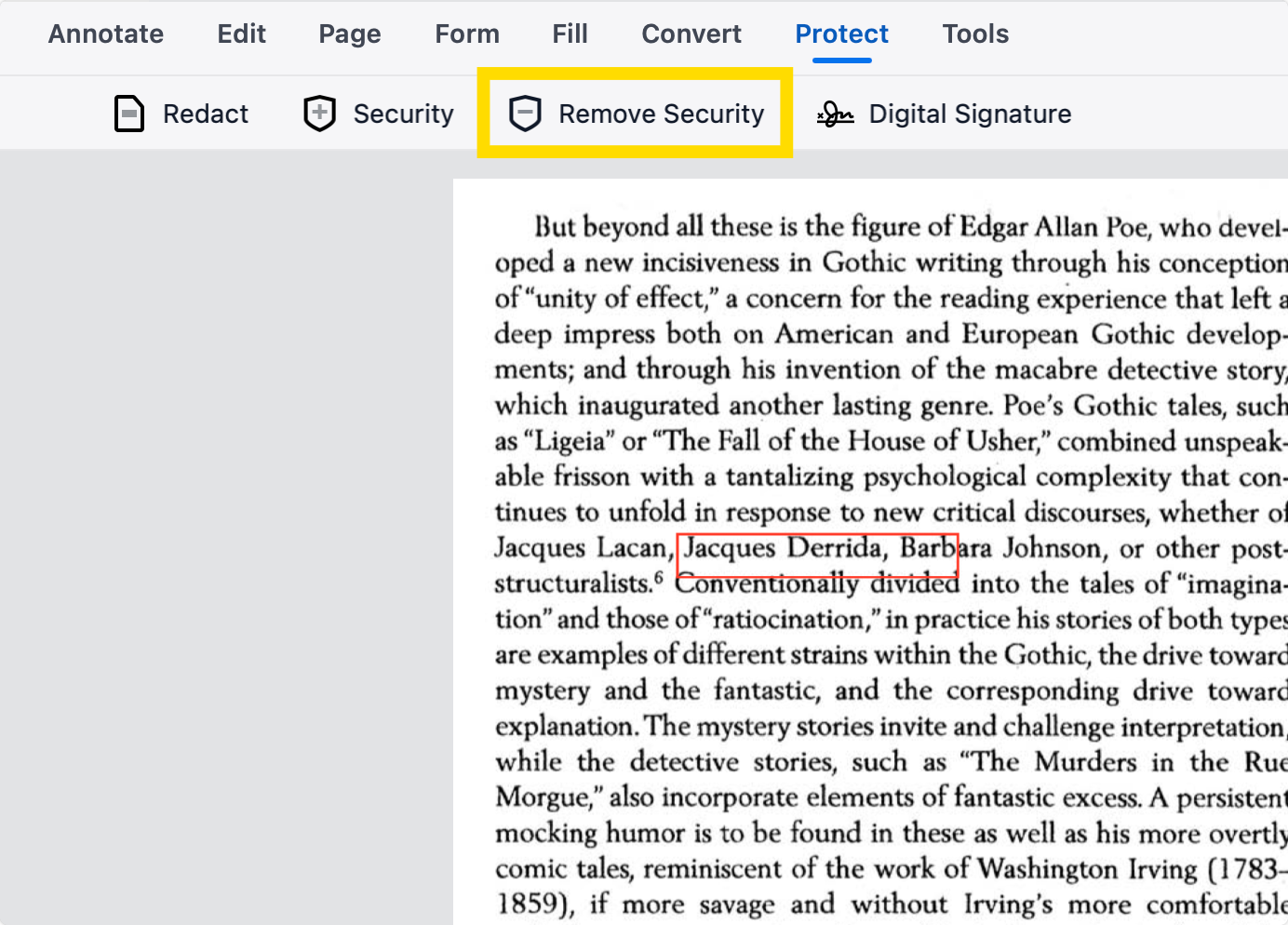
OR
Using AI Redaction Features (99% Accuracy)
- Remove sensitive information permanently with cutting-edge AI redaction
- Intelligently identify and extract names, IDs, financial data, and more
- Redact all private content in one click
Ask AI bot to remove all redactions made to the document.
Using ComPDF Web Demo
Step 1: Open the Online Interface
Click the three dots to upload a new PDF.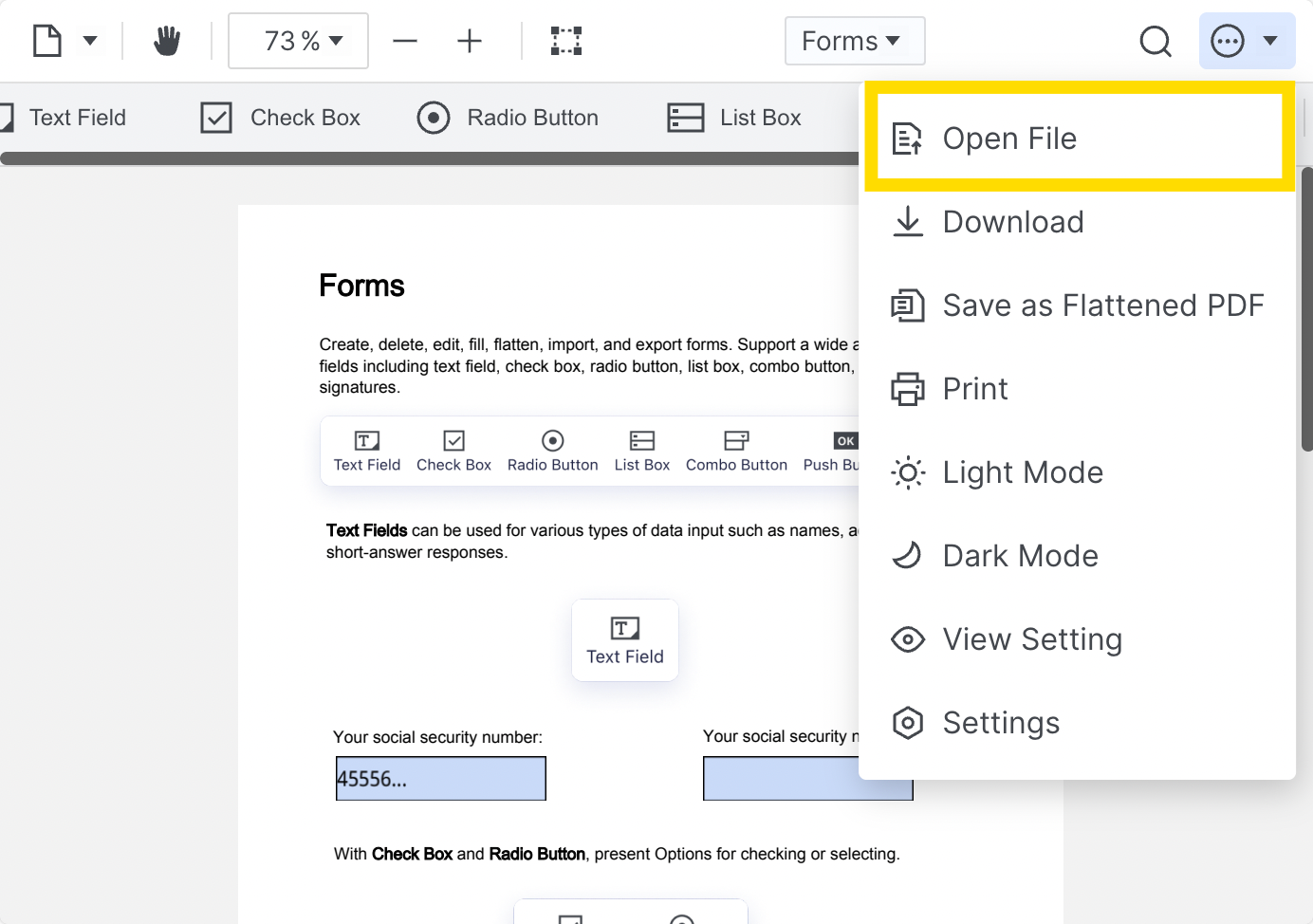
Step 2: Change to “Redaction” on the Drop-Down Menu
Change this on the left-hand side as well for an extra guide to this tool.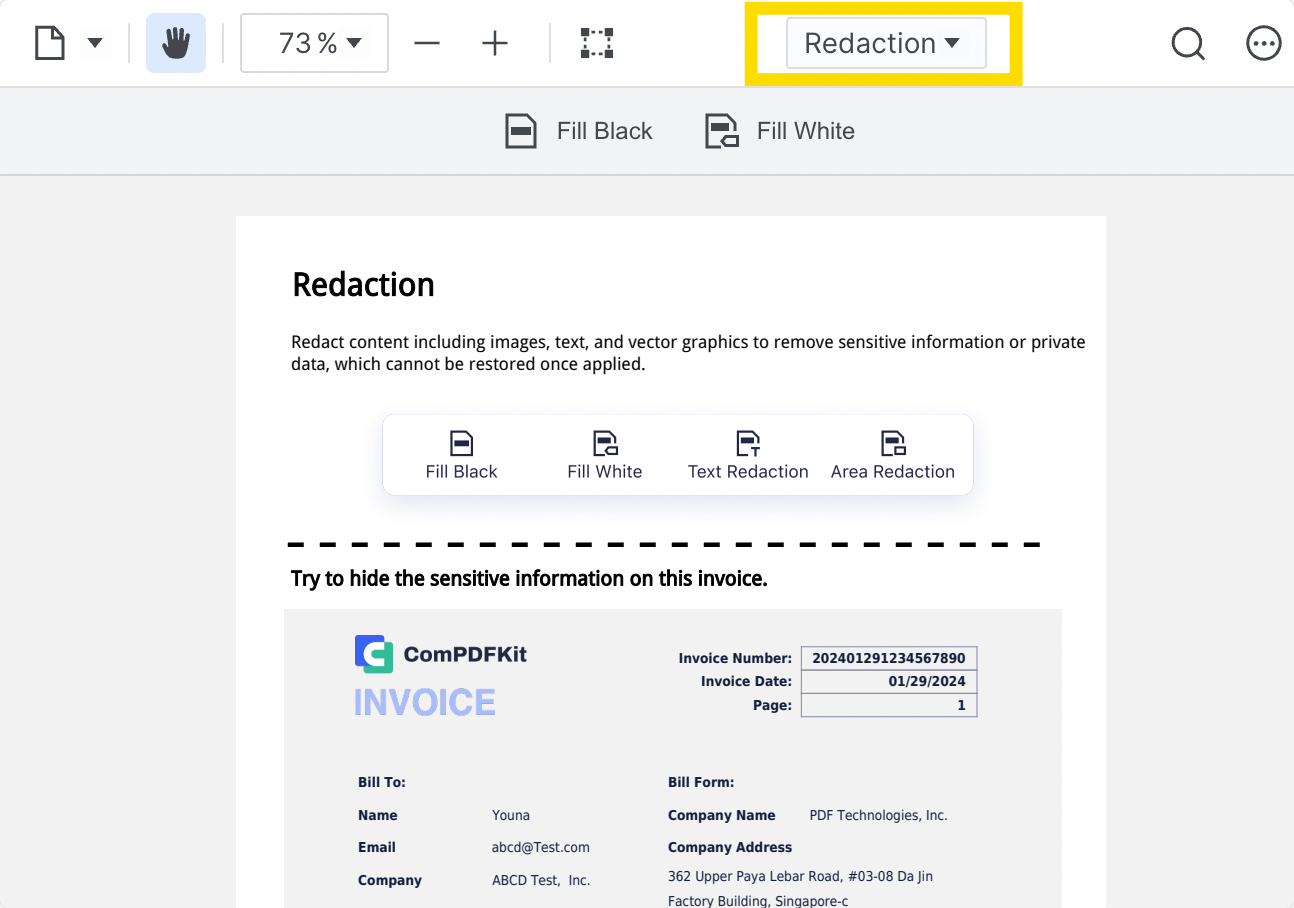
Step 3: Click on the Redaction Blocks
Choose the trash can icon to delete the redaction.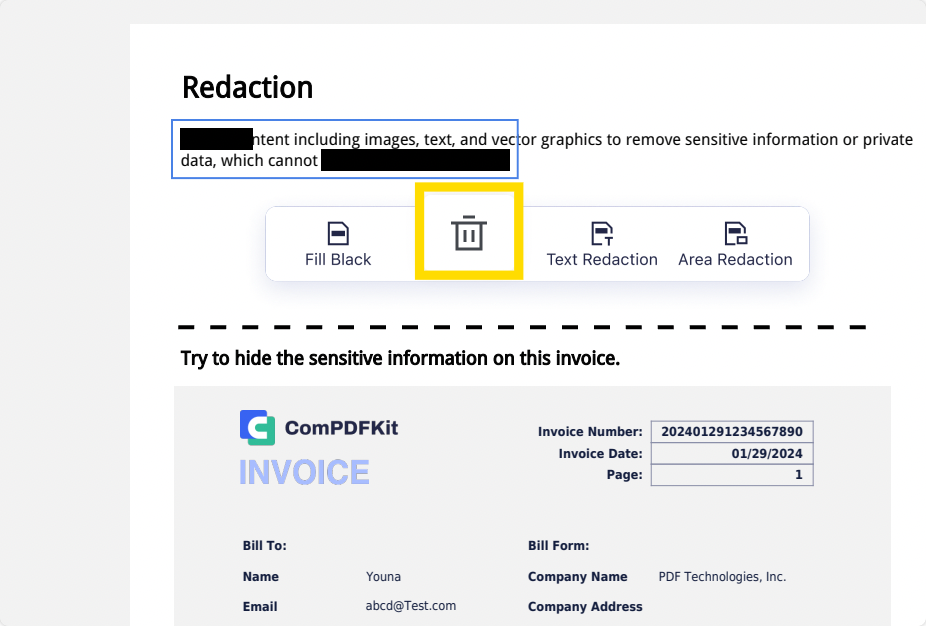
Using PDF24
Step 1: Open the Online Interface
Choose “Redact PDF” from the tools.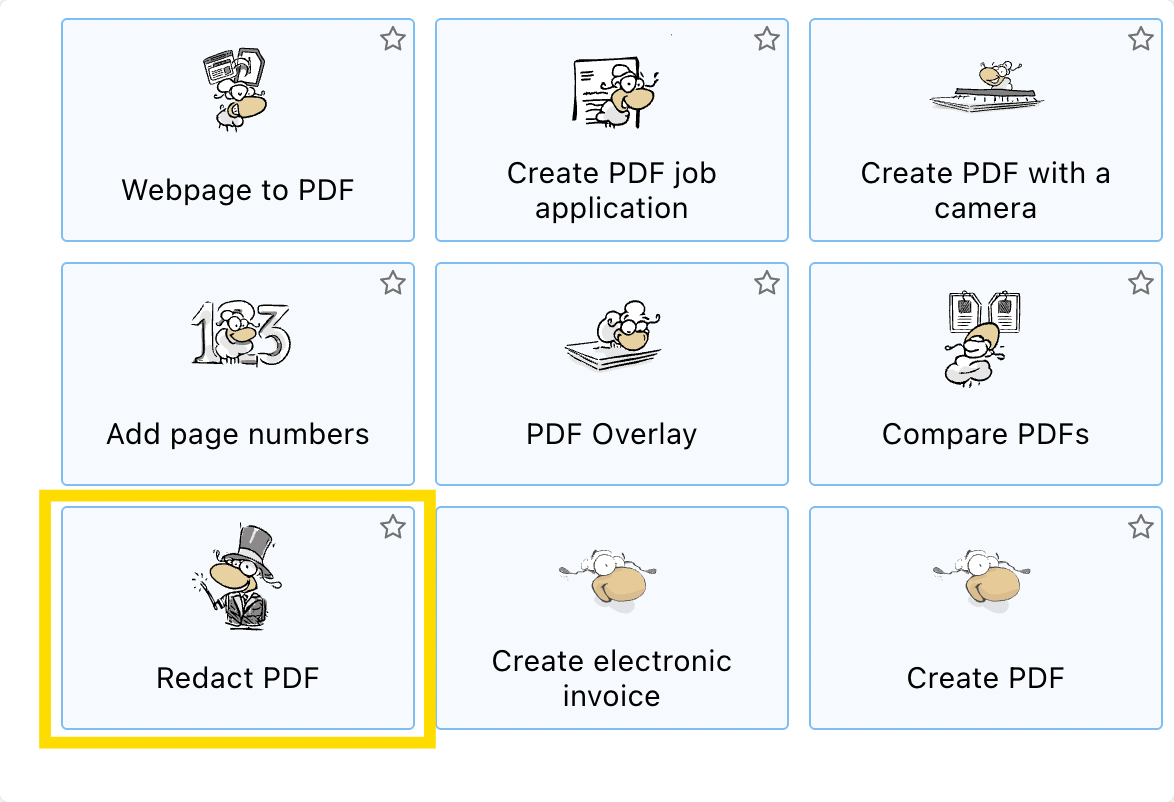
Step 2: Upload Your PDF
Or choose to drag and drop it into the box.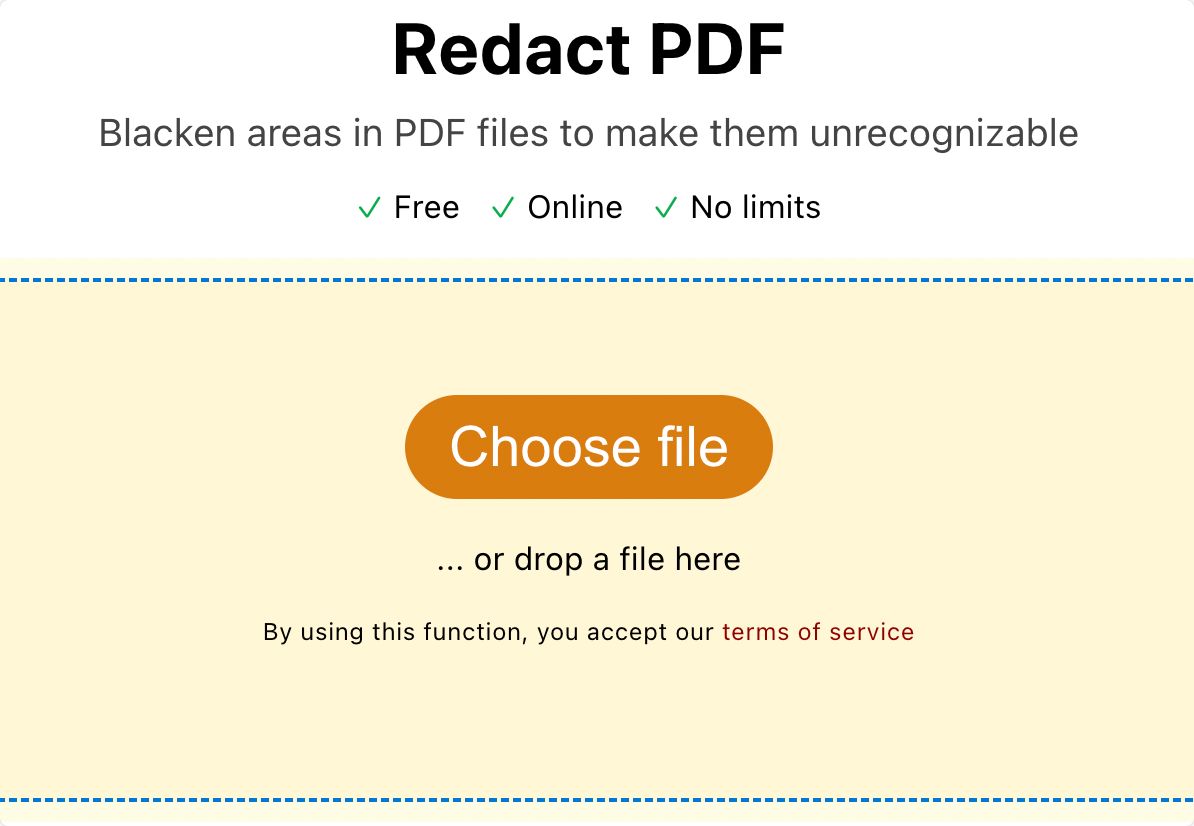
Step 3: Click on Your Added Shape
Tap the backspace or delete key on your keyboard.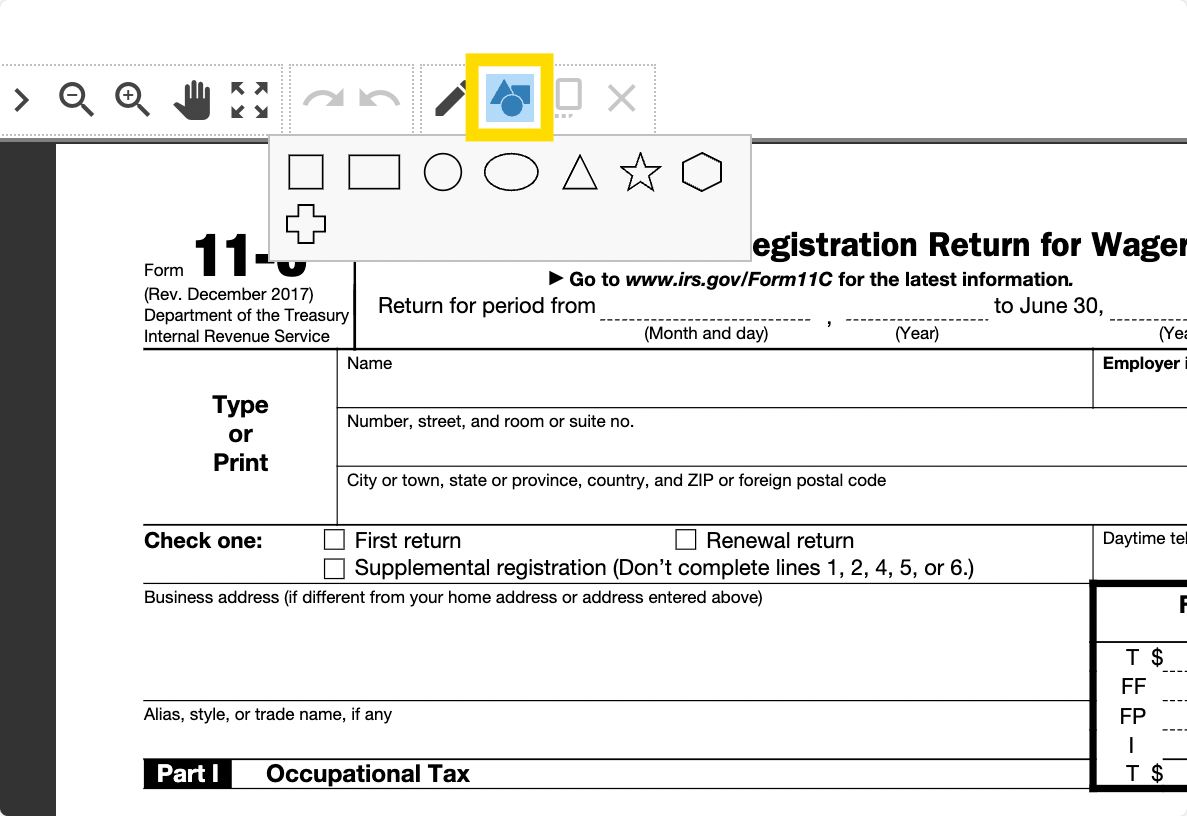
Step 4: Click on “Save PDF”
Security Tips From Our Experts
Here are some additional tips to help you get the most out of the redaction removal features outlined above.
| Tip | Description | Why It Matters |
| Confirm Legal and Ethical Use | Ensure you have ownership of the file you are removing redactions from. | Removing redactions from confidential files without authorization is unethical and potentially illegal. |
| Figure Out the Redaction Type | Inspect whether the redaction is a shape or a true digital redaction using object inspector tools. | Only improper redactions (e.g., visual-only) can be removed. Secure redactions are permanently deleted from the file after being saved. |
| Extract Text Under Layers | Use OCR (optical character recognition) or the "Edit Text" function to see if content remains beneath redaction shapes | Some PDFs leave text in place beneath overlays. |
| Use Object Selection Tools | Use PDF editors like PDF Reader Pro to select and delete shapes or annotation layers. | If the redaction is just a black box, you may be able to select and remove it |
Did you find this guide helpful? We publish tutorials and guides to the latest PDF software every week to ensure your workflow is as efficient as possible.



 Support Chat
  PDF Reader Pro