
Using the right sign maker, you can create a custom signature to use on all your documents.
See our other blog on how to create a signature using a template built into the application for more signature options.


Recommended Sign Maker Software Applications
Browse through our recommended signature creation tools and choose one that works best for your personal or professional needs.
| Application | Platform | Signature Types | Pros of Application |
| PDF Reader Pro | Windows, macOS, iOS, Android | Hand-drawn, typed, image upload, signature certificate |
* Offline signing * Digital ID for added security * Customisable signature templates |
| ComPDF Web Demo | Web-based | Hand-drawn, typed, image upload, signature certificate |
* No installation necessary * Quick processing |
| Sejda PDF Editor | Web-based, Desktop (limited) | Hand-drawn, typed |
* Fast online signing * Timestamp and flattening |
- PDF Reader Pro offers advanced features like certificate-based signing and reusable signatures across devices.
- The ComPDF Web Demo is ideal for simple, quick signing needs that can be completed in-browser.
- Sejda combines ease of use with features like flattening the signature layer for added protection.
How to Create a Signature with a Sign Maker
Follow the guide for your selected PDF editor to create your signature from scratch.
Using PDF Reader Pro
You can download the latest version of PDF Reader Pro for Windows or Mac here (also available on iOS and Android):
 Free Download
  Free Download
 Step 1: Open Your PDF
Click “Open File” or drag and drop your document into the Home interface.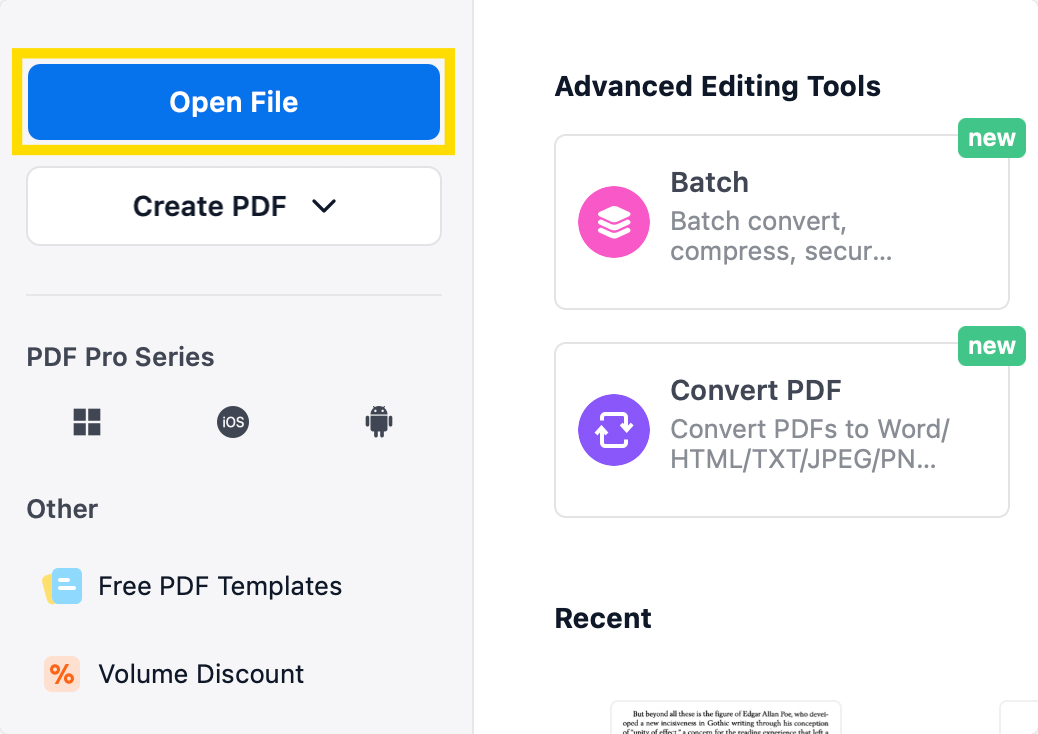
Step 2: Click “Protect” on the Main Toolbar
Create your secure digital signature by clicking "Digital Signature" and following the security steps. 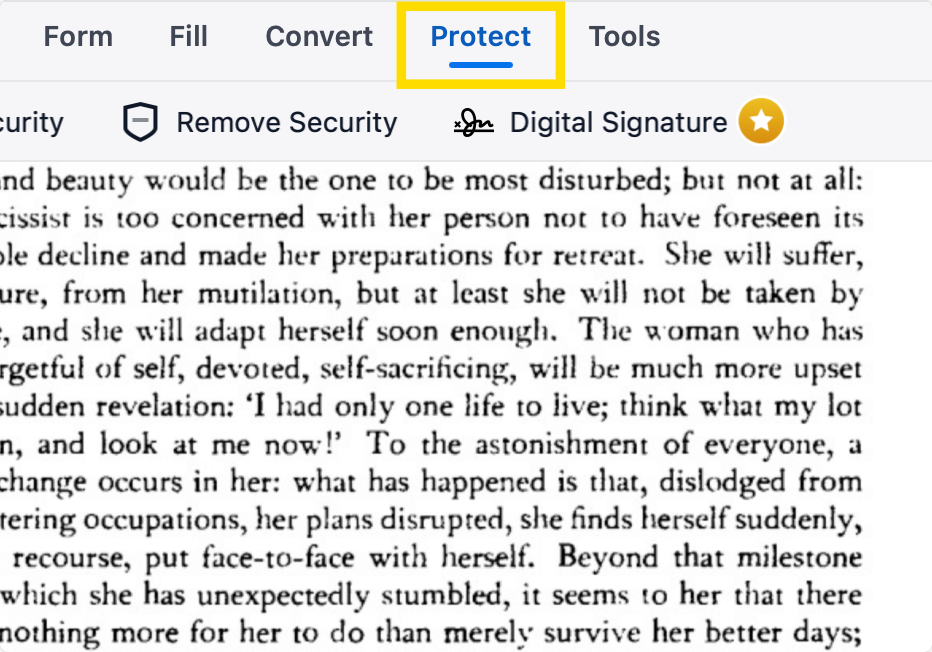
OR
Step 3: Click “Annotate” on the Main Toolbar
Click on the ink nib icon underneath and choose your signature type.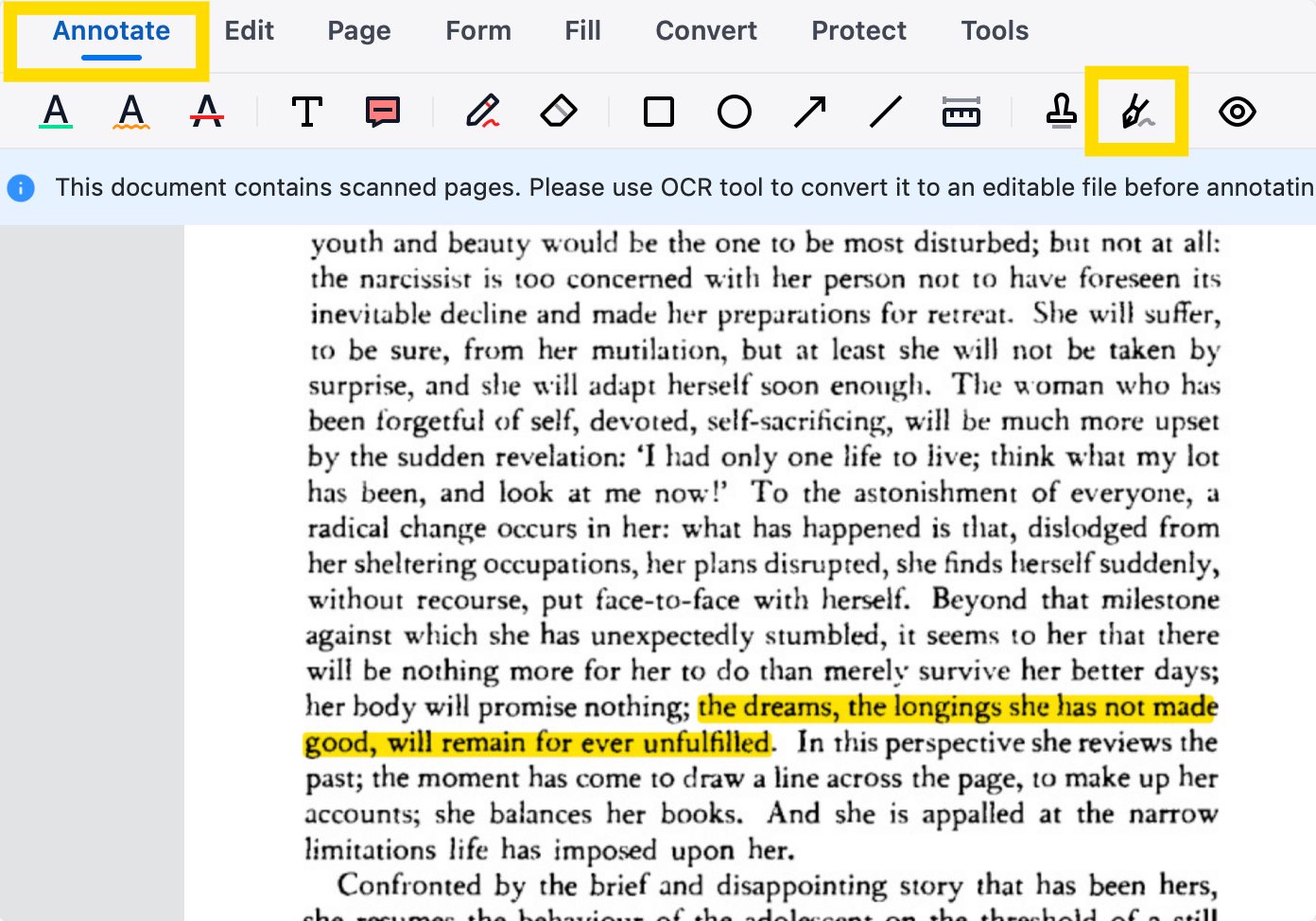
Personalise it by drawing your own signature using the trackpad on your computer.
Using ComPDF Web Demo
Step 1: Open the Online Interface
Click the dots on the top right and click “Open File” to begin.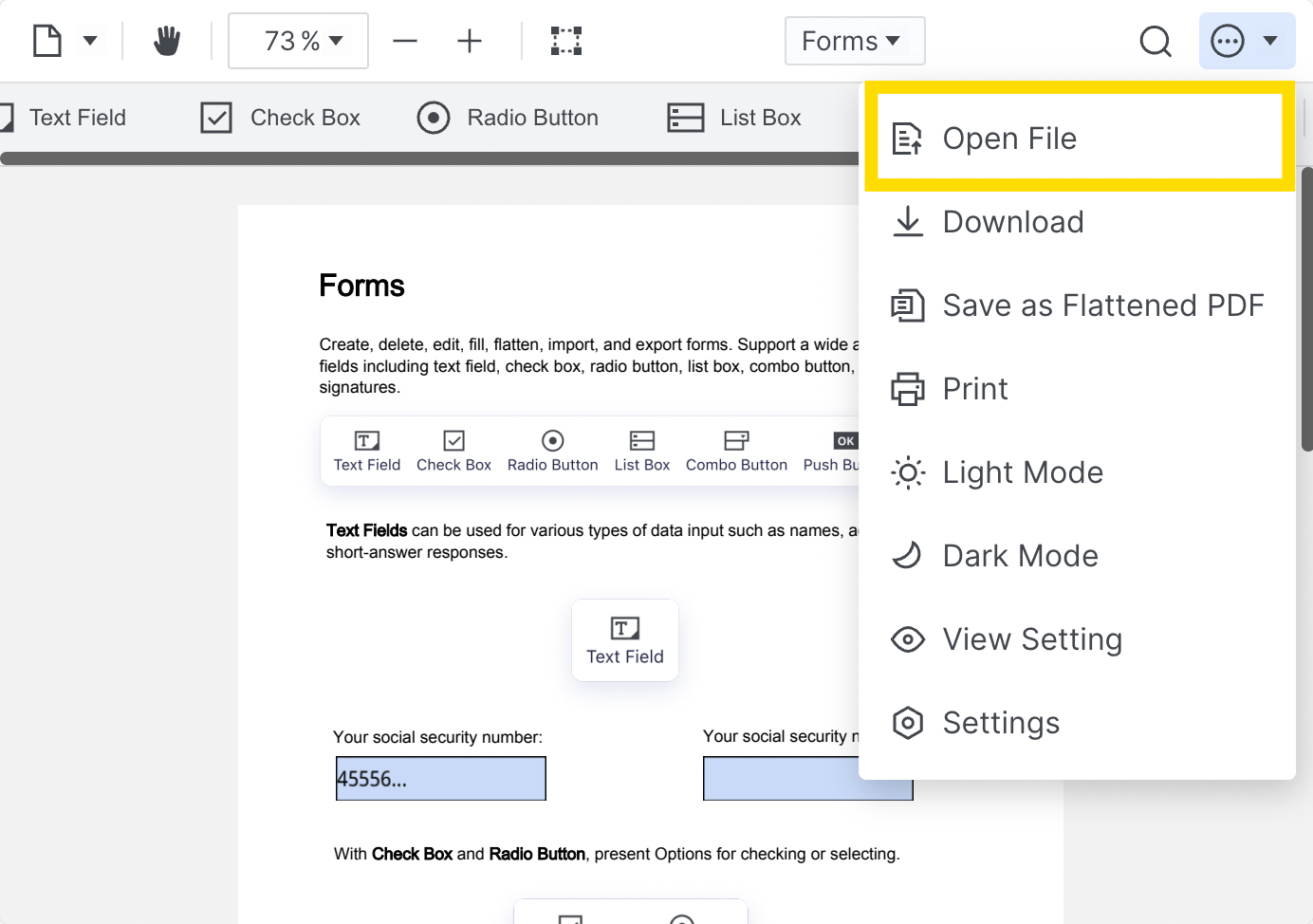
Step 2: Choose “Signatures” from the Drop-Down Menu
Click “Signatures” on the left-hand side as well to see a more detailed guide.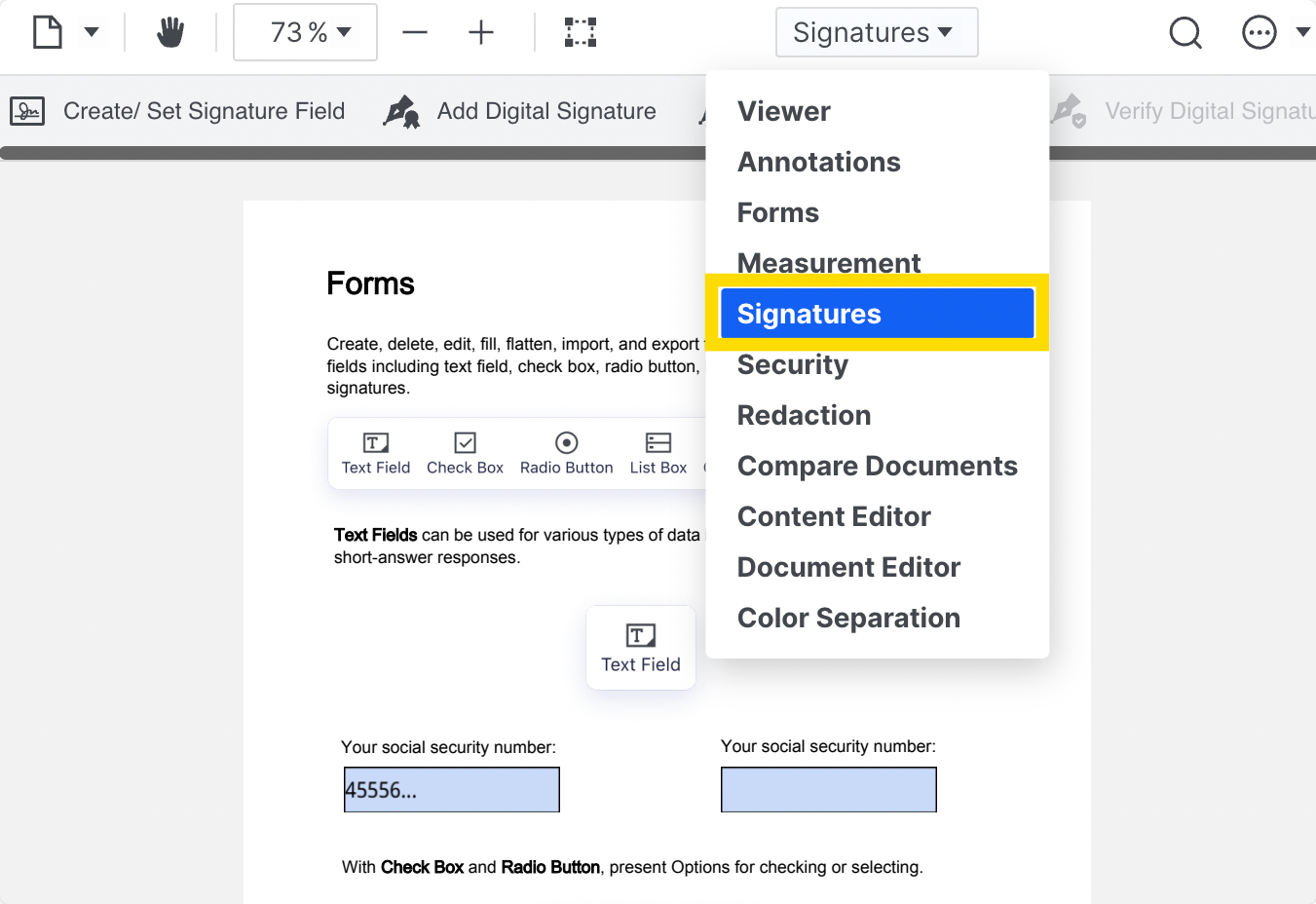
Step 3: Click to Place Your Signature
Choose to create a custom signature by drawing it on your trackpad.
Using Sejda
Step 1: Open Your PDF
Or drag the document into the box.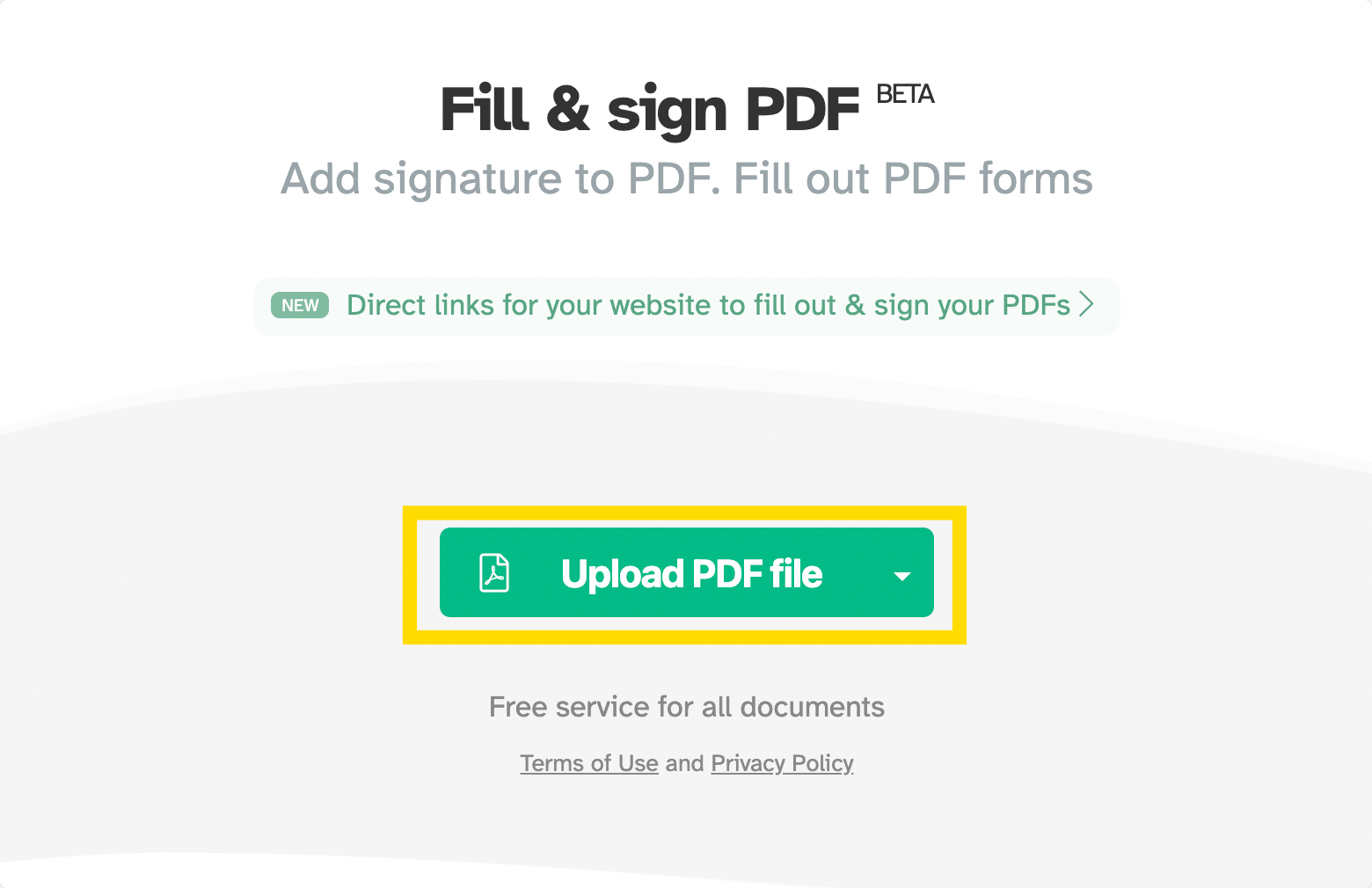
Step 2: Click “Sign” on the Menu
Select “Create New Signature” to start a custom signature.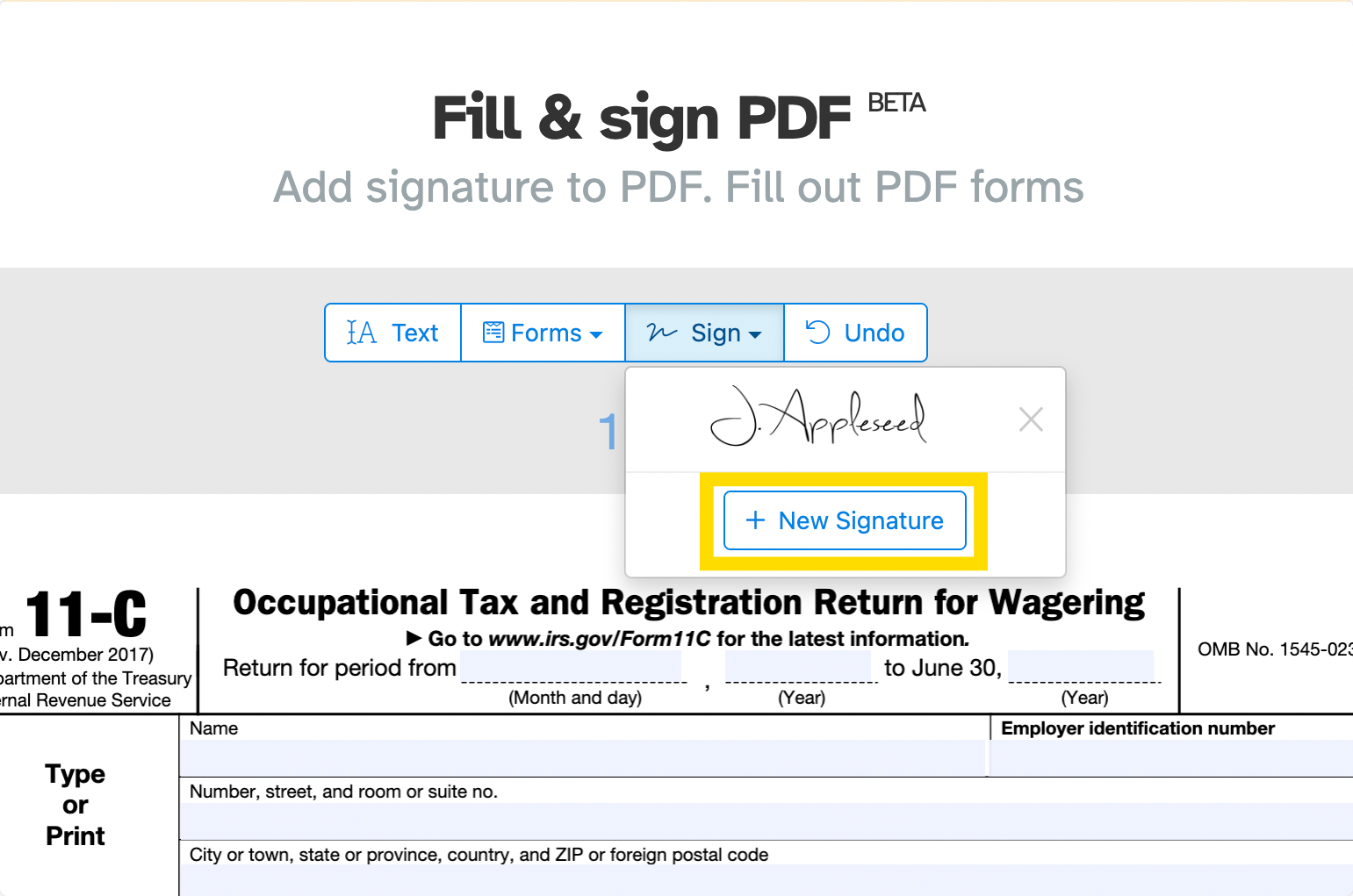
Step 3: Make a Custom Sign
Click “Draw” and use the trackpad to sign in your own handwriting.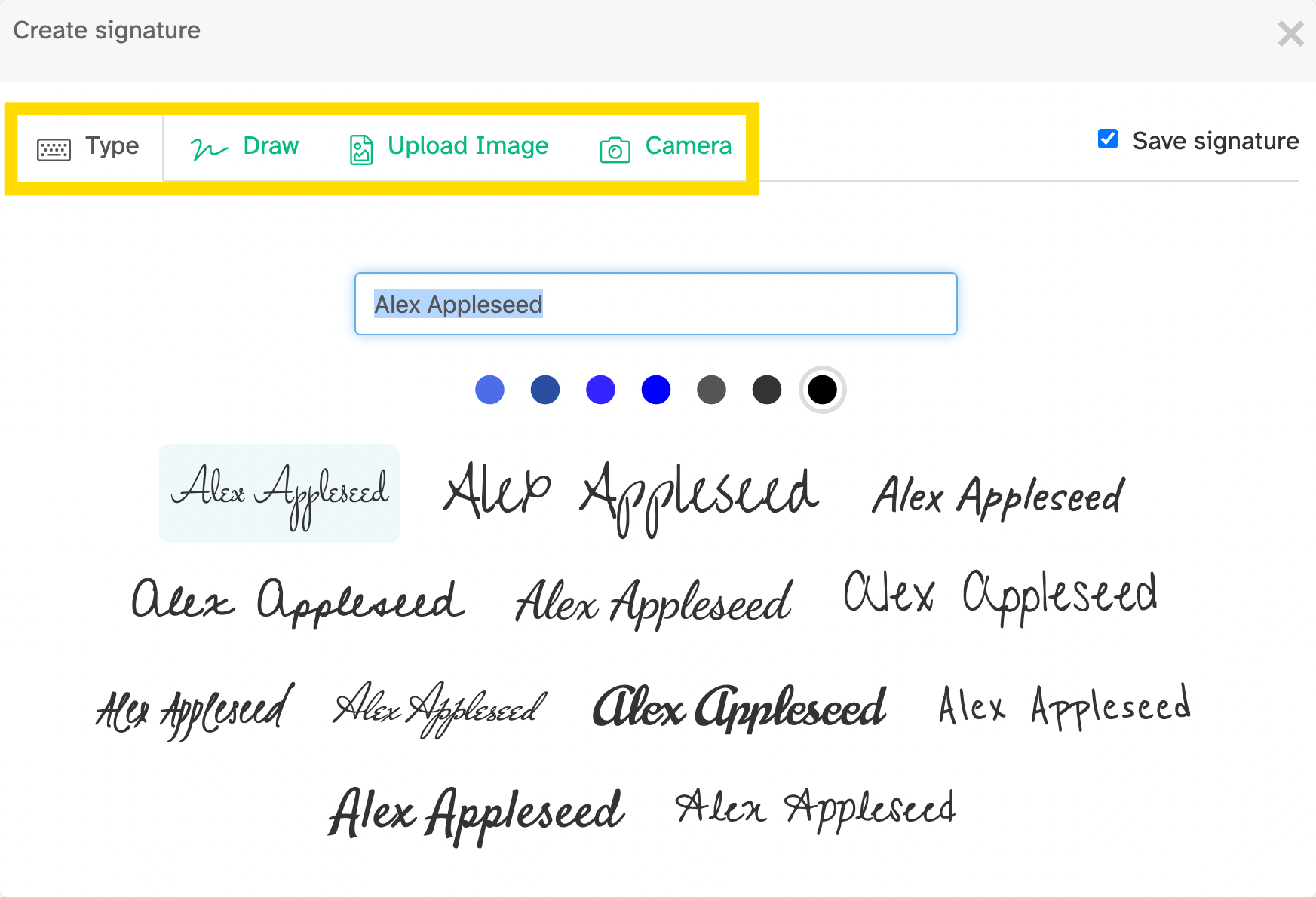
Tips for Creating a Signature with Your Sign Maker Tool
Here are some expert tips to make the most out of your custom signature, once created.
| Tip | Description |
| Use a Stylus or Finger for Precision | On touchscreen devices such as tablets, you can use a stylus to hand-draw your signature. |
| Keep a Copy of Your Signature Saved | Choose an app that will allow you to save the signature you created for future use. |
| Flatten or Lock the Signature After Applying | Use the "flatten" feature to embed your signature into the PDF so that others cannot edit it. |
| Use Built-In Security Features | Enable password protection, digital certificate support, or timestamping if available to enhance the credibility of your signature. |
Check in weekly to our blog to see more guides to the latest PDF software features to help your business run smoothly.



 Support Chat
  PDF Reader Pro