

Find the best PDF application below to optimize your PDF signing workflow and learn how to use it to optimize efficiency.
See our other blog on how to create a digital signature using PDF Reader Pro to see how to design your own digital ID.


Best Applications to Improve Your PDF Signing Workflow
Browse through our table below to see which application suits your multi-user workflow best:
| Application | Platform | Advantages | Limitations |
| PDF Reader Pro | Windows, macOS, iOS, Android |
|
|
| ComPDF Web Demo | Web-based |
|
|
| Smallpdf | Web-based |
|
|
- PDF Reader Pro is ideal for professionals needing secure, offline, and flexible signing tools across devices.
- ComPDF Web Demo is great for fast, no-hassle signing without installing software.
- Smallpdf shines in collaborative and cloud-based workflows.
How to Set Up Your PDF Signing Workflow
Follow the steps below to see how to use your chosen PDF signing tool.
Using PDF Reader Pro
You can download the latest version of PDF Reader Pro for Mac or Windows here (also available on iOS and Android):
 Free Download
  Free Download
 Step 1: Open Your PDF
Click “Open File” or drag and drop the file into the Home interface.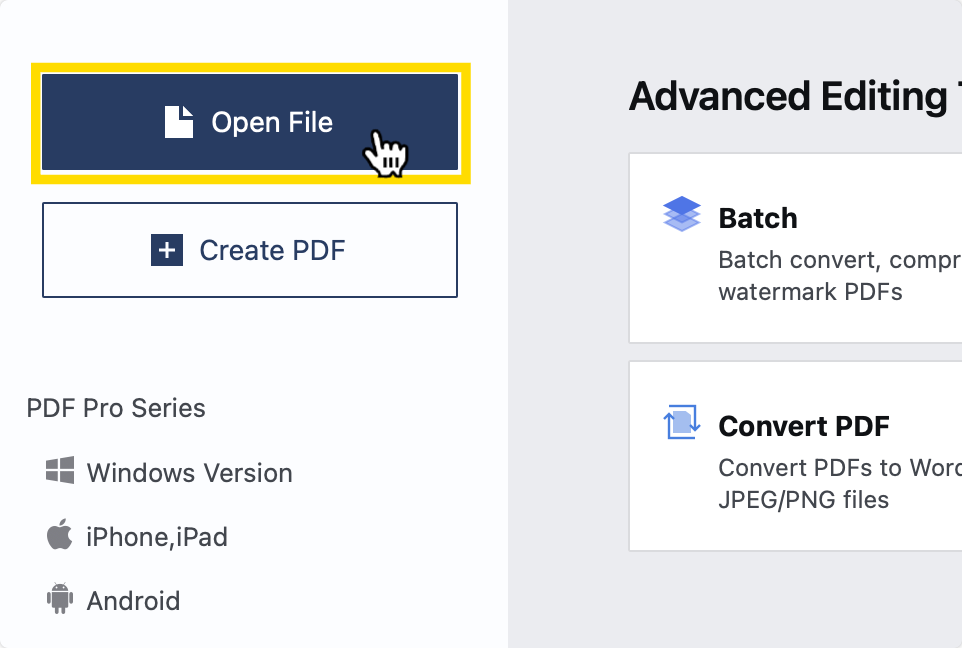
Step 2: Click on “Fill and Sign”
Choose “New Signature” on the right-hand side of the screen.
OR
Click on “Digital Sign” to create your own, secure, digital ID that verifies your identity.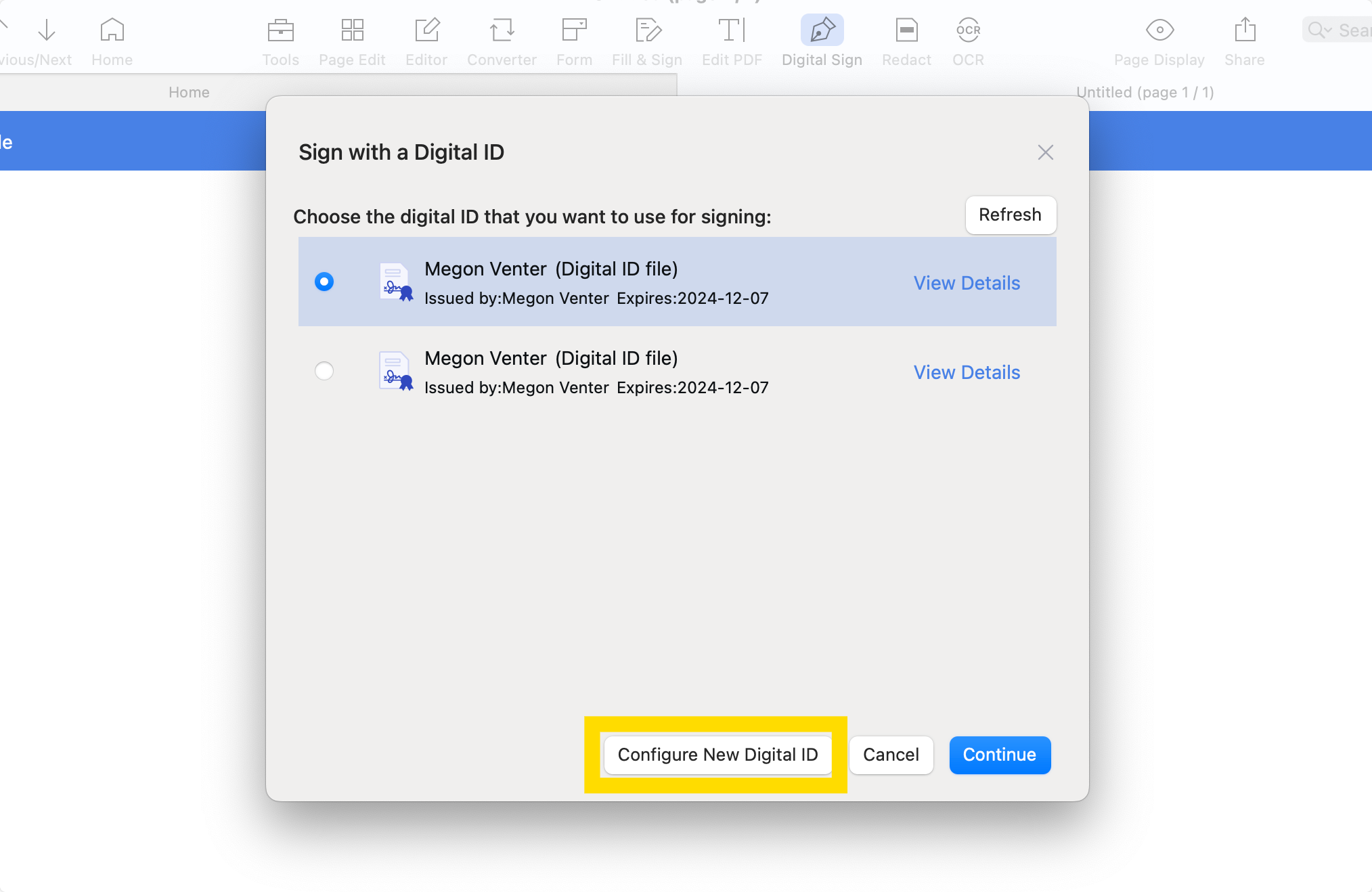
Step 3: Share Your PDF
Click “File” and select “Share” to send the file to colleagues to sign.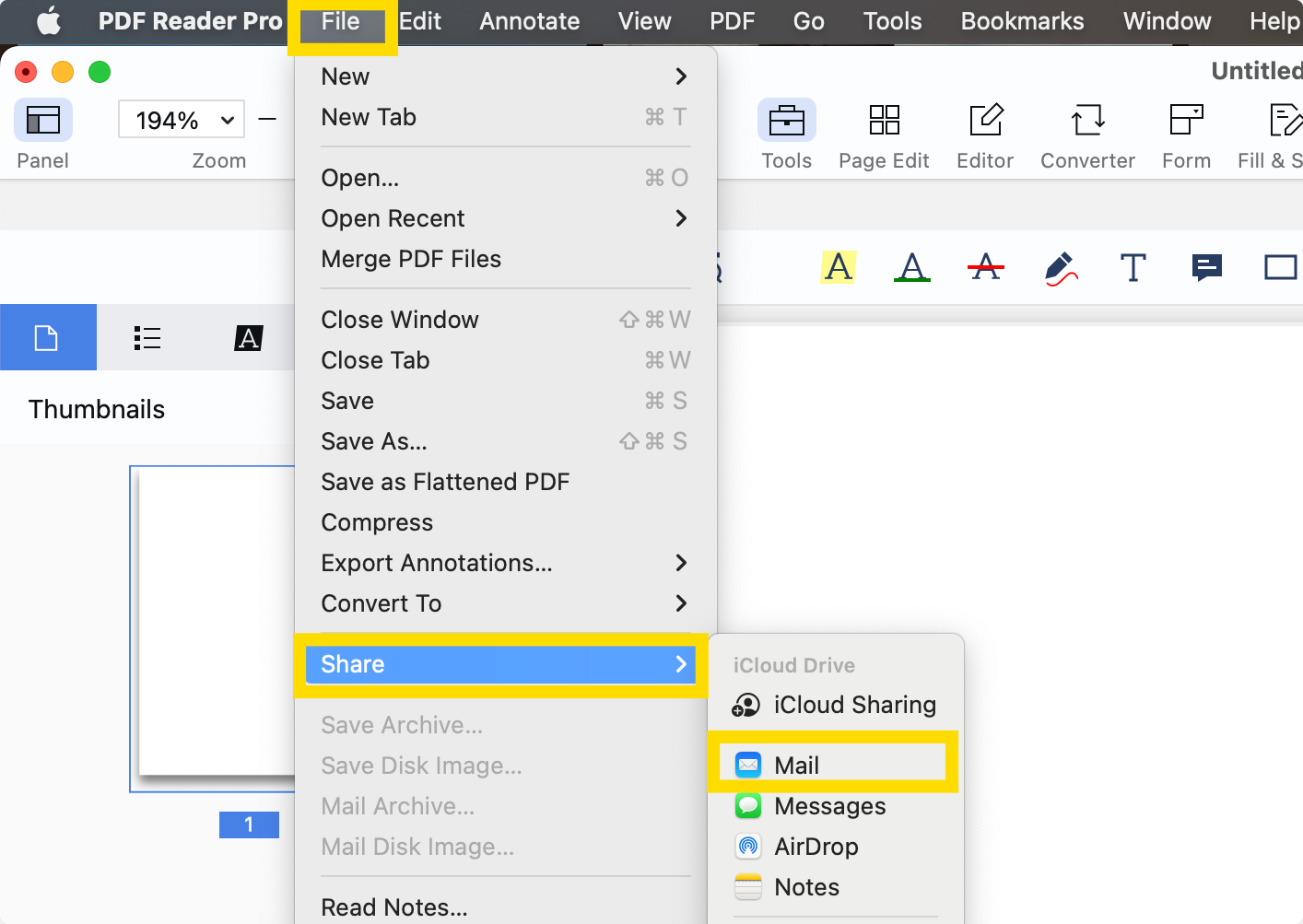
They can use the same process above to securely sign the same document.
Using ComPDF Web Demo
Step 1: Open the Online Interface
Upload the file you want to sign by clicking the upload icon.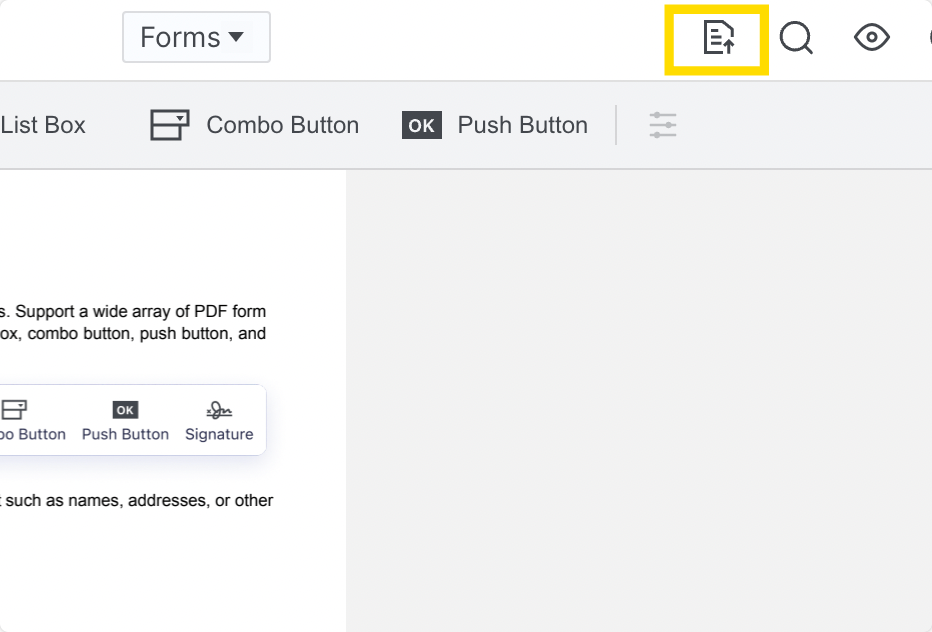
Step 2: Choose “Signatures” from the Drop-Down Menu
To insert a signature, set a signature field in your PDF (if it does not already exist).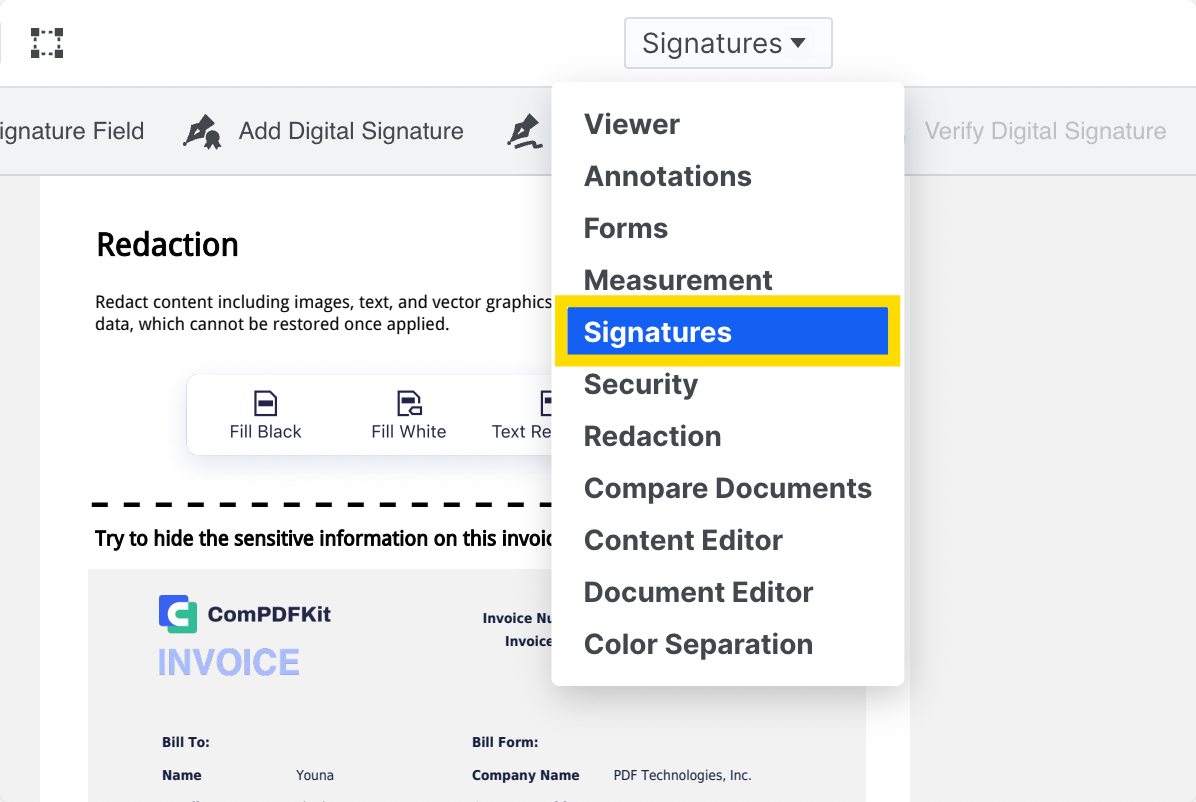
Step 3: Click on Your Signature Option
Option A: Choose “Add Electronic Signature”
This will allow you to draw a signature using your trackpad or use an existing font/template.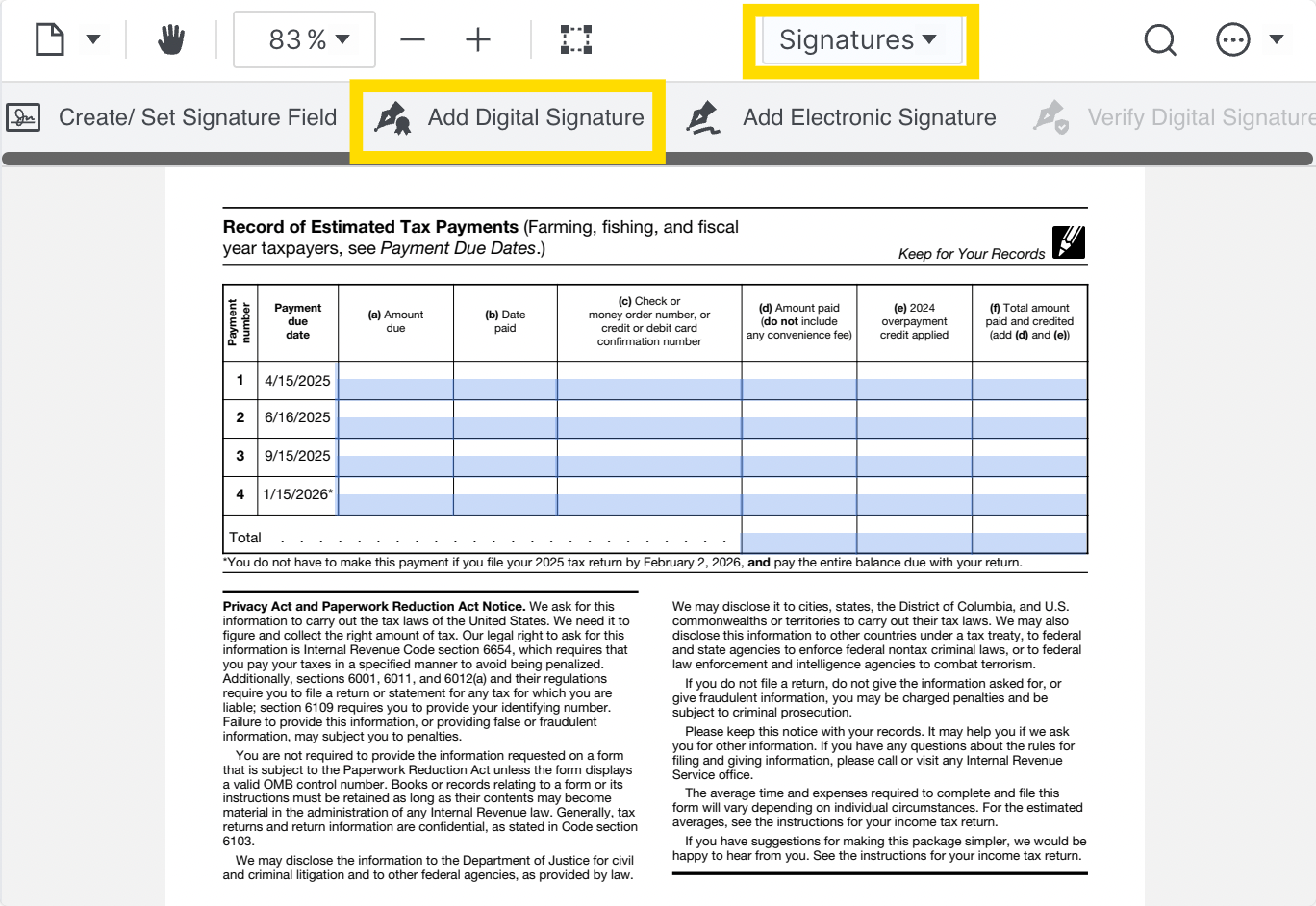
Option B: Choose “Add Digital Signature”
This option is for those who have a digital ID file to upload. This is the most secure option but requires a password to proceed.
Using Smallpdf
Step 1: Open the E-Sign Portal
Upload your PDF file by clicking “Choose Files” or by dragging and dropping it into the box.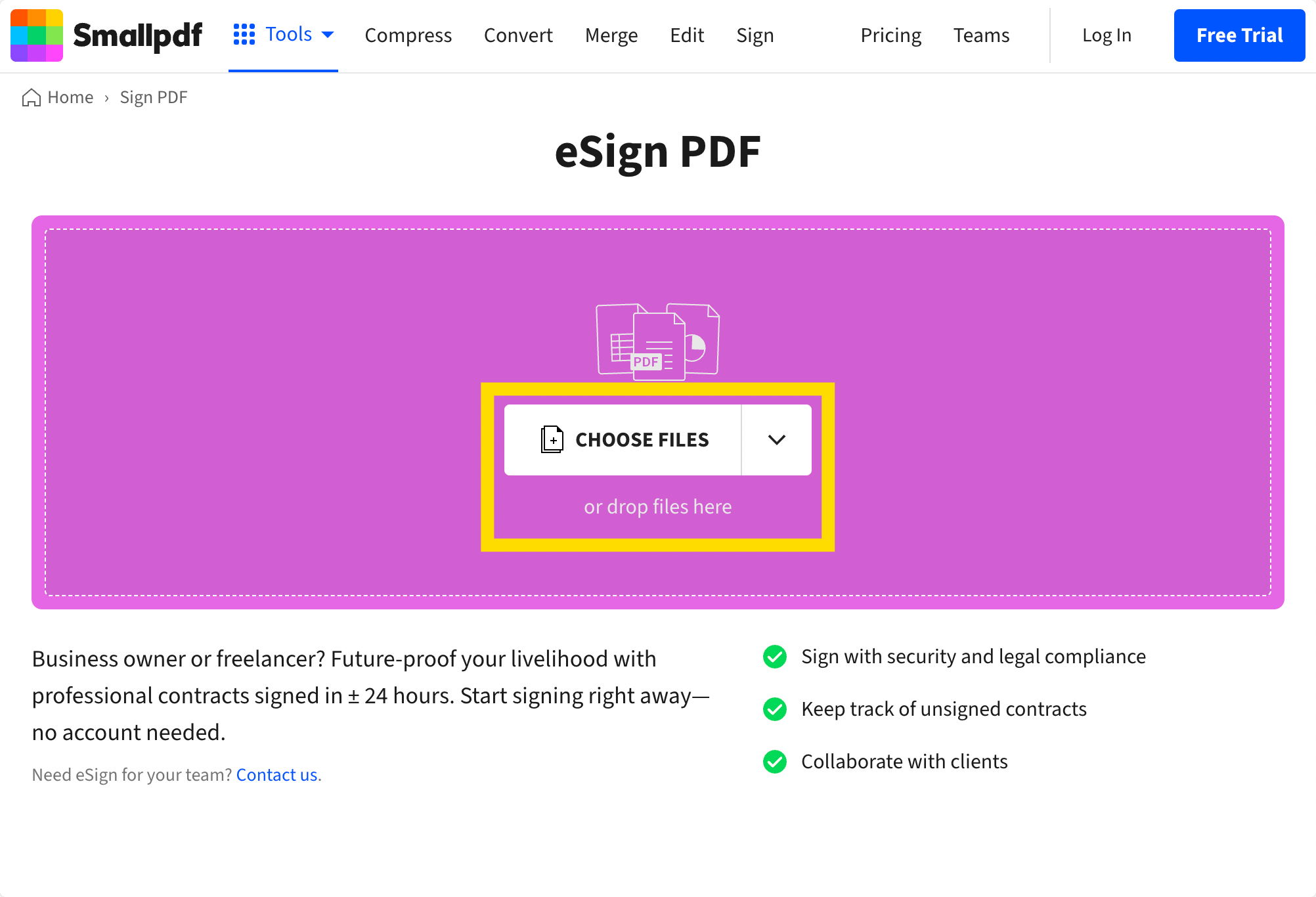
Step 2: Choose to Sign or Get Signatures
The first option will allow you to sign the document you uploaded.
The second option requires a different version of Smallpdf.
Step 3: Download Your PDF
Alternatively, if the PDF was sent to you to sign, click “Finish” to alert the creator.
Tips from Experts on Improving Your PDF Signing Workflow
Here are expert-backed tips to make your PDF signing workflow faster and more professional:
- Create and Save Reusable Signature Templates: If you frequently sign documents, save a reusable signature in your preferred PDF tool.
- Use Digital Certificates for Secure and Legal Signing: For contracts or sensitive files, consider adding a digital certificate-based signature.
- Organize Signed Documents with Clear Naming and Versioning: Keep your signed PDFs labeled with clear file names and timestamps.
- Choose Tools That Support Multi-Platform Signing: Use tools that sync across desktop and mobile so you can sign documents whether you’re in the office or on the go.
- Collect Multiple Signatures Efficiently: Use apps like DocHub or Smallpdf that let you invite others to sign in a guided sequence.
See our blog weekly to learn more about the latest PDF editing software and other technologies to improve your workflow.



 Support Chat
  PDF Reader Pro