
Our team has created a guide to demonstrate how to convert PDF to PNG below.
These methods ensure you will not lose any quality in the process, thanks to the advanced features of our recommended PDF editors.


Recommended Tools to Convert PDF to PNG
Compare the recommended tools below to choose the best PDF to PNG editor for you:
| Tool | Platform | Advantages | Limitations |
| PDF Reader Pro (Desktop & Mobile) | Windows, Mac, iOS, Android |
|
|
| PDF Reader Pro (Online) | Web-based |
|
|
| Canva (Online) | Web-based |
|
|
How to Convert PDF to PNG
Follow the steps for your chosen PDF editor below to learn how to convert PDF to PNG without losing the quality of your document.
Using PDF Reader Pro (Desktop)
Step 1: Click “Convert PDF” on the Home Interface
This will open a window for you to upload the PDF from your document library.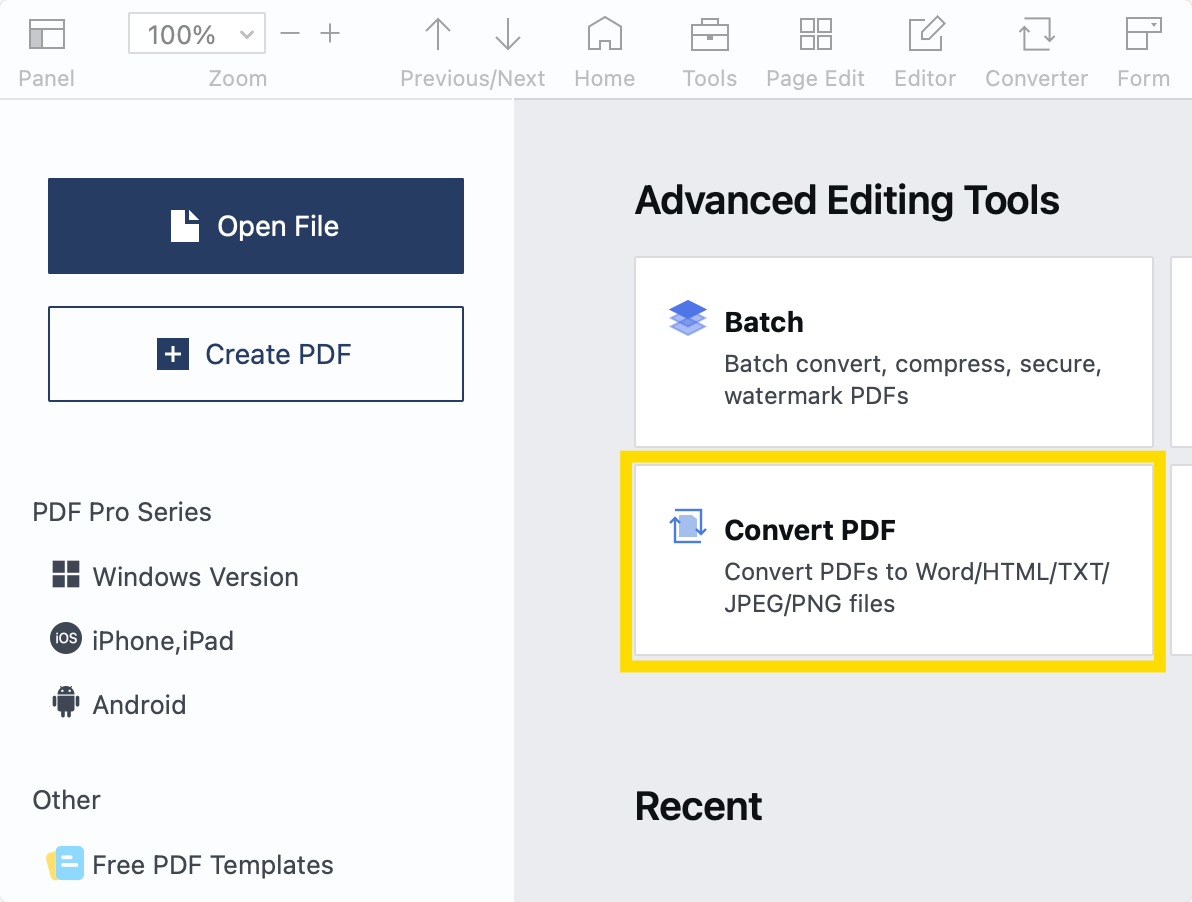
Step 2: Select “Add Files” to Include More PDFs
This will allow you to batch-process your documents.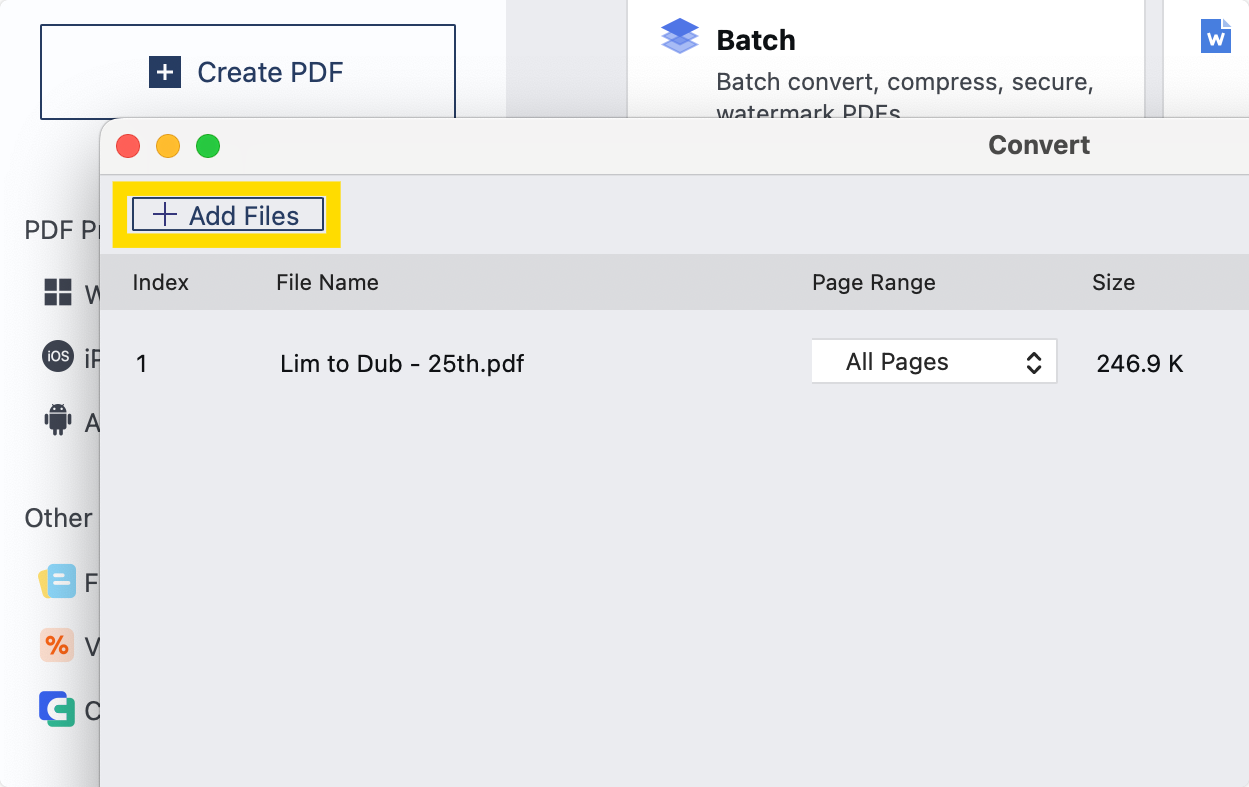
Step 3: Click “PNG” as the Output Format on the Right
Choose to “Retain Flowing Text” or “Retain Page Layout” below.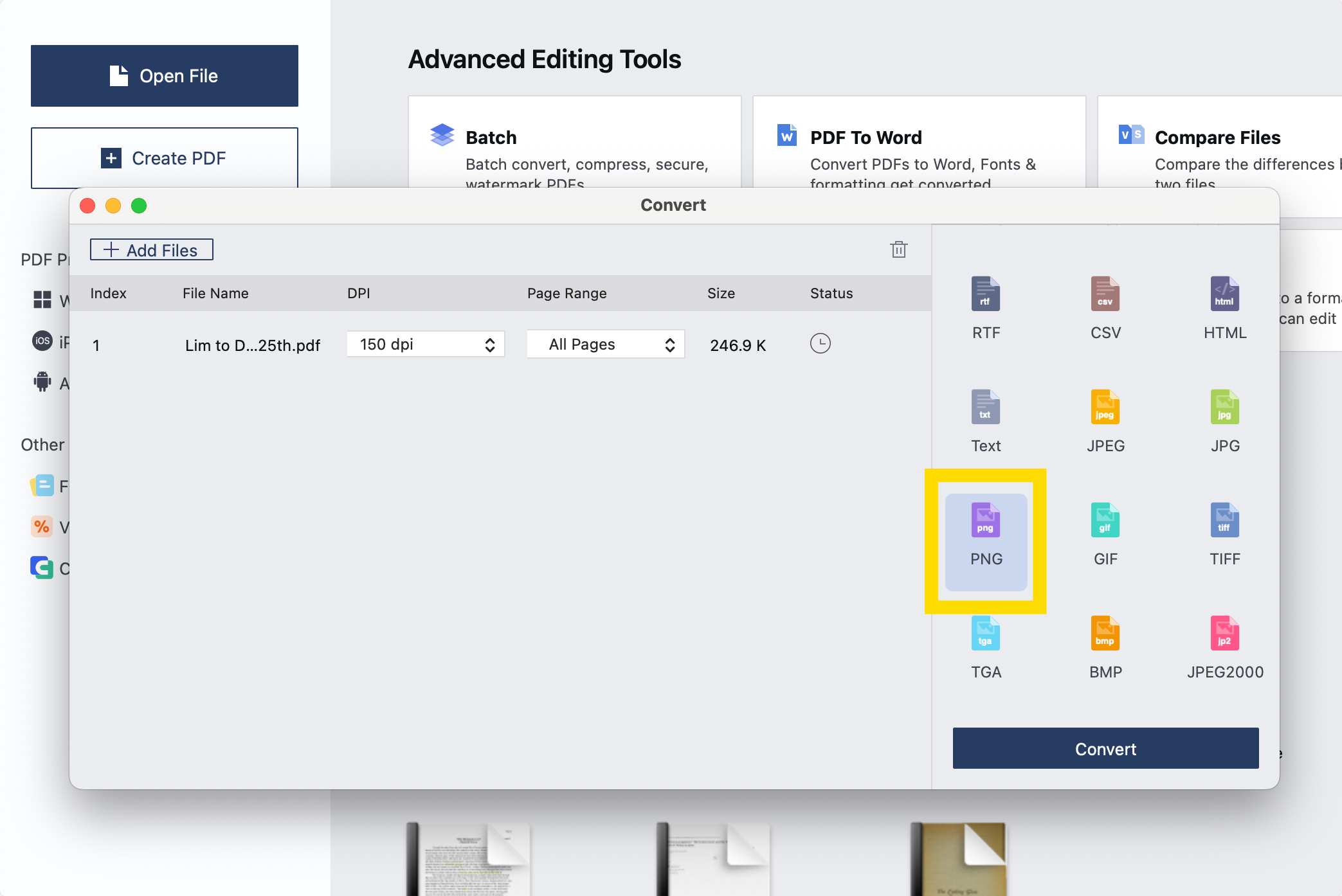
Step 4: Click “Convert” on the Bottom-Right
This will open your document library again to finalise the conversion.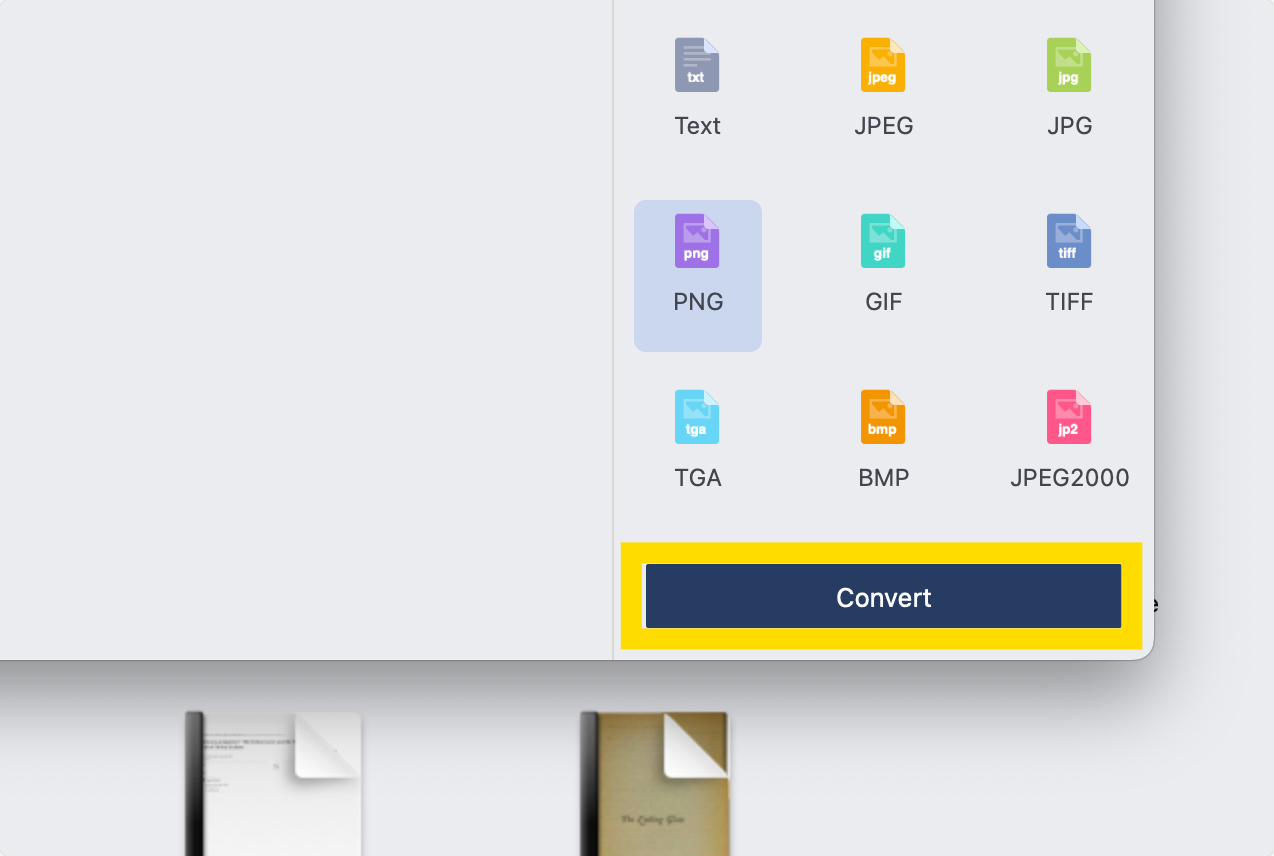
Using PDF Reader Pro (Online)
Step 1: Open the Online Converter
Click “PDF to PNG” to get started with the conversion.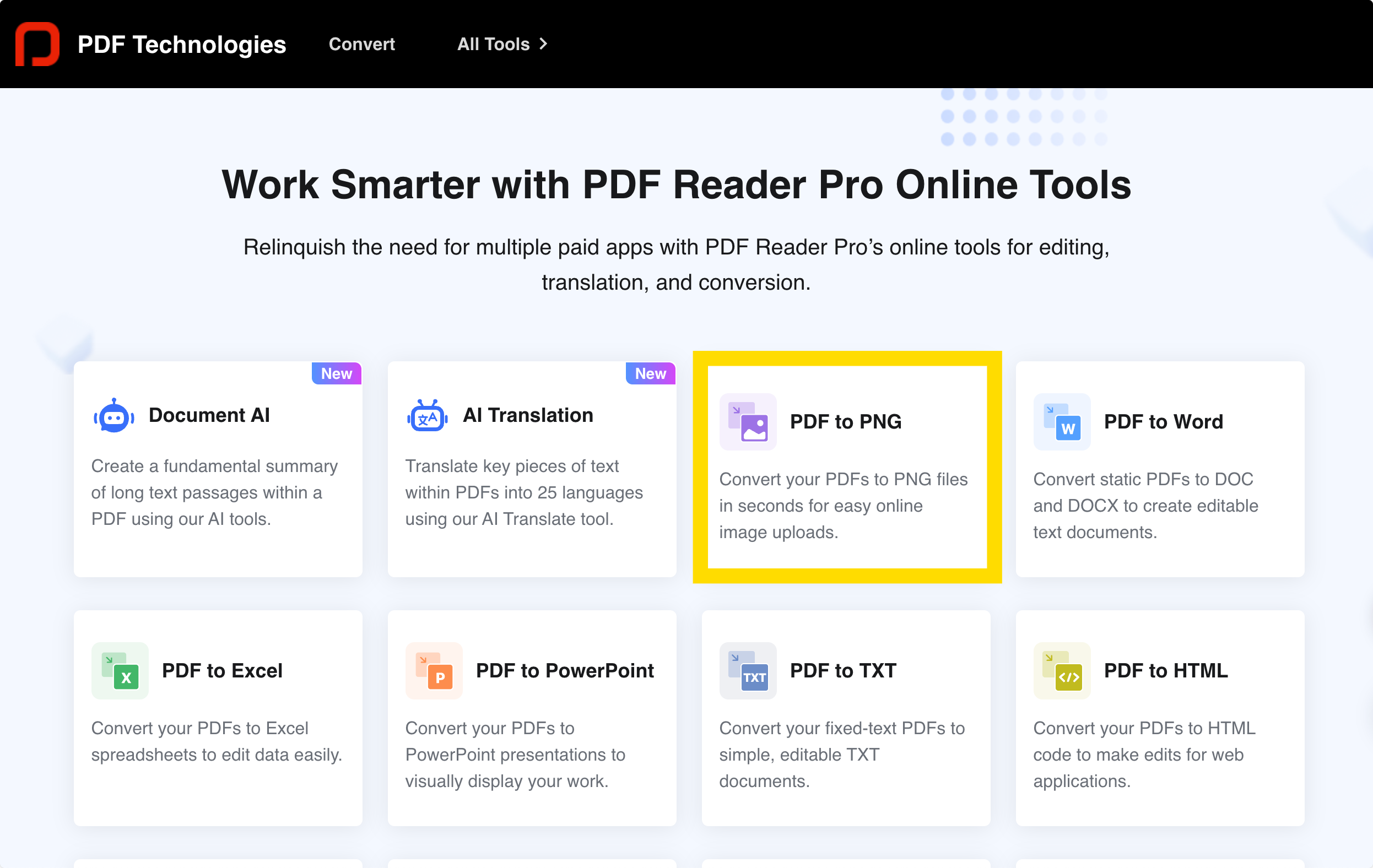
Step 2: Click “Select Your File”
Alternatively, drop the PDF file into the upload box.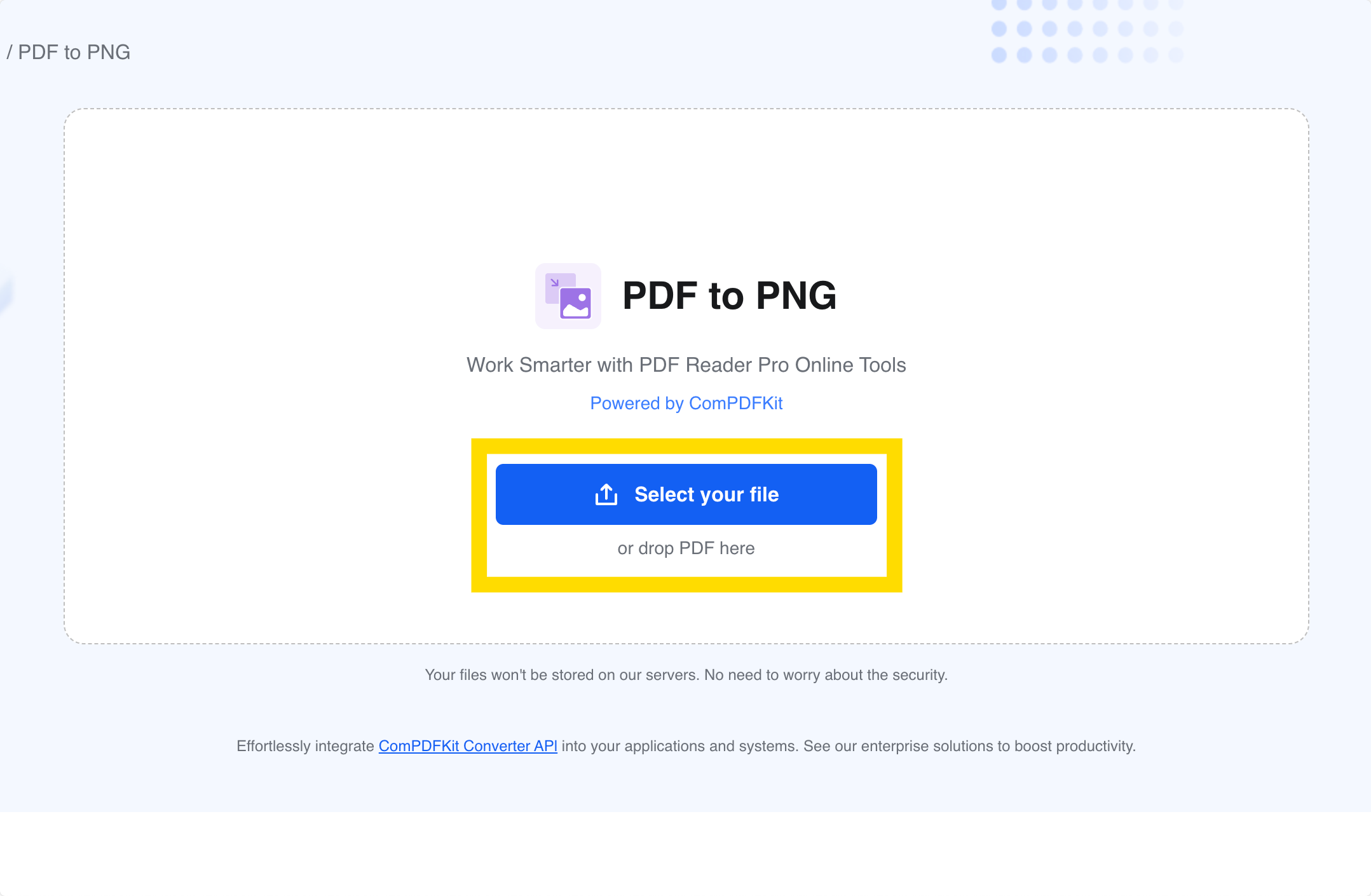
Step 3: Click to Download the PNG File
The conversion process will occur automatically, and you will be notified when your file is ready.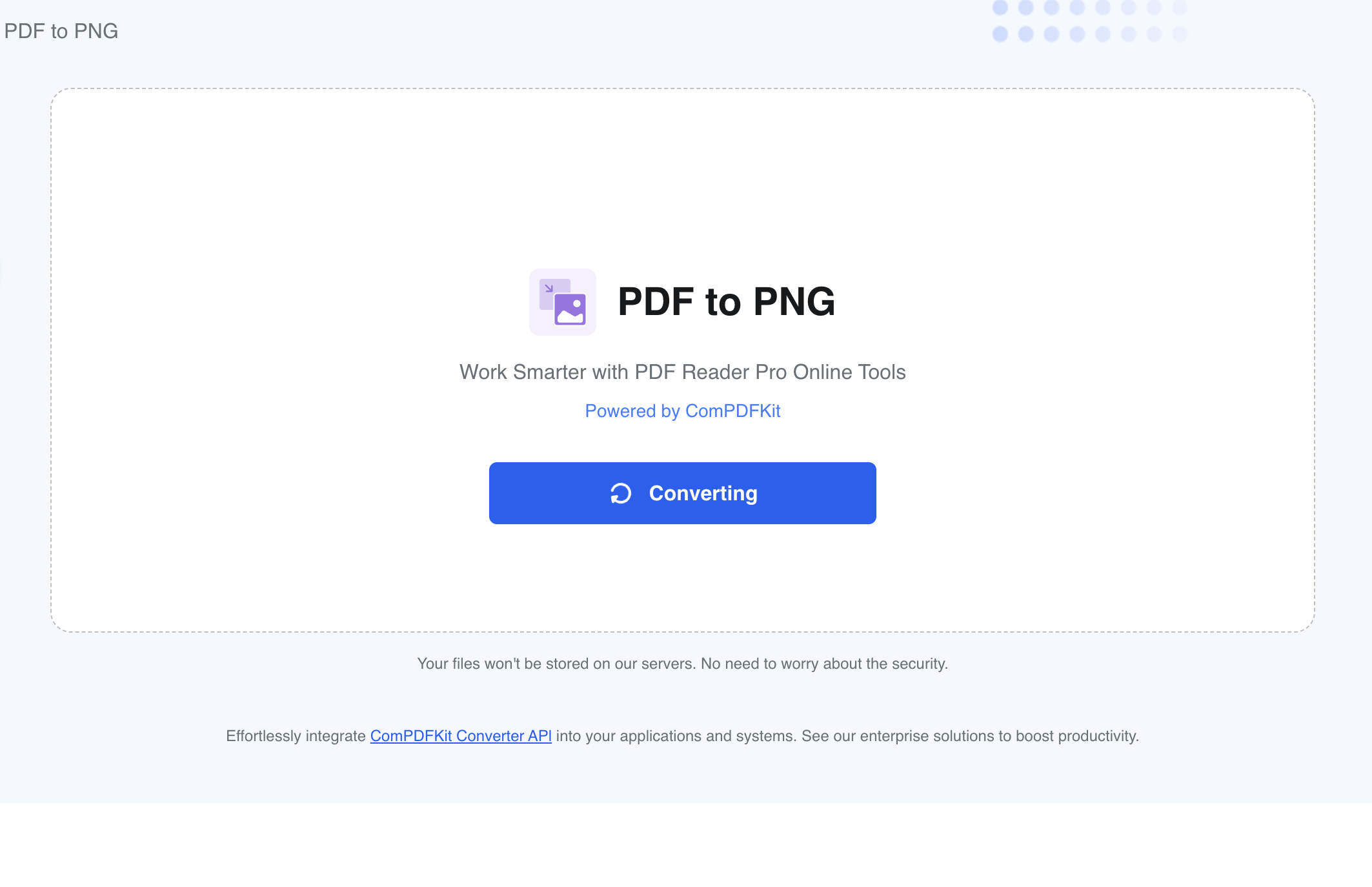
Using Canva (Online)
Step 1: Upload Your PDF
Click "Upload Your File" or drag and drop it into the purple box.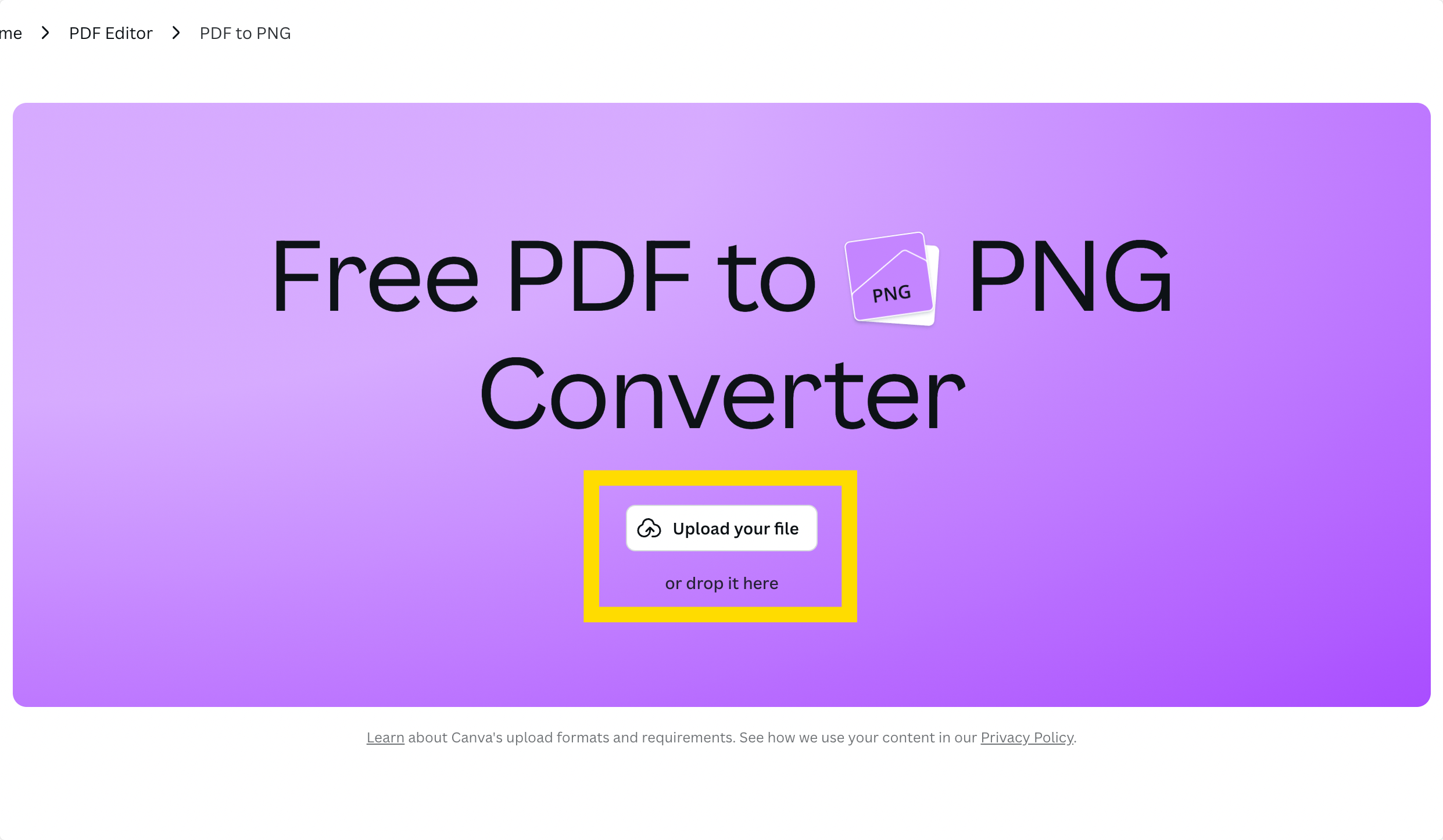
Step 2: Click "Download" on the Top Right
This will show you several formatting options.
Choose "PNG", alter your sizing as necessary and click "Download" at the bottom.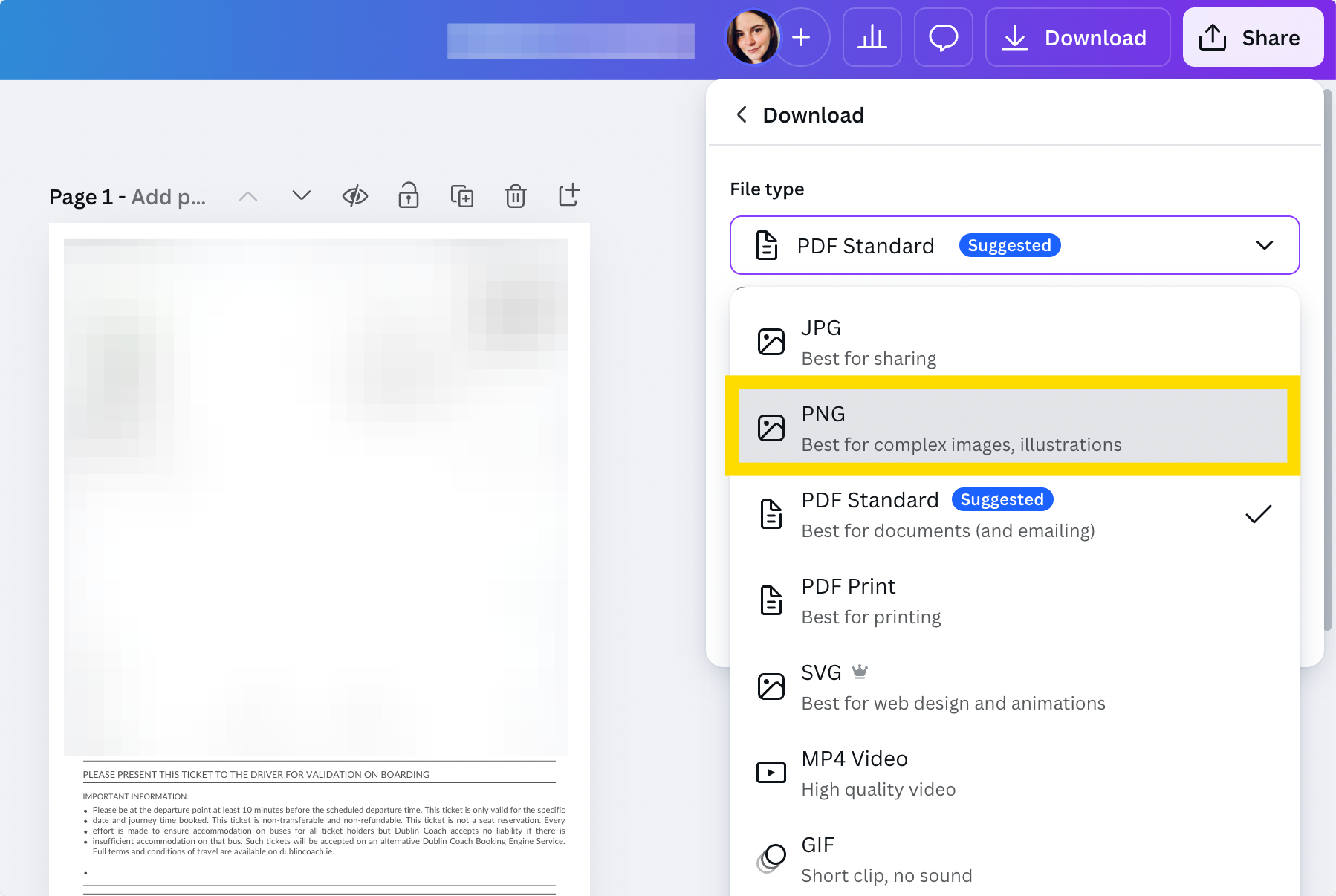
Expert Tips to Consider When Converting PDF to PNG
Here are expert-approved tips to make sure your conversions are accurate:
- Choose the Right Resolution (DPI): For clear, high-quality images (especially for print or design work), set your DPI (dots per inch) to 300 or higher.
- Beware of File Size: PNG images can be large, especially if you’re exporting multiple pages at high resolution, so it’s recommended to manage the export size.
- Batch Process for Efficiency: If you need to convert many PDFs or pages at once, use tools like PDF Reader Pro Desktop, which supports batch conversion.
- Preserve Aspect Ratio and Orientation: Some free converters may crop or rotate content. Always double-check output images for correct alignment.
- Use a Consistent Naming Convention: When converting multiple files or pages, opt for tools that let you auto-name output files.
We publish tips and tutorials about the latest PDF editing software every week to help you make your workflow more efficient. See our other blog on how to convert PNG to PDF for more ways to convert.



 Support Chat
  PDF Reader Pro