

PDF Reader Pro provides you with a variety of methods to zoom the PDF page, helping you easily view the details in the document:
Method 1:
Click ➕ or ➖ on the upper left corner of the toolbar to zoom in or zoom out.

Method 2:
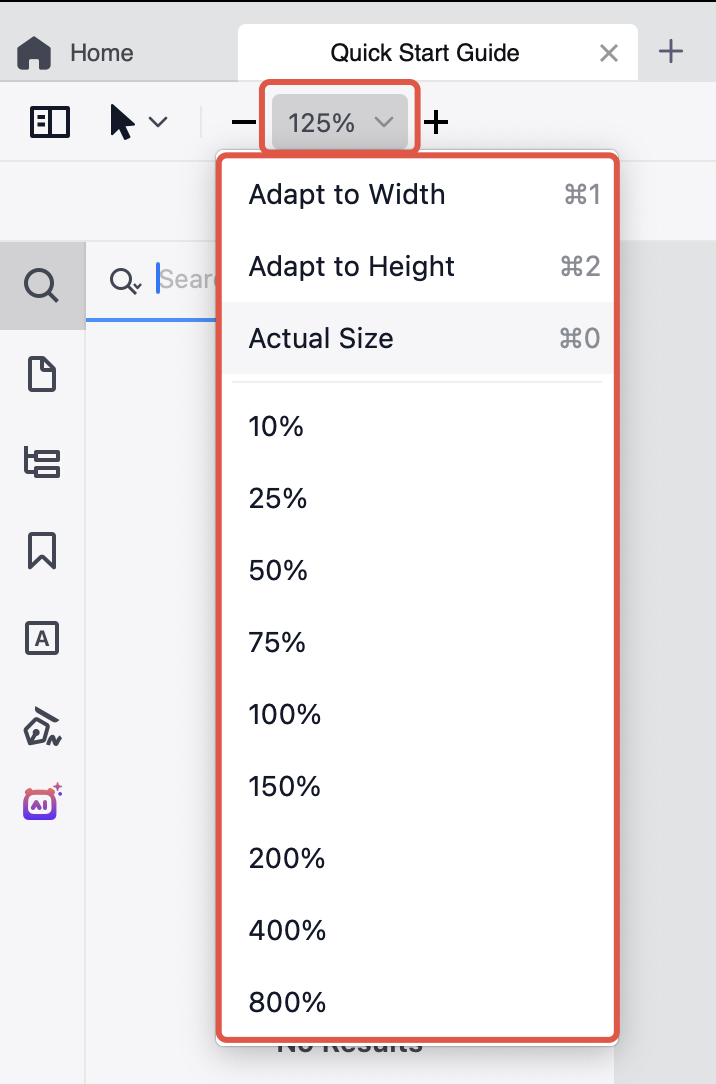
Click the numerical box on the upper left corner of the toolbar, then pick the number you need or hit Adapt to Width / Adapt to Height / Actual Size to choose the appropriate size according to your needs.
Method 3:
Use Keyboard shortcut. Please refer to How to Use Keyboard Shortcuts
Note: When you're in full-screen mode, you can only zoom the page using this method.
Method 4:
Use a trackpad. Pinch two fingers together, or spread them apart to adjust the zoom level.
Method 5:
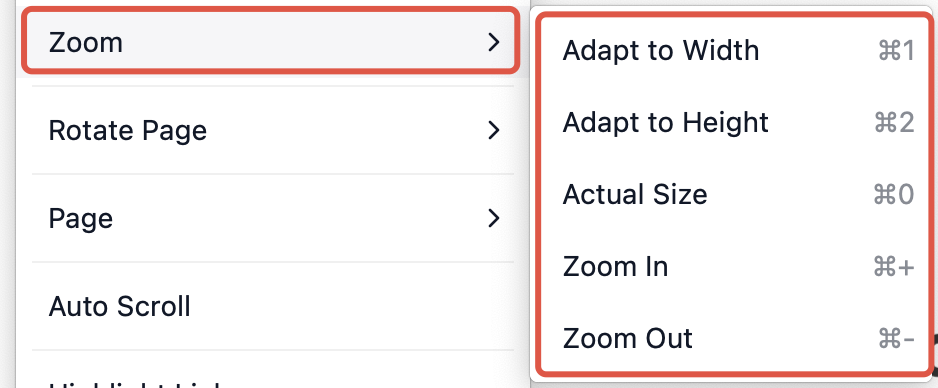
Right-click anywhere of the page and choose Zoom.
Method 6:
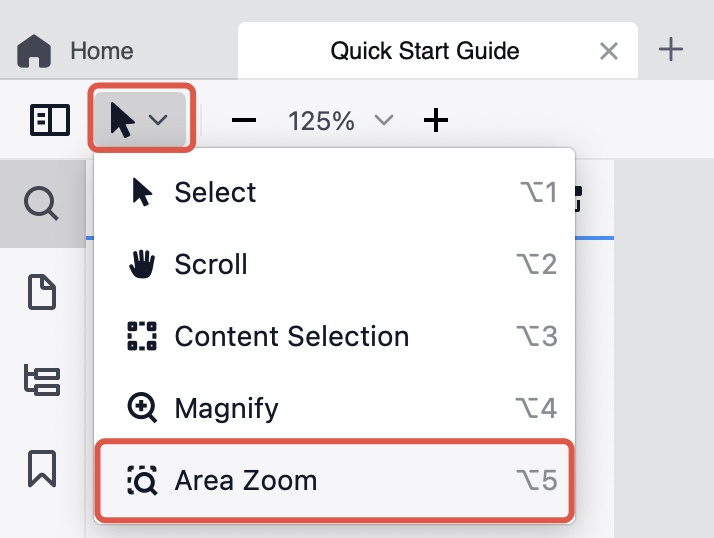
Click the dropdown arrow next to the mouse symbol in the upper left corner of the toolbar and choose Area Zoom, then click the area of the page that you want to zoom. Or right-click anywhere of the page and choose Tool Mode -> Area Zoom, then click the area of the page that you want to zoom.
Note: If the page size is still not suitable after zooming in or out, please check the size of your original PDF document.
Download PDF Reader Pro for free now to enjoy a smoother PDF reading experience!


 Support Chat
  PDF Reader Pro