

Use this guide to find the perfect PDF filler tool to help you complete government forms, contracts and other work documents.
See our other blogs if you would like to learn more about how to create a form for others to fill out instead.


Our Recommended PDF Filler Tools
See our table below to find the best PDF filler tool to use for filling and signing your documents.
| Tool | Platform | Advantages | Disadvantages |
| PDF Reader Pro | Windows, macOS, iOS, Android |
|
|
| ComPDF Web Demo | Web-based |
|
|
| Sejda PDF Editor | Web-based, Windows, macOS |
|
|
| pdfFiller | Web-based |
|
|
How to Fill Forms with a PDF Filler
Follow the mini guides below for your chosen PDF filler to learn how to conduct professional PDF form filling.
Using PDF Reader Pro
 Free Download
  Free Download
Step 1: Open Your Document
Click “Open File” or drag and drop the document into the Home interface.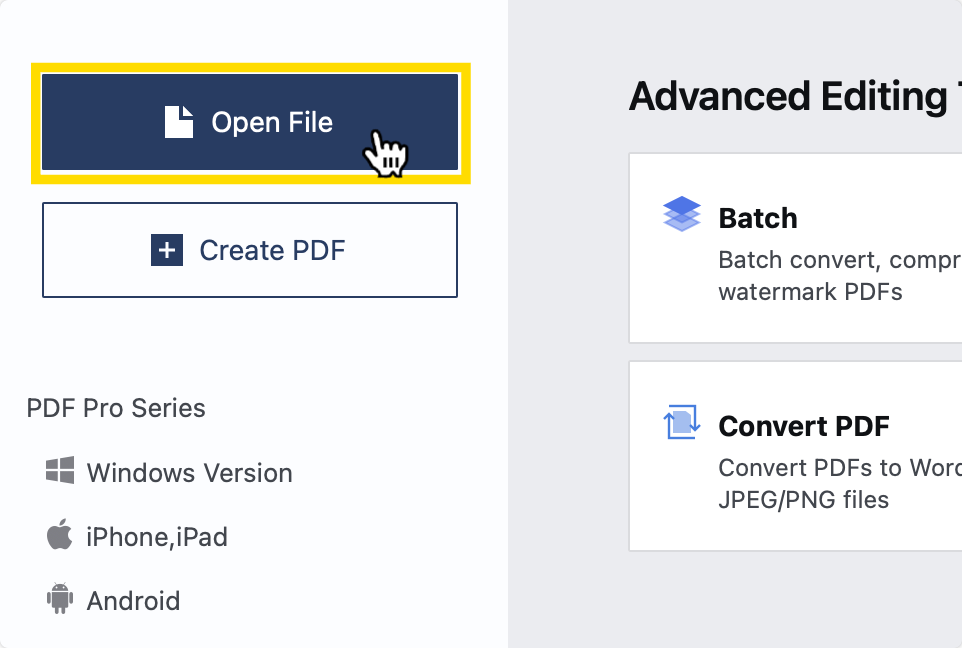
Step 2: Click “Fill and Sign” on the Menu
The fields will be highlighted within the form for you to sign. Click into these fields to begin typing your information.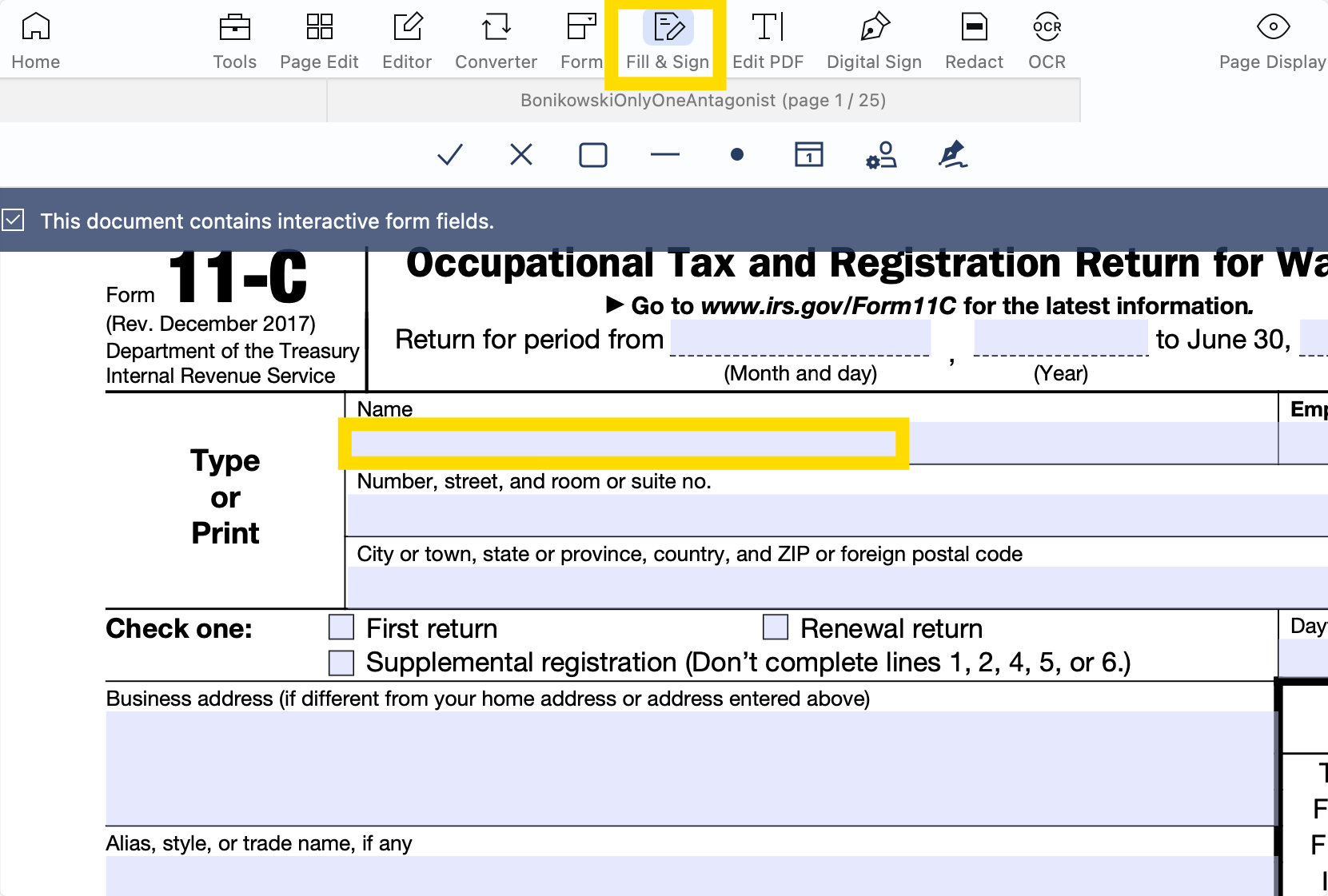
Step 3: Sign Your Document
Click on the signature icon to use your trackpad to create a handwritten signature or opt to use a signature template.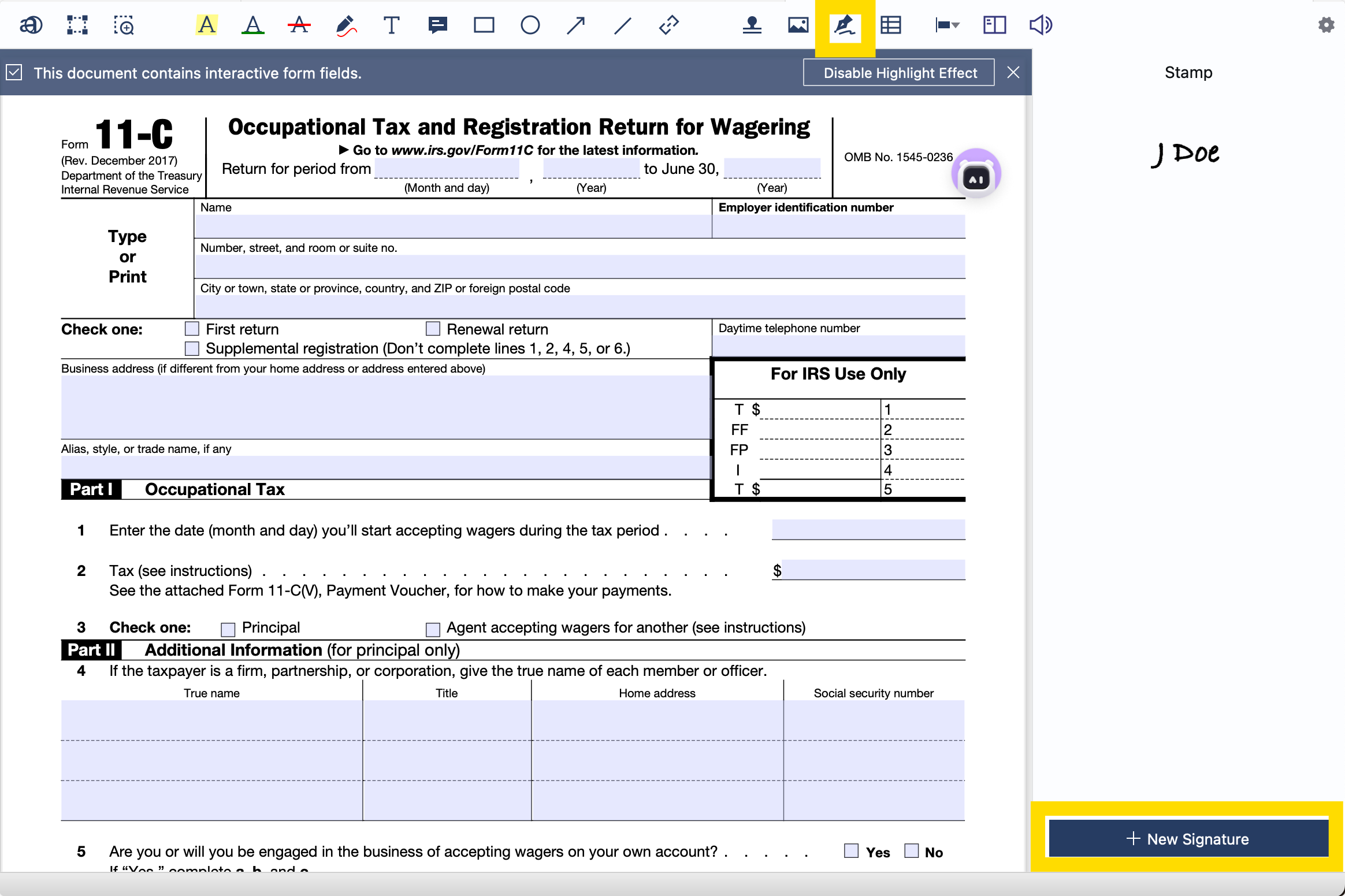
For a more secure option, click on “Digital Sign,” which allows you to create a Digital ID that verifies your identity for collaborators and co-signers.
Using ComPDF Web Demo
Step 1: Open the Online Interface
Click the document upload button to select your PDF.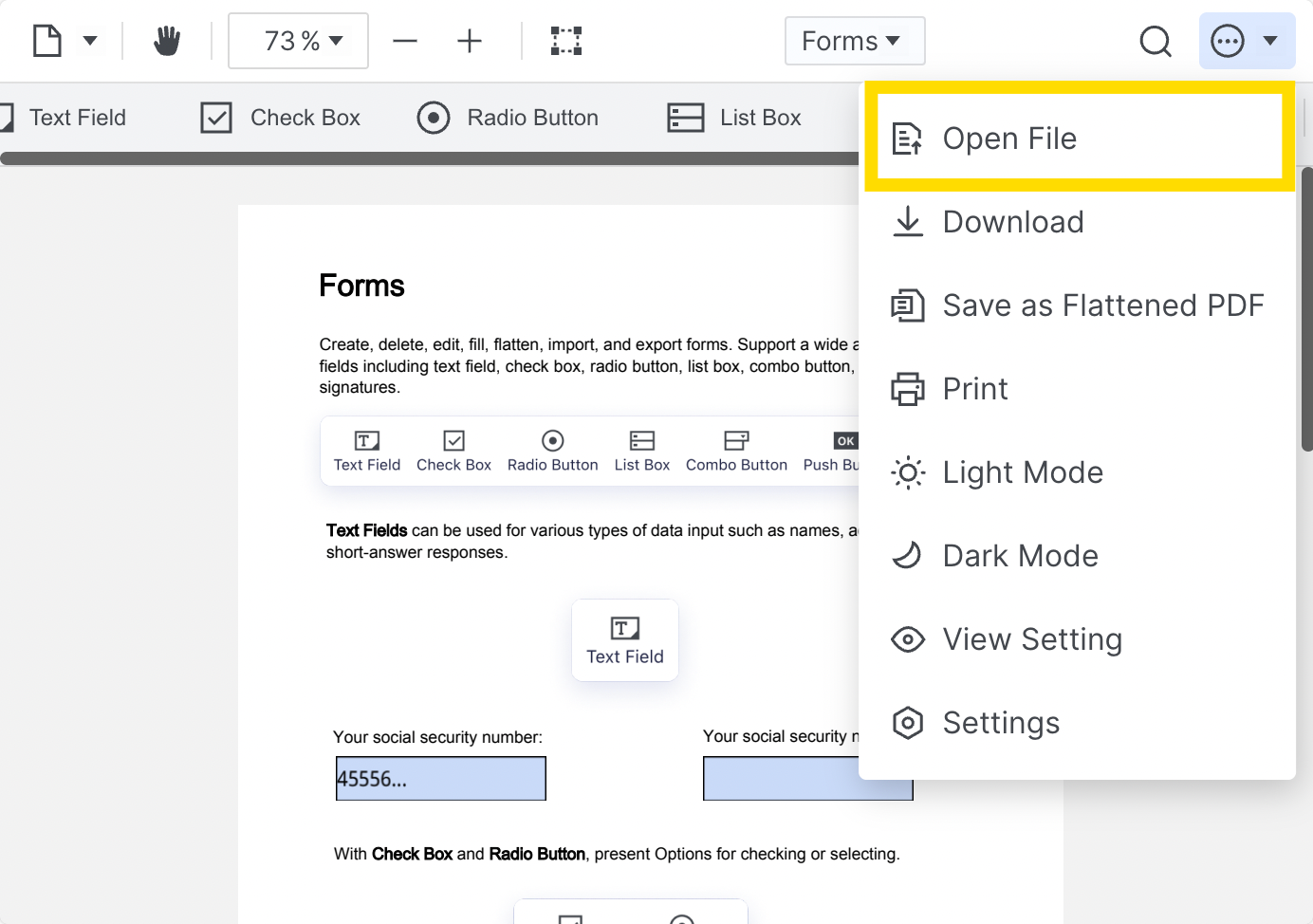
Step 2: Click “Forms” on the Drop-Down Menu
Click into the highlighted form fields to start typing.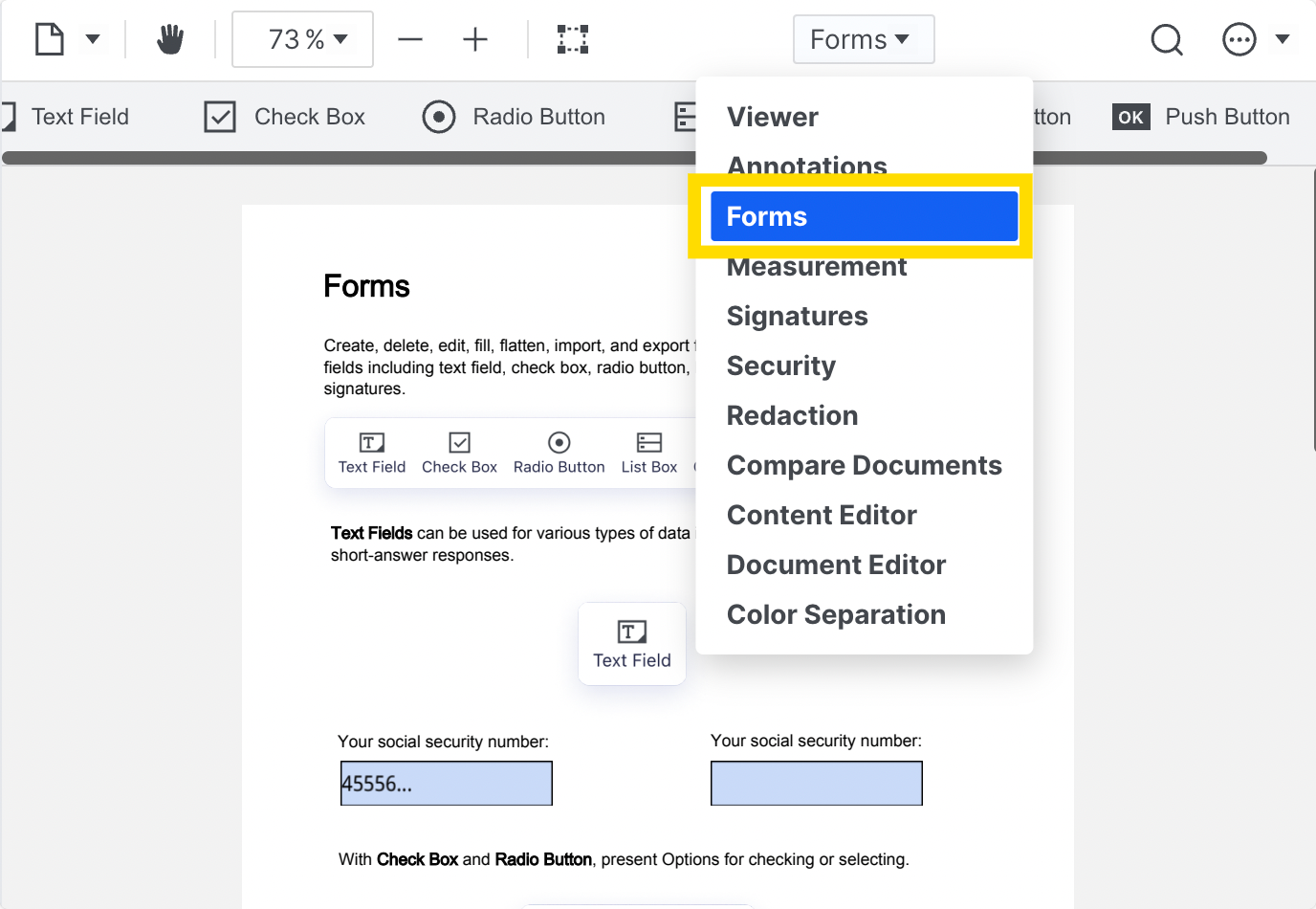
Step 3: Choose “Signatures” on the Drop-Down Menu
Choose “Add Digital Signature” or “Add Electronic Signature” from the options.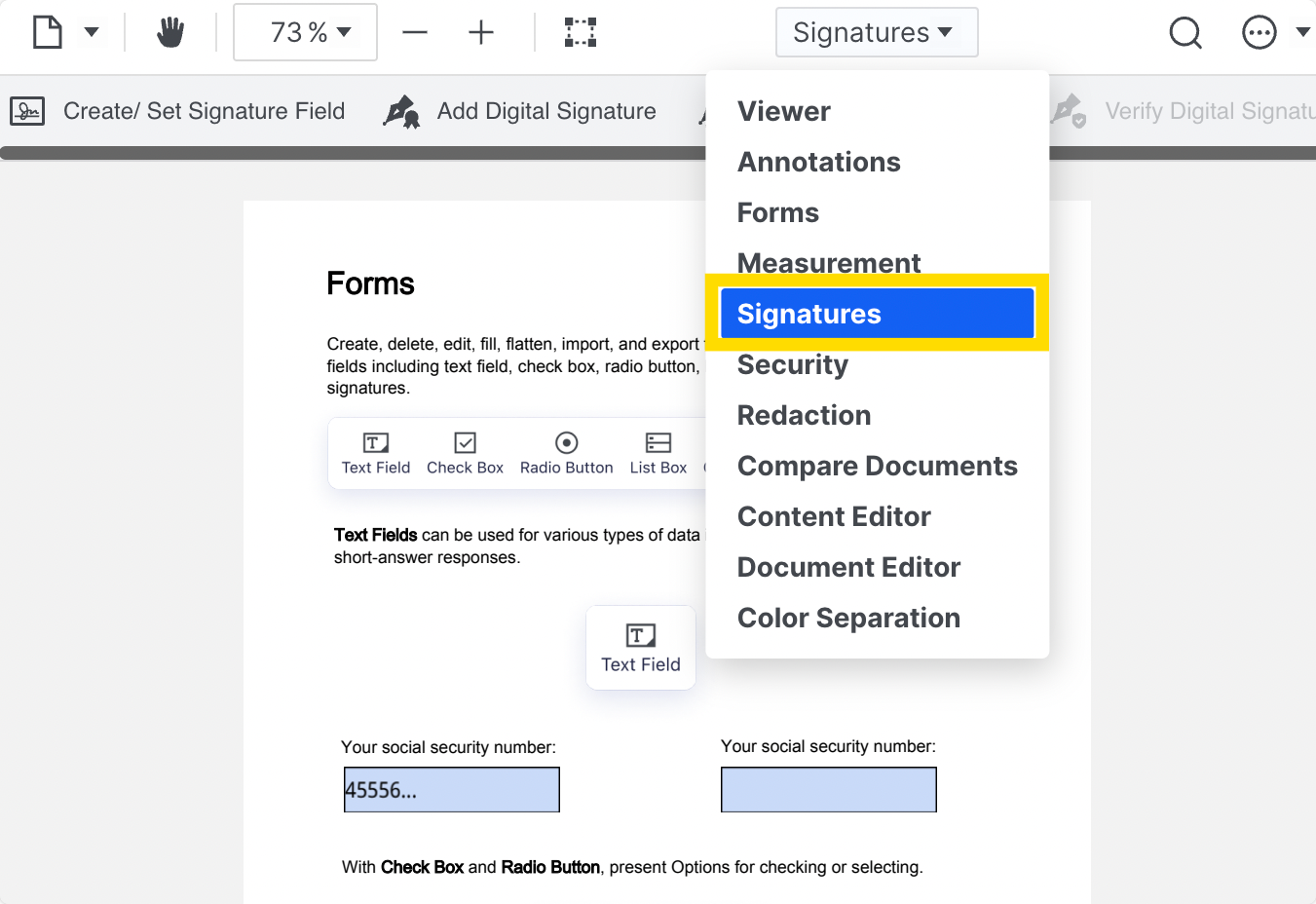
The first requires a digital ID to proceed and is the most secure option.
The second option will allow you to type a signature using a handwriting template or draw your own signature using the trackpad on your laptop.
Using Sejda PDF Editor
Step 1: Open the Online Editor
Click to upload your file or drag and drop your PDF into the upload box.
Step 2: Click the “Forms” Icon
Turn on the toggle to activate “Form Edit Mode” which will highlight text fields for you to click into and add information to.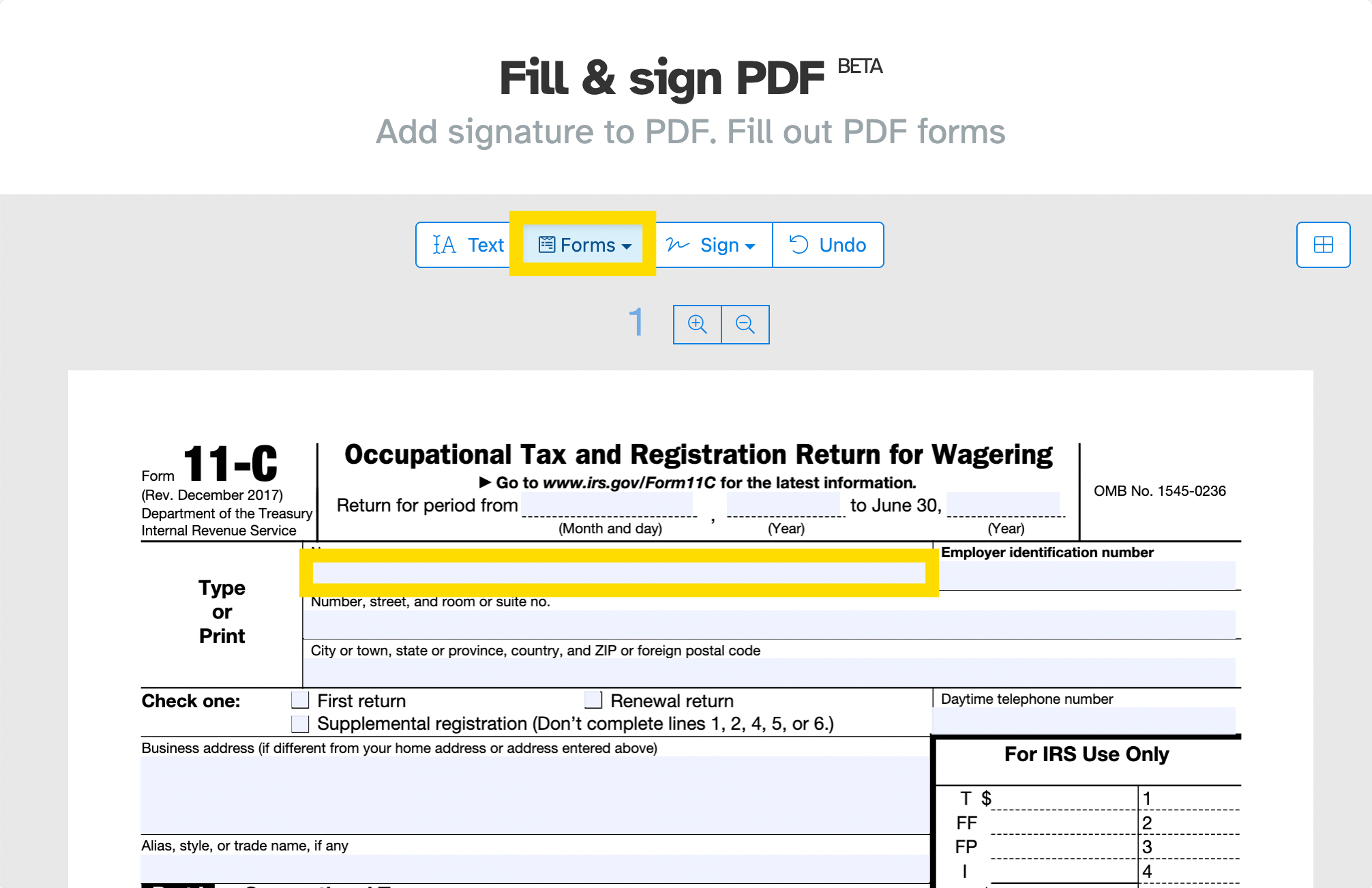
Step 3: Click the “Signature” Icon
Choose “Add New Signature” from the list.
You can opt to type, draw or upload your signature to the application.
Using pdfFiller
Step 1: Open the Online Editor
Upload your PDF by clicking “Select From Device” to upload or by dropping it into the box.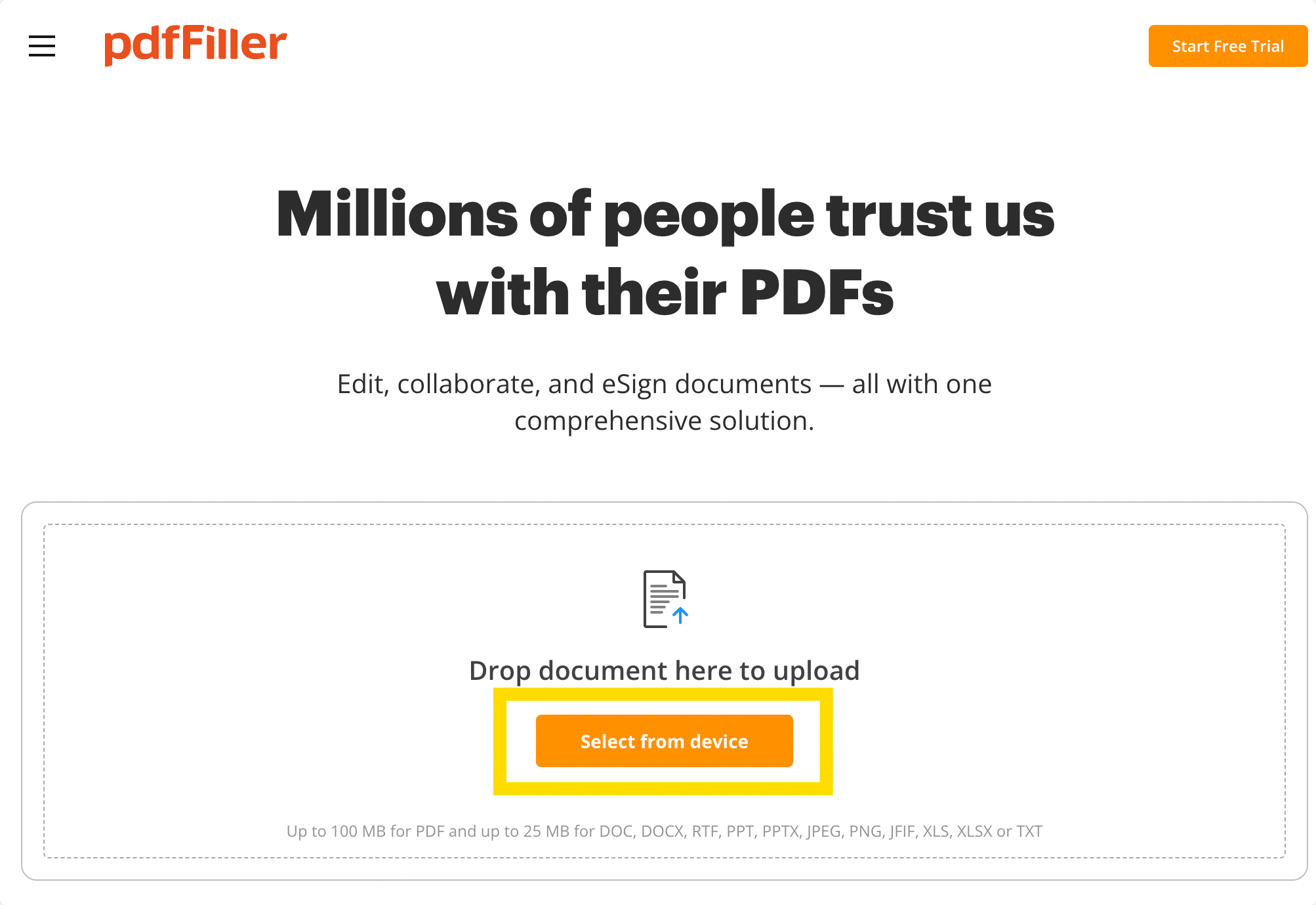
Step 2: Click the Text Icon to Fill the Form
Simply click the boxes or lines where you want to insert the information.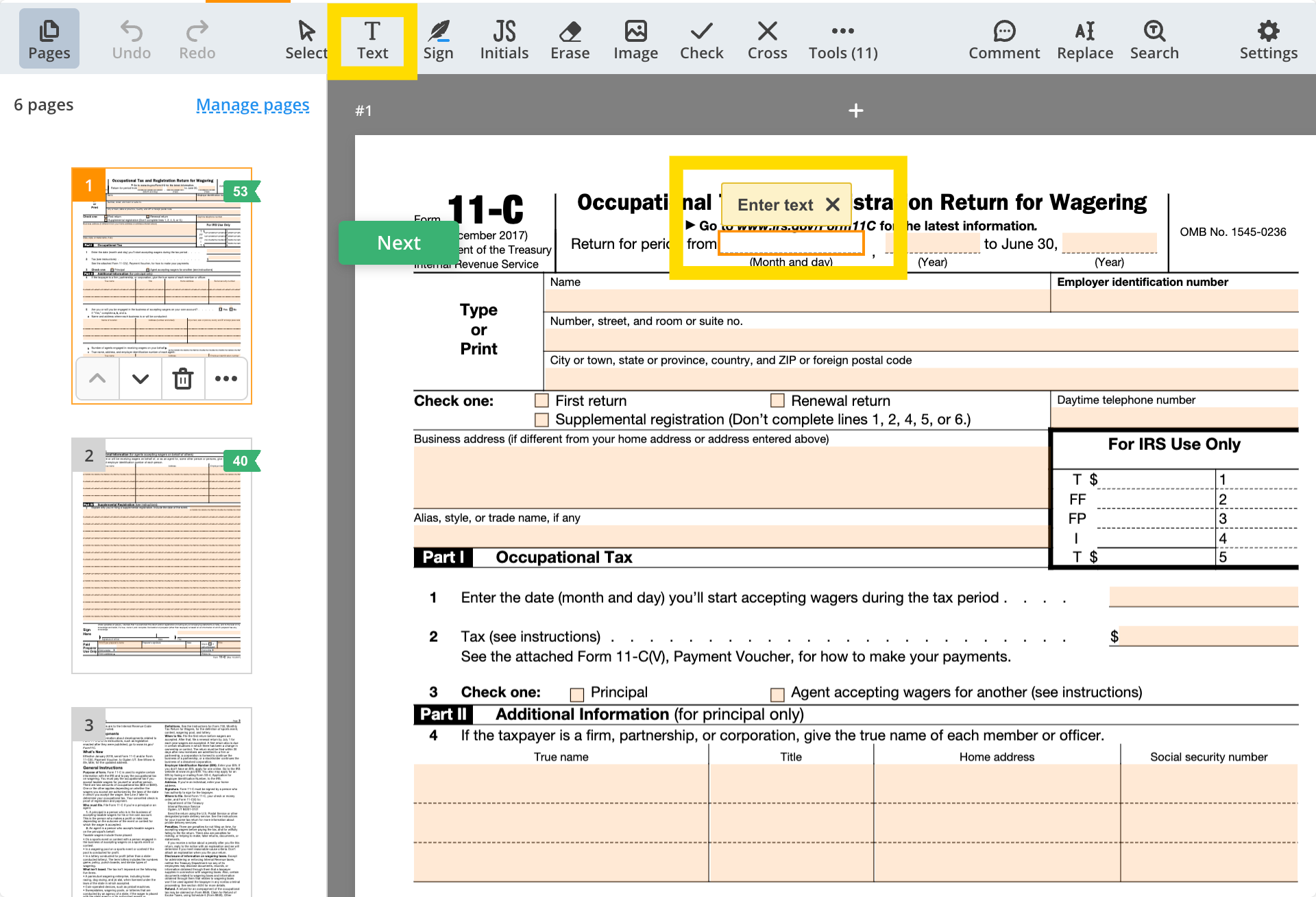
Step 3: Click “Sign” or “Initials” to Validate
Insert your signature or initials by clicking the appropriate place inside the PDF.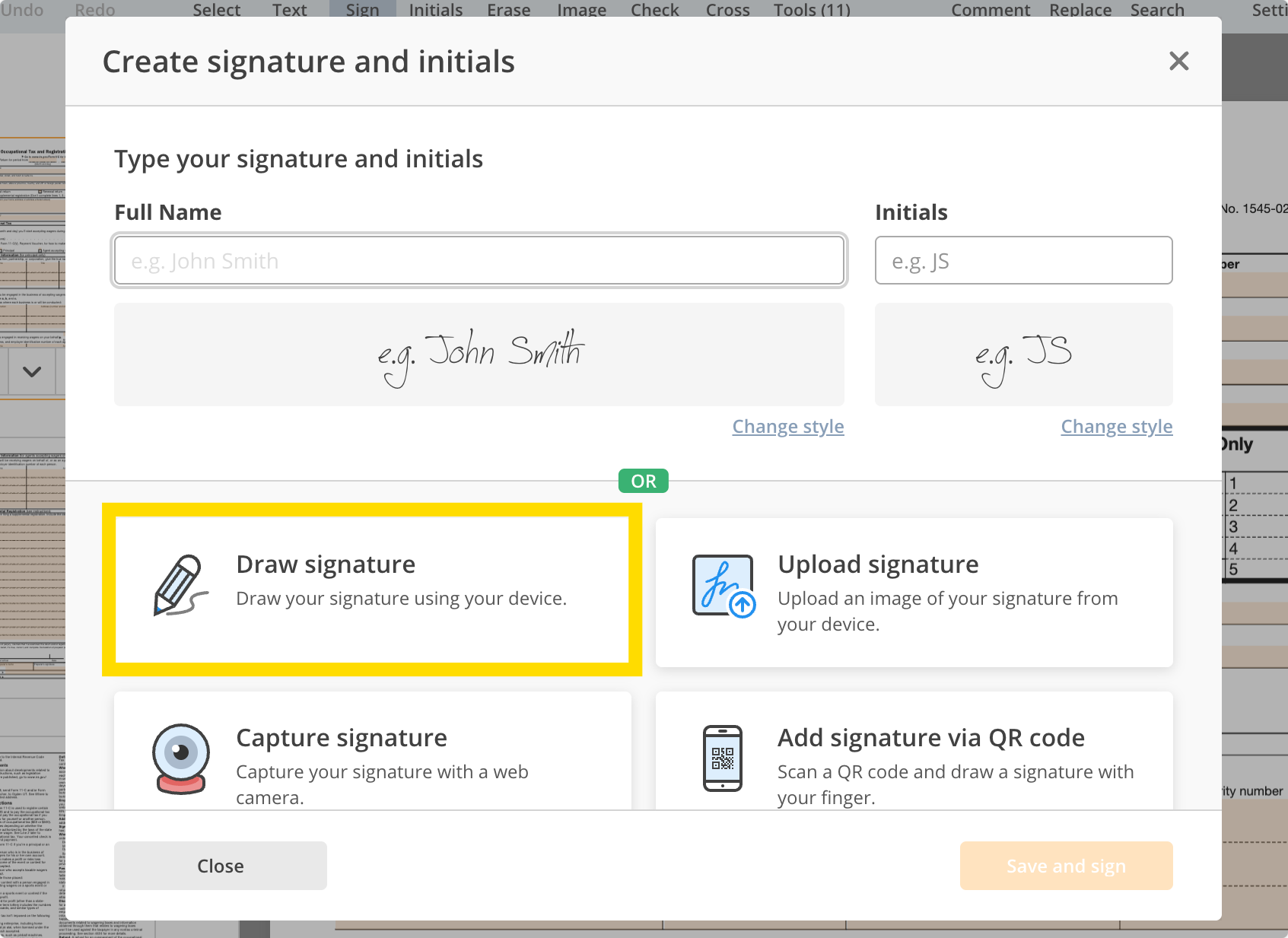
Test Our PDF Filler Tools on Templates
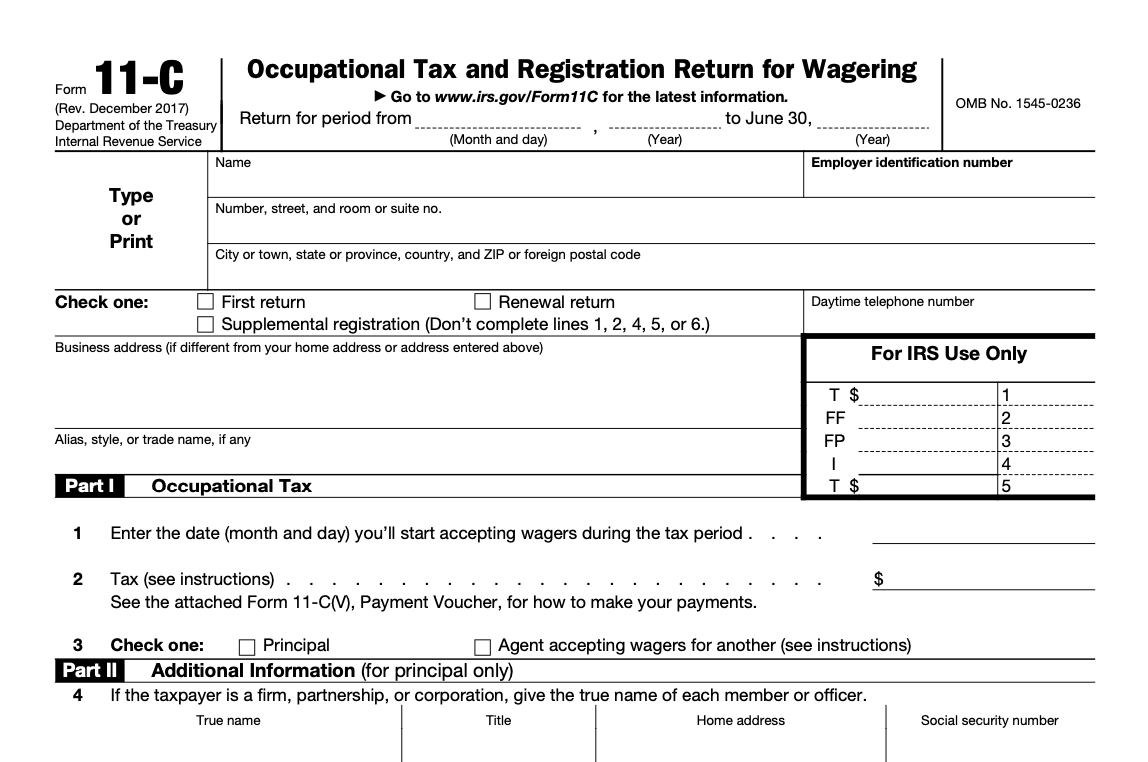
We have a range of government forms available to download that will allow you to test the fillable fields you have learned to use above.
Simply click “Download” underneath the template to use your selected tool or choose “Fill Now” to get started right away.

Did you find this tutorial helpful? See our blog on a weekly basis to see more guides to the latest software and editing processes.




 Support Chat
  PDF Reader Pro