

Note-taking is a great way to learn faster and retain more significant information. When processing an electronic document in PDF format, annotation tools is very helpful. PDF Reader Pro makes it easy to annotate PDFs with various tools:
1. Open PDF files with PDF Reader Pro;
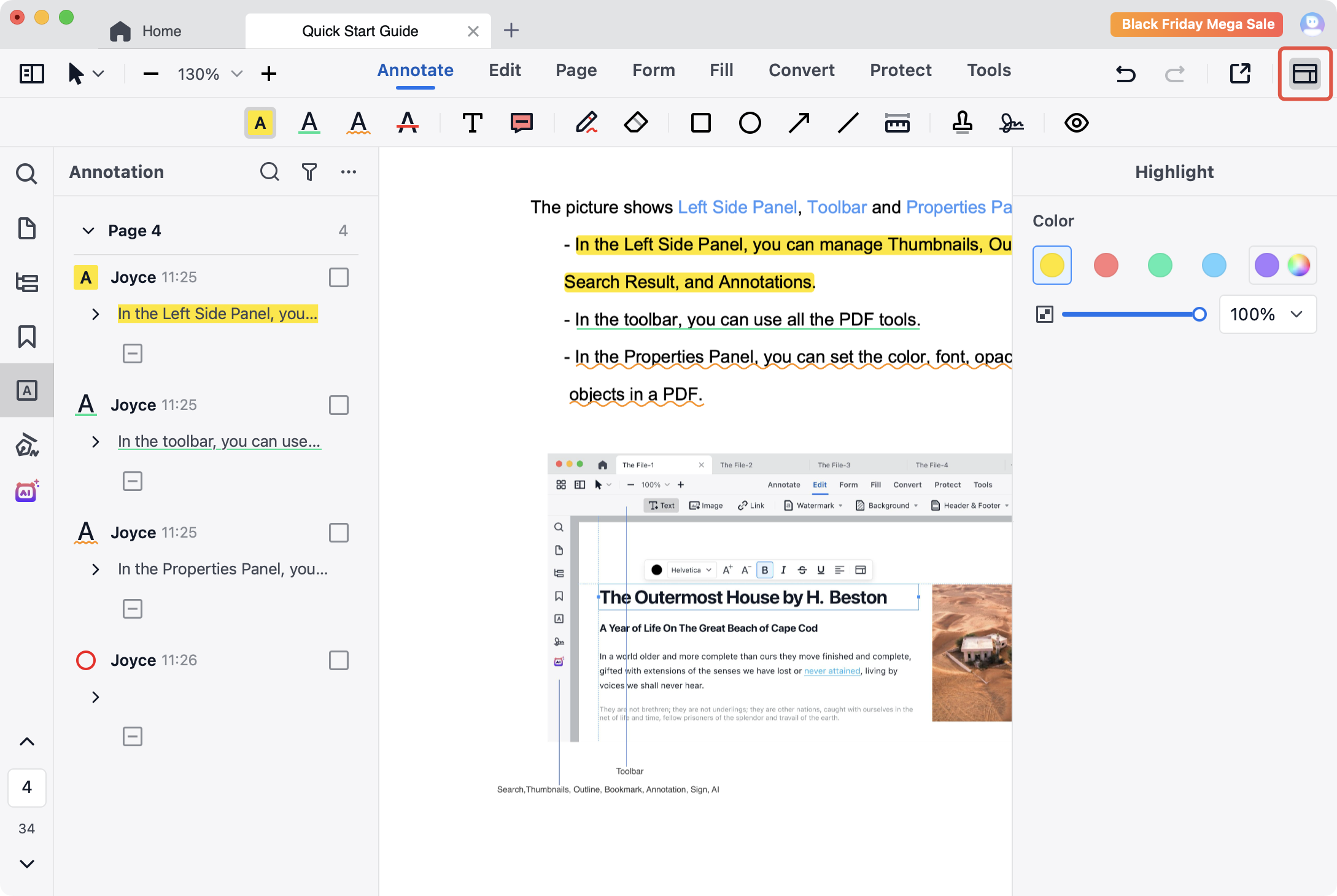
2. Click Annotate on the toolbar, here are rich annotation tools for you to choose, including Highlight, Underline, Squiggly, Strikethrough, Text, Anchored Note, Freehand, Eraser, Shapes, Measure, Stamp, and Signature. Below are introductions for each tool.

- Highlight
 : mark important paragraphs of text is a way of marking references to important content.
 - Underline
 : draw a line below text for emphasis.
 - Squiggly
 : draw a squiggly line under text.
 - Strikethrough
 : underline words to let others know they have been deleted.
 - Freehand
 : add freehand handwriting just like you do with a pen.
 - Text
 : click on any place in the document and start typing to add text on the PDF.
 - Anchored Note
 : Add notes anywhere in the PDF to leave your comments or thoughts.
 - Shapes: select between Rectangle
 , Circle
  , Arrow
  , and Line
 on the toolbar to create simple shapes.
 - Measure
 : measuring distances, perimeters, and areas of oejects.
 - Stamp
 : add standard, dynamic, or custom stamp (text or image stamp) for quick review.
 - Signature
 : add a new signature by keyboard, trackpad, or image
3. You can click  on the upper right corner to adjust the properties of each tool, just as you like.
Download PDF Reader Pro to use all these annotations tools now!


 Support Chat
  PDF Reader Pro