

Enrich PDFs with your thoughts and ideas by adding shapes to PDFs, which can help you get to the point fast. You can add rectangles, circles, arrows, and lines to your document as well as adjust the color of them. Follow the steps to insert shapes to your file:
1. Enter the reading page -> click Annotate on the toolbar;
2. Select between Rectangle , Circle
 , Arrow
 , and Line
 on the toolbar to create simple shapes.
3. You can click  on the upper right corner to adjust the properties of the shapes.
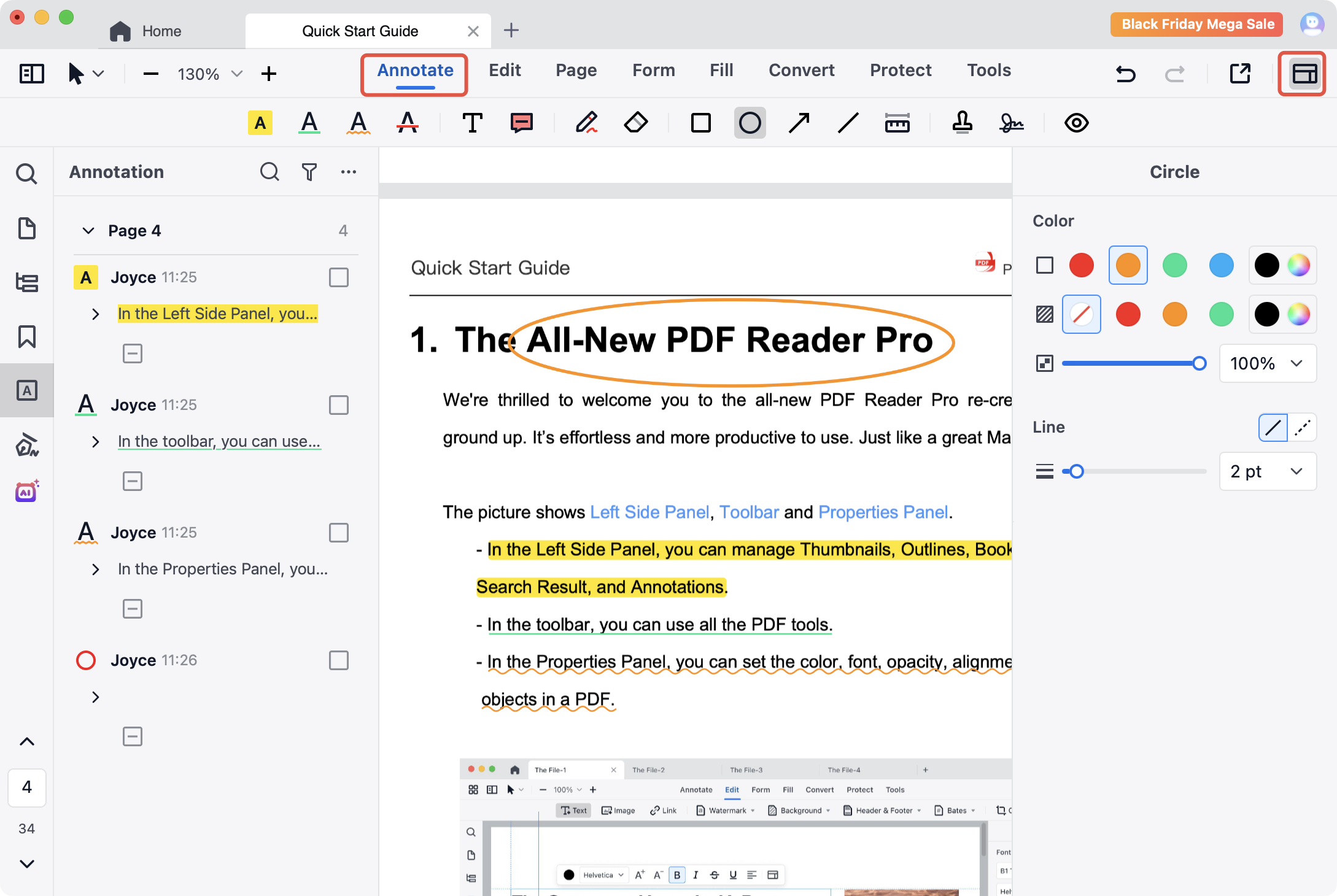
Besides the shapes, highlight, underline, squiggly, strikethrough and text box are also available to you to make your notes more informative. Download to get a 7-day free trial now!


 Support Chat
  PDF Reader Pro