

With PDF Reader Pro, you can create customized stamps by importing image files from your computer, or entering text you need. Follow the steps below to customize your stamps:
1. Open your file with PDF Reader Pro;
2. Click Annotate on the toolbar, and choose Stamp  on the sub toolbar.
3. Choose Custom on the right-side panel, then click the icon  at the right top.
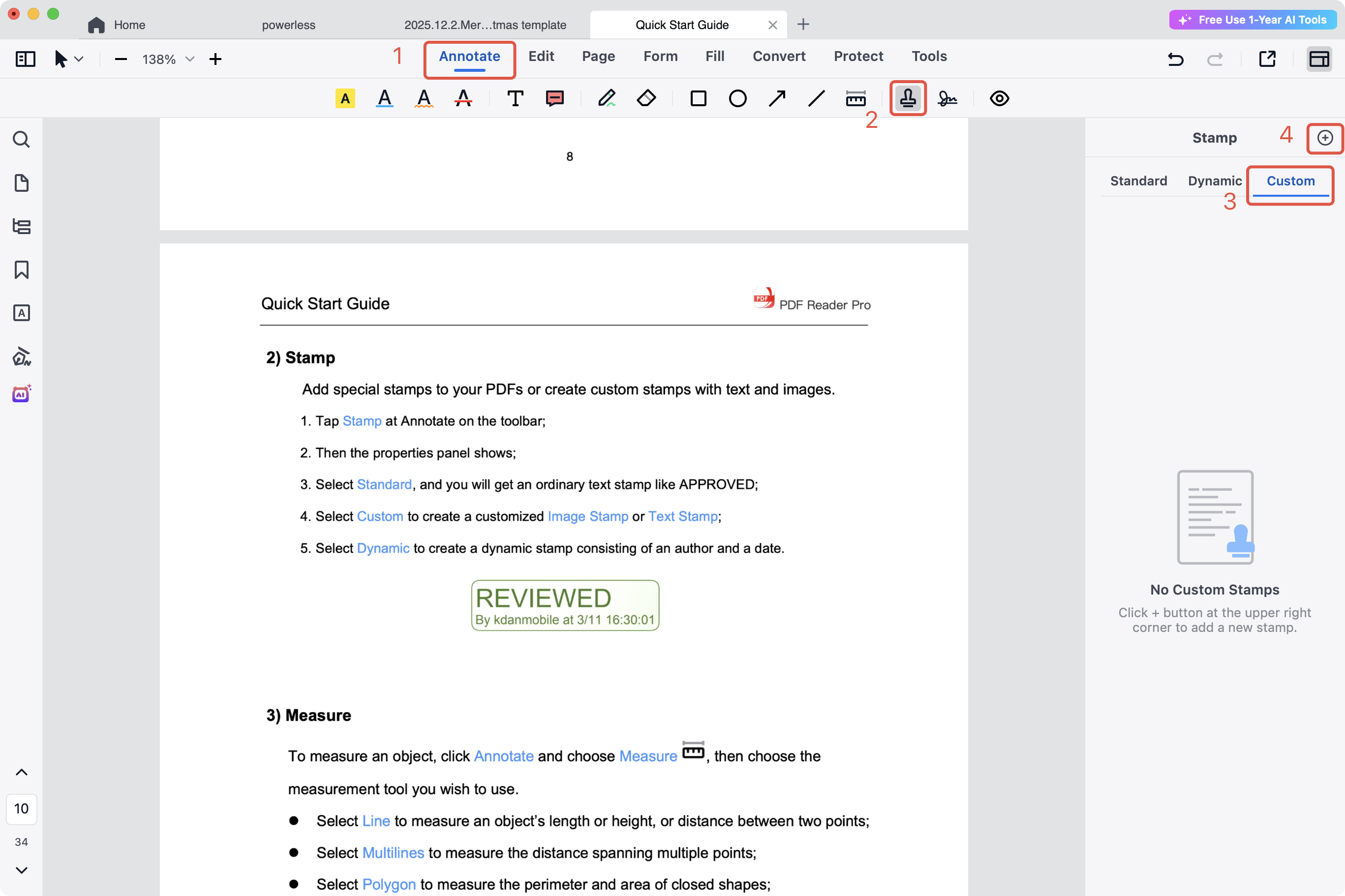
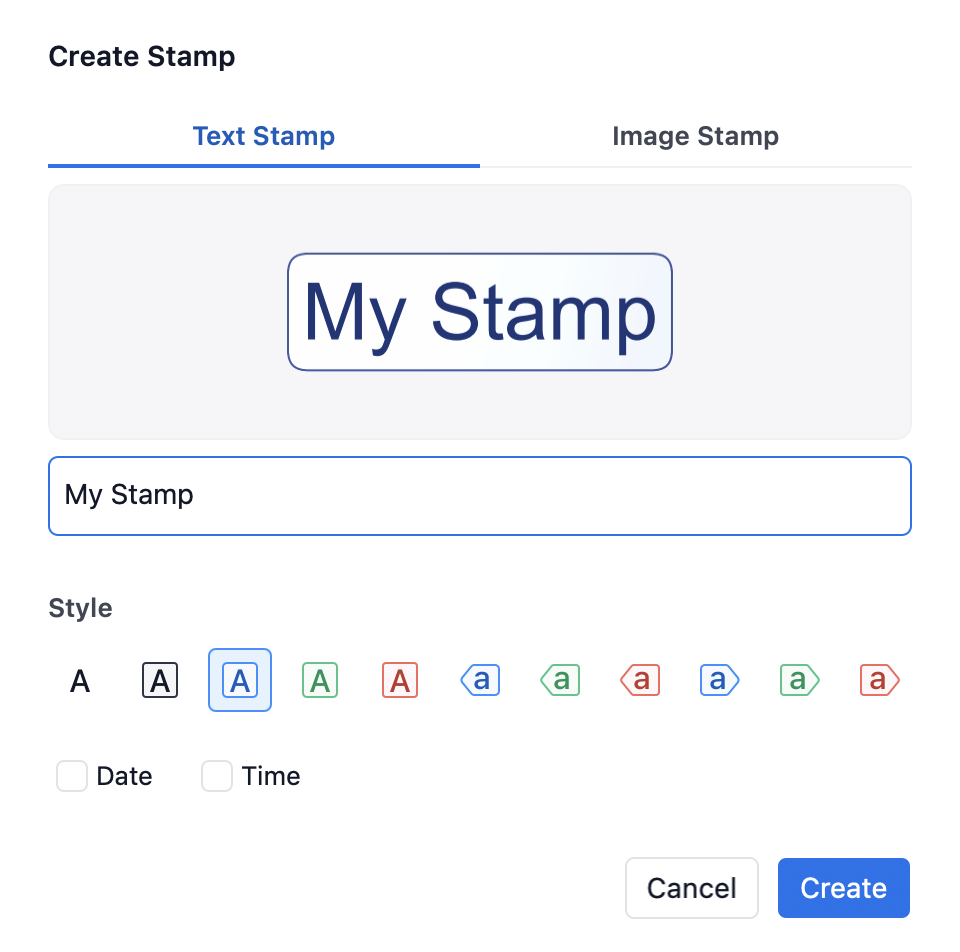
4. Now you can customize Text Stamp or Image Stamp:
- Text Stamp
1) You can enter text into the text box. The color and the shape of the stamp all depend on you;
2) You can also add date and time into your stamp;
3) Then click Create, you can create a stamp and save it to the stamp list. Click the stamp to add;
4) If you want to delete the stamp, click the trash bin icon on the stamp.

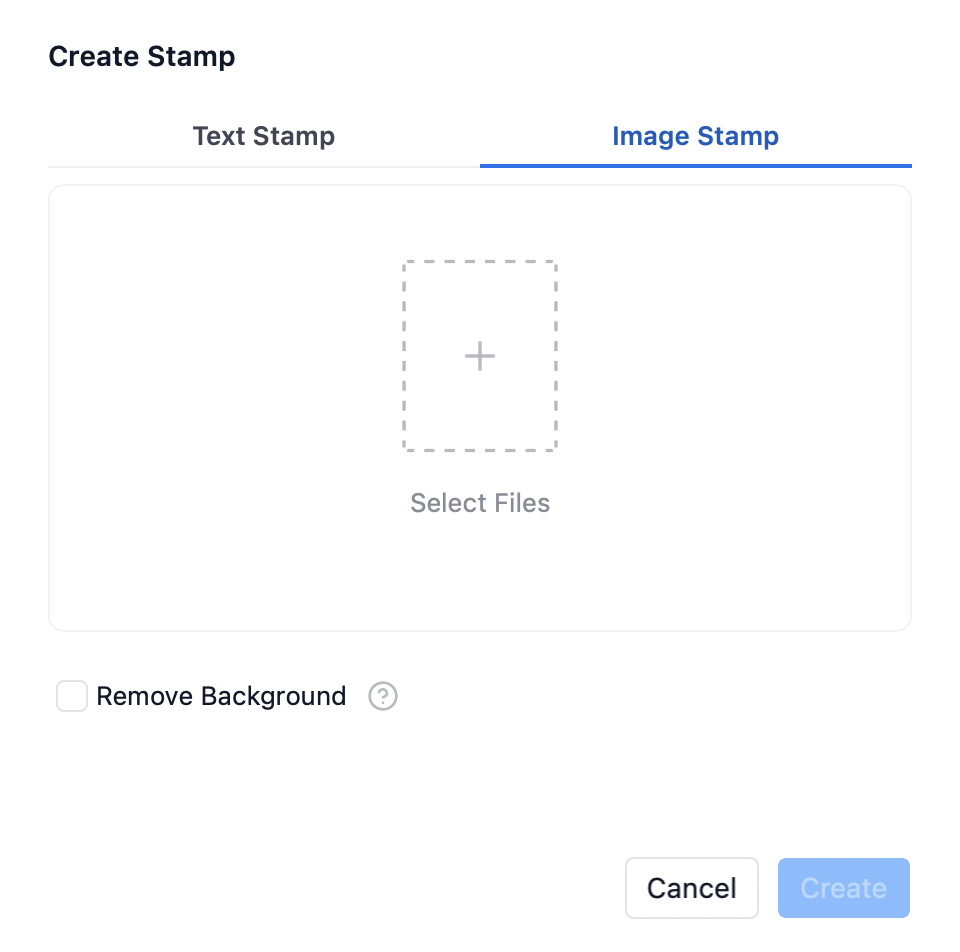
- Image Stamp
1) Click Select Files on the pop-up box;
2) Select the image you need, click Open;
3) You can also choose to remove background;
4) Click Create, then the image can be saved in the stamp list as a stamp; Click the stamp to add;
5) If you want to delete the stamp, click the trash bin icon on the stamp.
Download PDF Reader Pro to easily customize your own stamps now!


 Support Chat
  PDF Reader Pro