

When reading a large document, you may find it time-consuming to reach a specific page by continuously scrolling down the page. How to jump to a specific page quickly? There are several ways:
Using the Page Navigation Tools
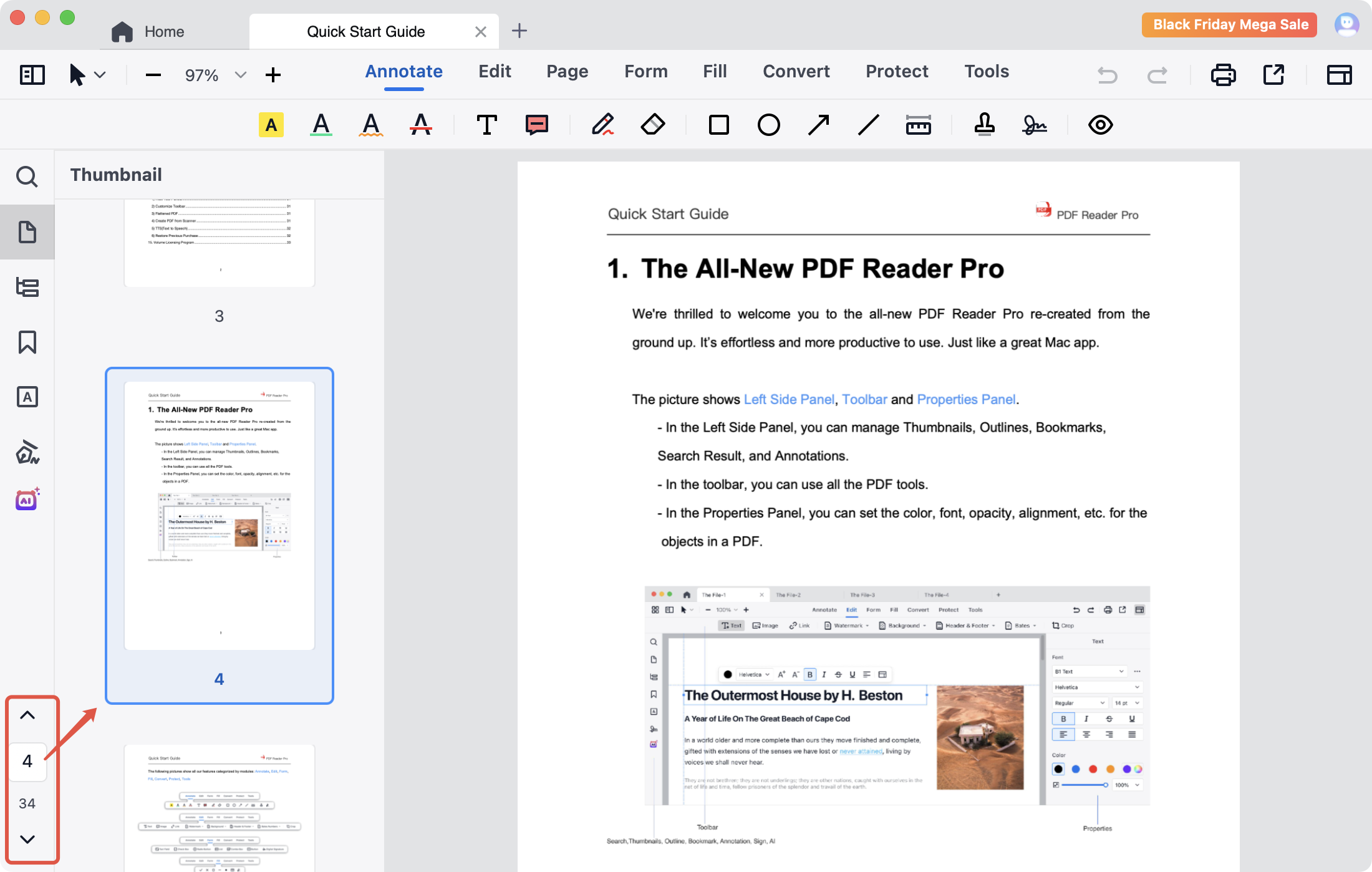
You can see the page navigation tools at the left bottom of the page, input a page number -> click Enter on your keyboard, then you will be navigated to the specific page.
Using Bookmark
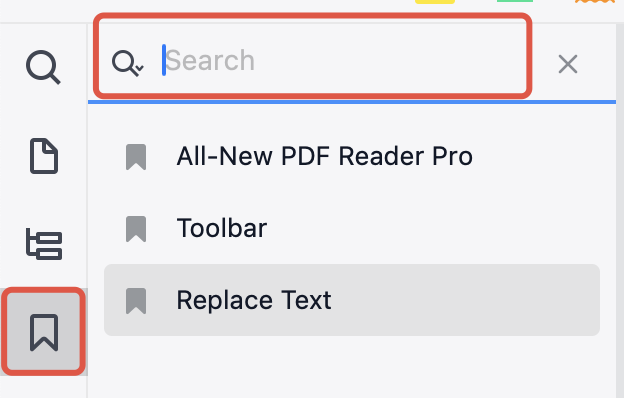
Once the bookmarks are created for the different pages, you can use the bookmarks to navigate PDF pages. Followings are the steps:
Click Bookmark  on the left side -> choose a topic and tap the bookmark to jump to the specific page.
Using Page Thumbnails
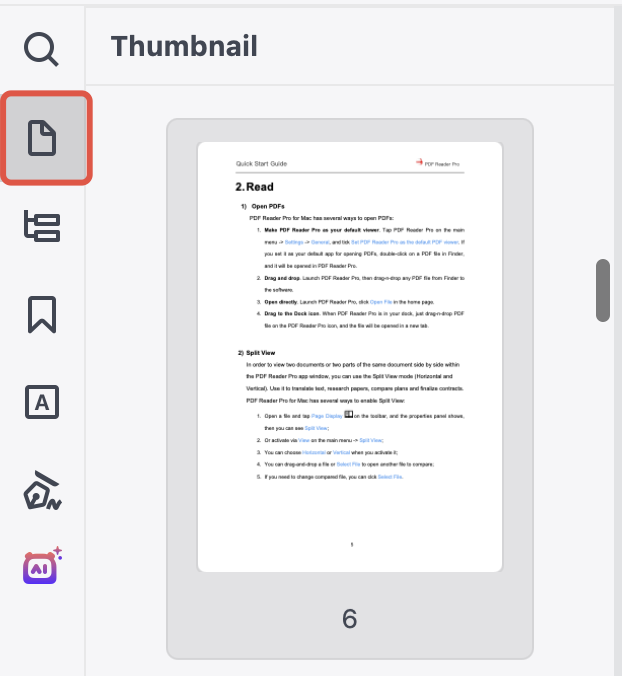
1. Click Thumbnail  on the left side -> hit a thumbnail to jump to the corresponding page.
2. Or click Page (or Page Edit) on the toolbar -> choose a thumbnail and double click to jump to the page.
Using Button
Putting a button on a page allows you to jump to a specific page by clicking the button, followings are the steps:
1. Click Form on the toolbar -> tap Button and put the button where you want;
2. Move your mouse and click any area to add another button or hit button on the toolbar again to stop add action;
3. Click the button you add on the page and adjust its properties through the right Properties Panel, click Select Action and choose Jump to page -> find Add Page and enter a page number you want to jump to in the box;
4. Exit form editing mode, click the button and jump to the specific page.

Download PDF Reader Pro to get a 7-day free trial now!


 Support Chat
  PDF Reader Pro